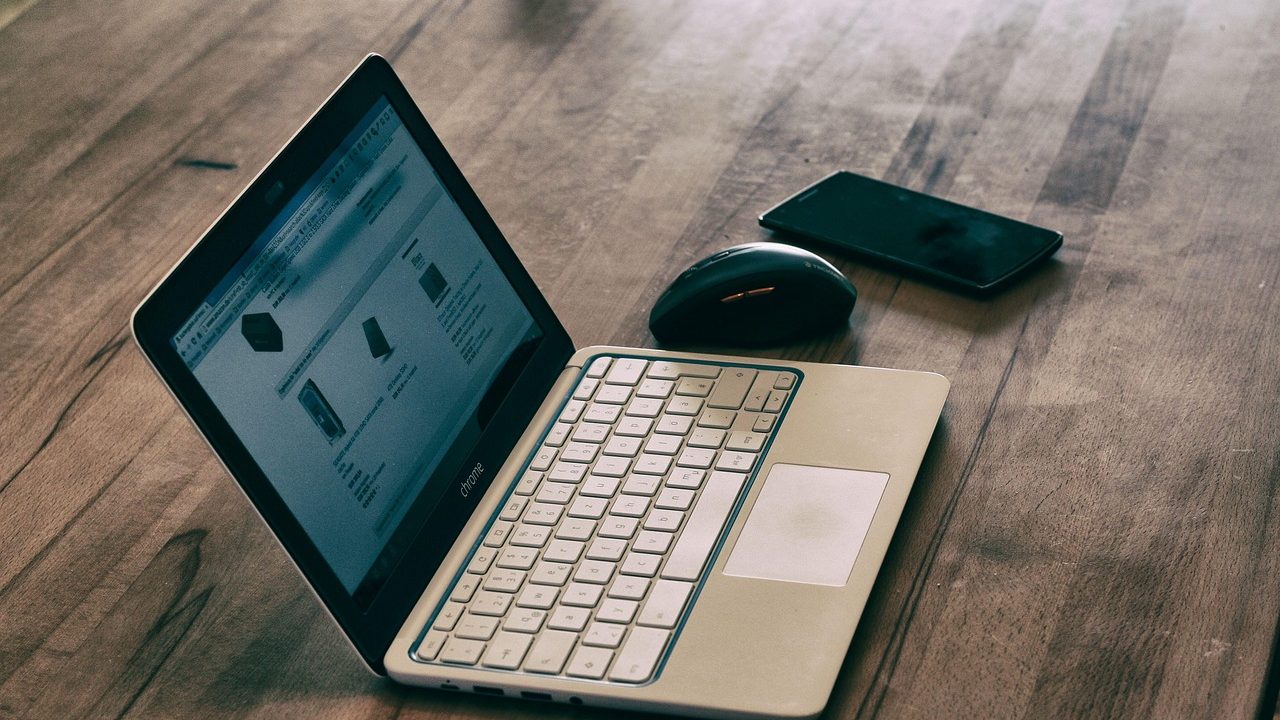
Relying on big-tech cloud storage services often comes with hidden costs: recurring subscription fees, privacy compromises, and an absolute dependence on uninterrupted internet connectivity. For remote knowledge workers, writers, and developers, managing documents across multiple machines shouldn’t require surrendering your data to an external server. Establishing a dependable local folder sync productivity workflow allows you to keep your desktop, laptop, and mobile devices in perfect harmony using direct peer-to-peer connections over your own network.
This guide walks through designing a standardized directory architecture, selecting robust open-source synchronization software, handling conflict resolution, and automating backups without proprietary cloud telemetry. By keeping your files local, you reclaim control over your digital workspace, enhance your device security, and build a resilient system that works just as well offline as it does in a high-speed fiber office.
The Core Philosophy of Cloud-Free File Management
Commercial cloud storage providers market convenience, but that convenience frequently breeds architectural laziness. When every file lives in a proprietary web-managed bucket, you lose track of where your data actually resides. A local-first workflow treats your own hardware as the primary source of truth. Your devices talk directly to each other, passing encrypted blocks of data across your local Wi-Fi network or through secure peer-to-peer tunnels when you are away from home.
The advantages of this approach extend beyond privacy. Local transfers happen at the maximum speed of your local network hardware rather than being throttled by an upstream ISP upload limit or a cloud provider’s API rate limits. Furthermore, you eliminate subscription creep. There are no monthly fees to maintain access to your own documents, and your productivity pipeline remains entirely functional during internet outages.
Evaluating your actual data footprint is the first step toward reclaiming independence. Most knowledge workers do not generate terabytes of unique documents daily; rather, they accumulate thousands of lightweight text files, markdown notes, PDFs, and occasional media assets. By separating these assets from proprietary ecosystems, you ensure that your personal archives remain accessible across operating system updates, company pivots, and software deprecations.
When you transition away from centralized servers, you also eliminate the risk of arbitrary account suspensions, sudden terms-of-service shifts, or forced migration to unwanted UI updates. Your files are yours, resting on physical drives you own, governed entirely by permissions you configure. This philosophy forms the bedrock of sustainable, resilient digital hygiene for independent professionals who value longevity over fleeting convenience.
Adopting this mindset requires shifting away from the passive comfort of clicking a single button and assuming a massive corporation is guarding your intellectual output. Instead, you become the administrator of your own personal data center. While this sounds daunting to anyone accustomed to managed services, modern open-source synchronization tools abstract away the deep networking complexity while leaving you in total command of the underlying storage layers.
Designing a Standardized Directory Structure
The foundation of any successful multi-device synchronization workflow is a rigorous, predictable directory architecture. When files are scattered across random folders on different machines, automated sync tools will struggle to maintain order, resulting in duplicate conflicts and missing notes.
Start by creating a single top-level root directory on your primary machine, simply named Sync or Work. Inside this root folder, establish a flat, logical subfolder taxonomy that applies universally across all your devices:
- 01_Inbox: A temporary landing zone for incoming files, downloads, and quick captures from mobile devices.
- 02_Active: Current projects, active writing drafts, client deliverables, and immediate tasks.
- 03_Reference: Evergreen resources, manuals, templates, and archives that require read-only or infrequent access.
- 04_Journal: Plain-text notes, meeting logs, and daily journals designed for cross-platform markdown editors.
Maintaining identical root-level paths on your desktop operating system (macOS, Windows, or Linux) and your mobile operating system (iOS or Android) ensures that internal file links, relative references, and script paths do not break when you switch devices.
To ensure long-term stability, adopt strict naming conventions for your files. Avoid spaces, special characters, and overly long strings. Instead, use hyphens or underscores to separate terms, and prepend dates in ISO format (YYYY-MM-DD) to project files and logs. This disciplined approach makes programmatic searching, terminal navigation, and automated sorting effortless.
Furthermore, consider how different operating systems handle path length limitations and case sensitivity. Windows traditionally enforces stricter path length limits unless long path support is enabled in the registry, whereas macOS and Linux handle nested directories differently. Keeping your directory structure relatively shallow—ideally no more than three or four levels deep from your sync root—prevents synchronization errors and keeps manual navigation fast and painless.
Another vital consideration when structuring your local directories is the handling of application-specific metadata. Many software tools inject hidden configuration folders or state files into project directories. Anticipate these behaviors by explicitly configuring your sync engine to ignore them, ensuring that your core document repository remains pristine and free from cross-platform pollution.
Choosing Your Peer-to-Peer Synchronization Engine
With a clean directory structure in place, you need an engine to synchronize these folders across devices in real time. Because we are bypassing proprietary cloud providers, the industry standard for this task is open-source, continuous file synchronization software.
Tools like Syncthing operate on a decentralized peer-to-peer model. There is no central server holding your data; instead, each device runs a lightweight client that discovers other configured devices on the network. When you modify a document on your laptop, the changes are hashed, split into cryptographic blocks, and pushed directly to your phone or backup desktop.
When configuring your sync software, keep these operational rules in mind:
- Establish a Hub-and-Spoke or Mesh Topology: Decide which device acts as your primary hub (usually your main desktop or a home server) and which devices are the spokes (laptops and tablets).
- Configure Explicit Ignore Lists: Prevent operating system metadata files—such as
.DS_Storeon macOS orThumbs.dbon Windows—from syncing across devices to avoid unnecessary network traffic and sync churn. - Enable Versioning: Configure file versioning within your sync software so that if a file is accidentally overwritten or deleted, a historical copy is safely preserved locally.
Security is built into these decentralized protocols by default. All communications between your devices are authenticated using TLS (Transport Layer Security) and encrypted with robust modern ciphers, ensuring that even if your local network is compromised, your files remain protected in transit.
It is also worth evaluating alternative transport layers if you operate complex network environments. While local Wi-Fi discovery works out of the box via local broadcast packets, configuring static device addresses or utilizing encrypted relay servers ensures your machines can handshake reliably even behind restrictive corporate firewalls or carrier-grade NAT configurations.
Evaluating resource overhead is another critical parameter when selecting your synchronization engine. Unlike resource-heavy desktop applications that continuously poll web APIs, a well-configured peer-to-peer daemon consumes minimal CPU cycles and RAM, operating quietly in your system tray or background service manager without impacting battery life or system responsiveness.
Optimizing for Mobile Devices and Plain-Text Workflows
Syncing folders between two desktop computers is straightforward, but mobile operating systems introduce sandbox limitations that require thoughtful adaptation. iOS and Android restrict background processes, meaning continuous file monitoring behaves differently than it does on desktop operating systems.
To maintain high productivity on mobile, lean into plain-text and markdown formats. Text files are lightweight, index instantly, consume negligible storage, and allow for effortless syncing even over restrictive mobile data connections. Paired with a robust mobile text editor that supports local folder access, you can draft articles, update task lists, and review notes on your phone without worrying about proprietary database lock-in.
If you need to sync heavier assets like PDFs, images, or code repositories, configure your mobile sync client to download files on demand rather than keeping a full offline cache, preserving mobile storage space while keeping your complete workspace accessible when needed. Establishing battery-optimization exceptions for your mobile sync application ensures that the operating system does not kill the background sync daemon during extended periods of inactivity.
On mobile platforms, file provider extensions and document picker integrations can further bridge the gap between sandboxed apps and your synchronized local directory. By selecting applications that natively read from directory folders rather than importing files into proprietary app containers, you maintain a single unified source of truth across every device you own.
Additionally, establishing a disciplined habit of initiating manual sync checks before leaving your desk ensures that mobile devices capture the latest iterations of your active documents. While automated background sync is remarkably reliable, combining it with conscious device handshakes eliminates any lingering ambiguity regarding document states.
Handling Conflicts and Edge Cases Gracefully
Even with the best synchronization architecture, conflicts will occasionally occur. A conflict happens when the exact same file is modified on two different devices while they are offline, leaving your sync engine unsure of which version is authoritative.
Modern peer-to-peer sync tools handle this by creating a “conflict file” alongside the original, preserving both versions so you do not lose work. To minimize the friction of conflict resolution:
- Communicate Intent: Avoid editing the same long-form document simultaneously across two devices without an active network connection.
- Leverage Git for Code and Heavy Writing: For complex projects or codebases, pair your folder sync workflow with Git version control. Git provides granular diff viewing and merge tools that outclass automated file-system conflict resolution.
- Regularly Audit Sync Status: Make it a weekly habit to open your sync dashboard to verify that all devices are connecting cleanly and that no unresolved conflict files are lingering in your active directories.
Understanding how file timestamps and cryptographic hashes interact helps you diagnose anomalies quickly. If a file repeatedly triggers sync loops, inspect your ignore patterns and ensure that background application autosaves are not constantly modifying timestamps while files are in transit.
Furthermore, establish a protocol for clearing out stale conflict files once resolved. Leaving redundant copies cluttering your active directories degrades search efficiency and increases the likelihood of editing an outdated document in the future.
Establishing a Local Backup Safety Net
Synchronization is not backup. If a file is accidentally deleted on your laptop and the sync engine successfully propagates that deletion to your phone and backup server, the file is gone across your entire active ecosystem. A true productivity workflow accounts for this vulnerability by incorporating isolated, offline backups.
Complement your peer-to-peer sync workflow with an automated local backup routine:
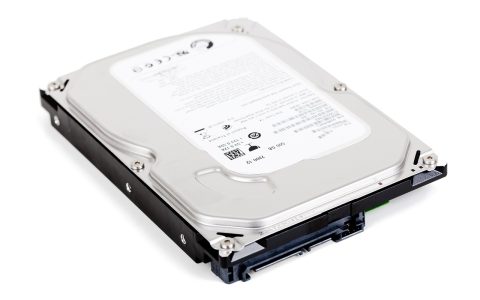
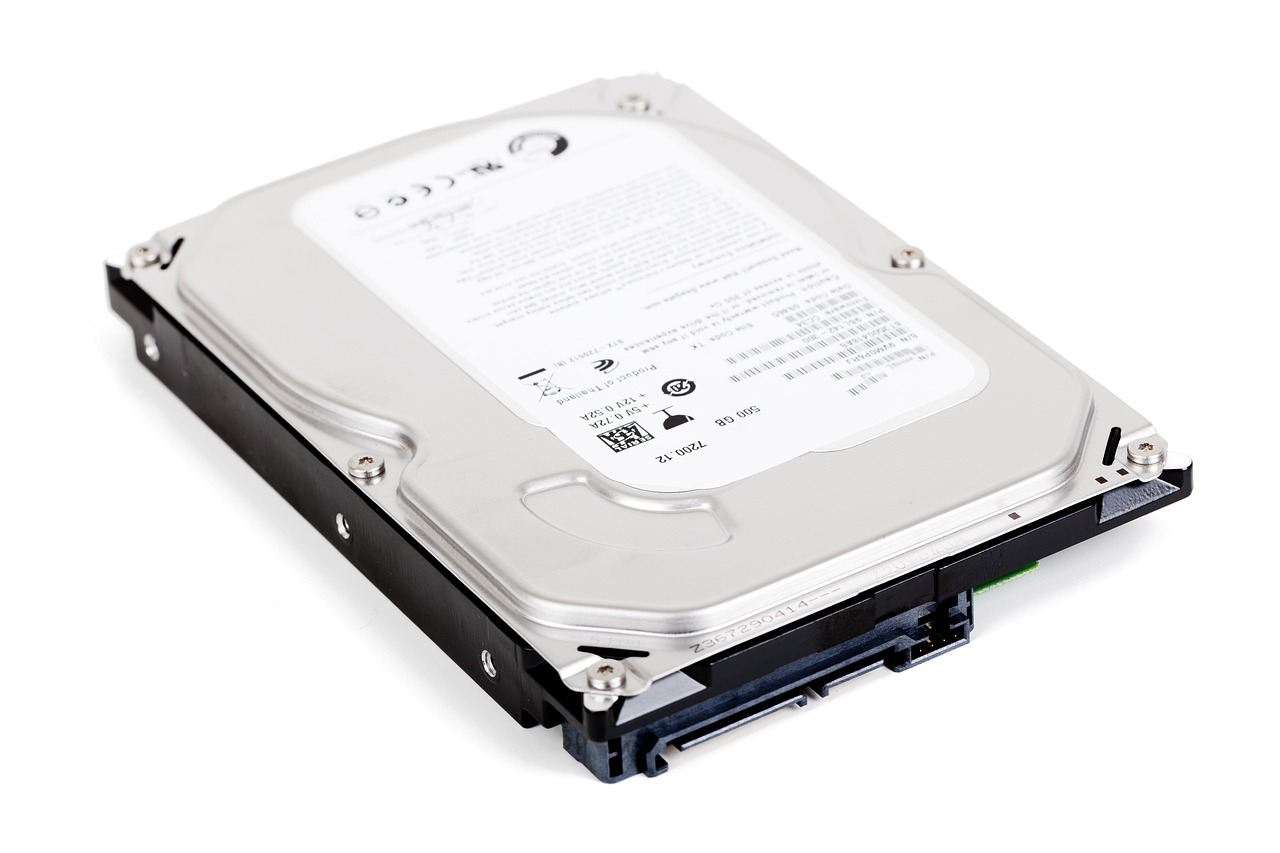
- Cold Storage: Plug in an external solid-state drive once a week and run an incremental backup utility (such as Time Machine on macOS, File History on Windows, or BorgBackup on Linux) to capture a snapshot of your entire sync root.
- Immutable Archives: Periodically export compressed, password-encrypted archives of your reference and archive directories to a separate physical drive stored securely away from your primary workspace.
By decoupling your active cross-device file access from proprietary cloud infrastructure, you gain complete sovereignty over your work. The initial setup requires patience and deliberate planning, but the payoff is a fast, private, and permanent productivity workflow that serves you on your own terms.
Testing your restore procedure is just as important as running the backup itself. Periodically restore a small subset of files from your cold storage drive to a temporary folder to verify that your snapshots are intact, readable, and free of corruption.
Maintaining Your Decentralized Workspace Over the Long Term
Once your local sync infrastructure is humming along, maintaining it requires minimal ongoing friction. Treat your directory structure like physical workspace real estate: periodically prune obsolete project folders, archive completed client files into cold storage, and verify that your automated backup drives are functioning correctly. By committing to local-first digital hygiene, you ensure your professional archive remains robust, lightning-fast, and entirely under your control for years to come.
As your hardware evolves over time, migrating your sync workflow to a new machine is remarkably simple. Because your entire architecture is defined by flat directories and portable configuration files, setting up a new workstation merely involves installing your sync client, pointing it to your standard directory paths, and pairing it with your existing device nodes. This portability ensures your productivity engine outlasts any single piece of hardware.