Working outside a traditional office environment offers unprecedented flexibility, but it introduces distinct security vulnerabilities that home or corporate setups rarely present. When you open a laptop in a bustling coffee shop, an airport gate area, or a hotel lobby, your confidential data is exposed on two distinct fronts: visual eavesdropping from nearby passersby and digital interception across unsecured local networks. Executing an effective remote work public wifi privacy screen setup US strategy requires combining physical optical barriers, dedicated hardware network controls, and disciplined operational habits.
Many mobile professionals operate under the dangerous assumption that relying solely on software tools—such as corporate Virtual Private Networks (VPNs) or built-in operating system firewall settings—is sufficient to keep their remote work public wifi privacy screen setup US operations safe. However, digital encryption cannot prevent high-value customer details, proprietary source code, internal financial spreadsheets, or email communications from being observed by someone standing in line behind you or captured by a high-definition security camera mounted directly above your table. True mobile security requires a multi-layered operational approach that addresses physical sight lines, local radio frequencies, power port security, and hardware connections simultaneously.
This comprehensive guide breaks down every procedural step and equipment requirement needed to assemble an isolated, hardened mobile workstation. You will learn how to select optical privacy filters tailored to your screen hardware, deploy portable travel routers that isolate your endpoints from open venue networks, choose safe power accessories that eliminate port-level exploitation, and arrange your seating to reduce sight-line exposure in high-density public spaces across the US.
The Dual Threat Profile of Mobile Workspaces
To defend your data effectively while traveling or working remotely across the US, you must understand precisely how physical and digital exposure occurs in public settings. Securing a mobile workstation requires mitigating two primary threat vectors: physical visual capture and network-level interception.
Visual Eavesdropping (“Shoulder Surfing”)
Visual eavesdropping involves unauthorized individuals observing your screen or keyboard to capture sensitive information. This risk is particularly high in dense, transient public environments where people naturally pause, stand, or linger near seated workers:
- Passive bystanders: Casual observers sitting at adjacent tables, standing in line for food or beverages, or walking down airplane and train aisles who glance at your display.
- Targeted capture: Malicious actors intentionally filming screens using smartphone telephoto lenses, high-resolution DSLR cameras, or portable recording gear in transport hubs, trade shows, and corporate-adjacent coffee shops.
- Facility surveillance: Overhead closed-circuit television (CCTV) cameras in hotels, coffee shop chains, and co-working facilities positioned at wide angles that directly record full screen displays and physical keyboard inputs.
Network Interception and Man-in-the-Middle Attacks
Open Wi-Fi networks in high-traffic US venues—such as major international airports, municipal transit centers, and regional coffee chains—frequently lack mutual authentication and peer isolation. Operating directly on these networks exposes your devices to severe digital threats:
- Rogue Hotspots (“Evil Twin”): Unencrypted or maliciously managed access points broadcast with network names identical or subtly similar to the legitimate venue Wi-Fi, designed specifically to capture all unencrypted transit traffic and force credential re-authentication.
- Local Packet Sniffing: Other connected endpoints on an unmanaged local network capturing unencrypted local subnet traffic, NetBIOS broadcasts, unencrypted local web requests, and peer discovery beacons.
- DNS Hijacking and Poisoning: Compromised public routers or malicious access points redirecting your web browser to counterfeit authentication portals or phishing landing pages to harvest enterprise login credentials.
Evaluating Laptop Privacy Filters: Optical Science and Form Factors
The primary baseline defense against visual eavesdropping in any remote work public wifi privacy screen setup US kit is a physical optical privacy screen filter. These specialized filters utilize micro-louver optical technology—microscopic vertical slats spaced fractions of a millimeter apart—that permit light to pass directly straight ahead while absorbing or reflecting light angled beyond a specific viewing cone.
| Filter Attachment Type | Primary Advantage | Main Limitation | Best Use Case |
|---|---|---|---|
| Magnetic Attachment | Instant removal for collaborative screen sharing; leaves zero adhesive residue. | Requires a laptop display with magnetic bezel support or metallic strip adapters. | Hybrid workers frequently switching between solo work and shared in-person screen review. |
| Slide-in Bezel Tabs | Zero direct screen adhesive; smooth manual sliding installation and removal. | Adds slight profile thickness; only functions on displays with raised plastic or metal bezels. | Standard enterprise laptops with distinct, traditional frame edges. |
| Direct Acrylic Adhesive | Ultra-thin profile; allows modern laptops to close fully flat without screen gap; semi-permanent. | Can leave slight adhesive residue upon removal; difficult to take off repeatedly. | Full-time remote nomads who perform all daily operations in high-density public environments. |
Understanding Optical Viewing Angles
Standard commercial privacy screens offer a 60-degree total viewing angle (30 degrees to the left and 30 degrees to the right of the dead-center perpendicular line of sight). When viewed from directly in front, the screen remains crisp and clear, though display luminance drops by approximately 15% to 25% due to light absorption through the micro-louvers. Anyone attempting to view the screen from an angle greater than 30 degrees off-center sees a completely dark, opaque surface.
For ultra-high-security operations handling proprietary medical, legal, or defense data, specialized 40-degree filters exist (20 degrees left and right). However, these narrow filters require the user to maintain precise, dead-center head positioning directly facing the display to avoid chromatic aberration or edge dimming during long tasks.
Selecting the Right Screen Material and Surface Finish
When purchasing a privacy filter for your specific laptop model, consider these key physical surface parameters to maintain usability in varied lighting conditions:
- Reversible Matte vs. Glossy Finishes: Many premium filters feature a double-sided construction. The anti-glare matte side diffuses harsh reflections under bright overhead fluorescent lighting or direct sunlight near cafe windows. The glossy side maintains crisp color accuracy, contrast, and visual clarity for detailed graphic design or spreadsheet work.
- Touchscreen Compatibility: Standard thick privacy filters can degrade capacitive touch responsiveness. If you utilize a 2-in-1 convertible laptop, surface tablet, or touchscreen workstation, select an ultra-thin, touch-rated filter to retain gesture sensitivity and stylus precision.
- Blue Light Filtering: Quality multi-layer optical filters often integrate specialized low-blue-light coatings that block up to 30% to 45% of high-energy blue light emissions (380nm–460nm range), minimizing eye fatigue during extended long-haul flights or late-night remote work sessions.

Hardware-Level WiFi Defense: Portable Travel Routers
While software VPN applications running directly on a laptop provide basic end-to-end transport layer encryption, relying solely on local endpoint software leaves background operating system services, secondary hardware (such as tablets, smartphones, e-readers, or smartwatches), and unencrypted local discovery protocols exposed to the host public network.
Integrating a dedicated hardware travel router into your remote work public wifi privacy screen setup US toolkit creates an air-gapped security perimeter between the untrusted venue Wi-Fi and every single personal device in your travel kit.
How a Travel Router Secures Mobile Public Workspaces
A portable travel router functions as an intermediate physical firewall and hardware-level VPN client. The technical deployment workflow operates through a structured encapsulation architecture:
- The travel router connects wirelessly (using Wireless Internet Service Provider, or WISP, mode) or via a physical Ethernet cable to the public venue’s infrastructure.
- The router initiates an internal, hardware-accelerated VPN client connection (utilizing protocols like WireGuard or OpenVPN), establishing a secure, fully encrypted tunnel directly back to your home router, private VPS, or enterprise corporate gateway.
- Your laptop, smartphone, tablet, and smart accessories connect exclusively to a private, WPA3-encrypted local Wi-Fi network broadcast locally by your travel router.
- To the public network, only a single, heavily hardened device (the router) is visible. All device-to-device local communications remain completely invisible and isolated behind the travel router’s internal Network Address Translation (NAT) firewall and active stateful packet inspection filter.
Key Technical Specifications for Travel Routers
When evaluating portable travel routers for mobile enterprise work across the US, ensure the hardware supports these critical specifications:
- Hardware-Accelerated WireGuard Support: WireGuard provides significantly higher data throughput, lower CPU overhead, and faster connection recovery after brief dropouts compared to traditional OpenVPN. Select a router capable of maintaining at least 100 Mbps to 150 Mbps under active WireGuard encryption to handle HD video conferencing smoothly.
- Captive Portal MAC Spoofing and Clone Handling: Many commercial Wi-Fi networks in airports and hotels require users to accept terms of service or enter credentials on a web landing page. Quality travel routers include native captive portal passthrough modes, enabling you to authenticate the network once using your smartphone, after which all connected devices immediately gain secure internet access without individual portal logins.
- Dual-Band Wi-Fi 6 Radios (2.4 GHz & 5 GHz): Separate internal radio chips dedicated to receiving the public source signal while simultaneously broadcasting your private encrypted network prevent severe bandwidth degradation caused by single-radio backhaul operations.
- USB-C Power Input: Routers powered via standard USB-C power delivery eliminate the need to pack proprietary power bricks, allowing you to run the device using standard multi-port chargers or portable high-capacity power banks during travel delays.
Power, Data Isolation, and Physical Accessories
Securing a mobile workspace requires protecting physical data interfaces as thoroughly as wireless spectrums. Public charging ports and hardware peripherals present significant physical intrusion vectors if left unmonitored.
Preventing USB “Juice Jacking” and Port Exploitation
Publicly accessible USB charging stations located in airport terminals, conference centers, train cars, and hotel lobbies can be modified by attackers to execute data extraction commands or install unauthorized firmware on connected devices via high-speed data pins. Never plug your primary laptop or smartphone directly into an untrusted public USB-A or USB-C charging receptacle.
- Dedicated USB Data Blockers: Also known as USB data isolators, these compact inline physical adapters completely remove or bypass the physical data pins (D+ and D- data lines) inside the connector while allowing electrical power conductors to pass through cleanly. This guarantees that no digital handshake or protocol negotiation can occur during charging.
- Gallium Nitride (GaN) Power Delivery Chargers: The most secure power strategy is to bypass public USB charging ports entirely. Carry a multi-port 65W to 100W+ GaN wall charger and plug directly into high-voltage AC wall sockets. GaN chargers deliver maximum wattage in ultra-compact form factors while keeping your device connected strictly to AC power infrastructure.
Physical Webcam and Microphone Hardening
Inadvertent camera activation during remote work sessions can unintentionally reveal proprietary physical documents, internal identity badges, whiteboards, or sensitive faces of bystanders in public venues.
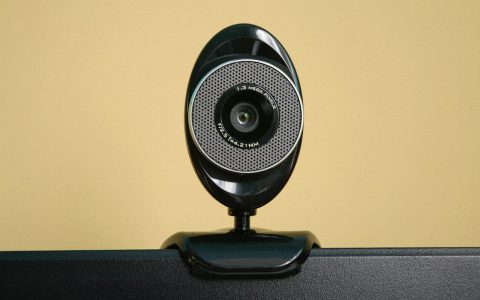
- Mechanical Camera Cover Sliders: Attach an ultra-thin metal or durable plastic mechanical slide cover over your laptop’s built-in webcam. Operating system privacy switches and software indicators can be compromised by advanced malware; physical optical obstruction provides absolute visual guarantee.
- Dedicated Mute Switches on Headsets: When conducting essential calls in public spaces, use a headset featuring a physical inline or boom-arm microphone disconnect switch. Physical cutoffs sever power to the microphone element directly, eliminating reliance on software mute controls within video conference applications.
Building the Complete Travel Kit: Hardware Checklist
A comprehensive remote work public wifi privacy screen setup US kit combines essential physical security accessories into a lightweight, highly organized tech pouch. Ensure your daily mobile kit includes these tested gear components:
| Hardware Category | Recommended Specification | Primary Security Function |
|---|---|---|
| Optical Filter | 60-degree micro-louver matte privacy screen tailored to exact screen dimensions and aspect ratio. | Blocks visual eavesdropping from lateral angles exceeding 30 degrees off-center. |
| Travel Router | Dual-band Wi-Fi 6 router running open-source firewall software with native WireGuard client support. | Encrypts all local endpoint traffic and isolates devices behind an active NAT firewall. |
| Wall Charger | 65W to 100W+ GaN USB-C multi-port wall charger supporting Power Delivery (PD) protocols. | Bypasses untrusted public USB ports by delivering secure AC power to all devices. |
| Data Isolation | Two or more inline USB-A and USB-C hardware data blockers (“USB condoms”). | Physically severs data pin connections during emergency charging at public ports. |
| Physical Camera Cover | Ultra-thin (0.6mm or thinner) mechanical slide shutter for integrated laptop webcams. | Ensures absolute physical camera blackout regardless of operating system state. |
| Encrypted Storage | Hardware-encrypted USB drive with physical alphanumeric PIN keypad or FIPS 140-2 certification. | Stores confidential files locally without relying on open public Wi-Fi for cloud syncing. |
| Physical Lock | Steel combination cable lock compatible with standard laptop security slots or wedge slots. | Secures physical hardware chassis to fixed immovable furniture during brief breaks. |
Operational Security and Workplace Ergonomics in Transit
Hardware and network tools are only as effective as the physical spatial awareness of the professional operating them. Tactical seating selection and ergonomic posture management are fundamental components of a successful public setup.
Site Selection and Spatial Seating Strategies
When entering a coffee shop, airport lounge, co-working facility, or hotel lobby across the US, evaluate your environment using tactical line-of-sight analysis before opening your laptop:
- Back-to-Wall Positioning: Secure a table with a solid architectural wall directly behind your chair. This completely removes the vulnerability of foot-traffic observers reading over your shoulder or recording display contents from behind.
- Corner Anchoring: Corner seating configurations restrict open approach vectors to a single forward quadrant, which is naturally blocked by your physical torso and screen angle.
- Avoid Overhead Surveillance Cameras: Look up before settling into your seat. Do not sit directly beneath wide-angle dome security cameras, high-definition facility monitors, or wide decorative mirrors that reflect screen content to other parts of the room.
- Window and Sidewalk Exposure Awareness: Exercise caution when sitting directly in front of street-level glass windows. Passersby on sidewalks, or individuals seated in parked vehicles across the street, can use mobile telephoto cameras or binoculars to record high-resolution display content through glass.
Workspace Ergonomics and Portable Layout
Maintaining ergonomic posture is critical for comfort and ensures your eyes hit the privacy filter at the ideal angle for maximum visual contrast:
- Adjustable Laptop Riser: Use a lightweight, collapsible laptop stand to elevate the top third of your screen to eye level. Raising the display prevents neck flexion and ensures your sight line strikes the optical filter completely perpendicular to its face, maximizing display brightness for you while preserving full blackout angles for observers.
- External Mouse and Compact Keyboard: Elevating your laptop on a stand requires a dedicated external keyboard and mouse. Choose compact wireless or wired peripherals and keep them close to your body to maintain a compact, controlled physical footprint.
Step-by-Step Deployment Routine for Public Spaces
Adopting a standardized, repeatable deployment workflow eliminates oversight and ensures that physical and network defenses are fully active before any sensitive data appears on your screen. Follow this five-step operational checklist every time you set up your workstation in a public US location:
Step 1: Environmental Assessment and Seating Selection
Scan the venue for high-wall or corner seating away from heavy foot-traffic corridors, main order lines, and ceiling-mounted CCTV domes. Confirm accessibility to a grounded AC wall outlet if long-duration power is required.
Step 2: Physical Workstation Assembly
Unfold your collapsible laptop riser, position your laptop chassis securely on the stand, and mount your micro-louver optical privacy screen. Lower display brightness to the minimum comfortable level; reducing screen backlight output further sharpens the blackout threshold for lateral observers.
Step 3: Establish Hardware Network Isolation
Plug your travel router into your GaN power adapter or laptop USB port. Allow the router to boot, connect to its private administration panel via your phone or laptop, and join the public venue’s Wi-Fi network in WISP mode. Complete any required captive portal terms of service screens within the router’s controlled browser environment, then confirm that your hardware VPN client shows an active, fully encrypted tunnel connection.
Step 4: Endpoint Device Interconnection and Leak Verification
Connect your primary laptop, smartphone, and tablet exclusively to your travel router’s local encrypted WPA3 Wi-Fi network. Open a web browser on your laptop and perform a rapid DNS leak test and IP address lookup. Verify that your public IP address and DNS resolver reflect your secure VPN exit node rather than the local venue’s internet service provider.
Step 5: Operational Vigilance and Screen Management
Organize your active applications using virtual desktops to keep sensitive work isolated. When stepping away from your desk for any reason—even for a brief moment—always manually lock your operating system screen using quick keyboard shortcuts (Win + L on Windows, Control + Command + Q on macOS) and keep high-value assets like your smartphone, keys, and security tokens on your person.
Common Mistakes to Avoid in Public Work Environments
Even experienced hybrid professionals frequently fall into subtle operational traps that compromise their physical or digital defense posture. Avoid these common mistakes when operating in public:
- Relying on Screen Dimming Alone: Lowering screen backlight brightness reduces display visibility but does not narrow the physical viewing angle. Observers positioned nearby can easily read high-contrast text or identify sensitive user interfaces without a true micro-louver privacy filter.
- Leaving Bluetooth in Continuous Discoverable Mode: Unrestricted, continuous Bluetooth discoverability allows localized tracking beacons to log your movements across public venues, while opening potential pathways for unsolicited file transfers via AirDrop or Quick Share. Set file sharing visibility to “Contacts Only” or turn Bluetooth off when not actively using paired peripherals.
- Conducting Confidential Voice Calls on Open Microphones: Active noise-canceling headphones isolate your ears, but they often cause you to speak louder without realizing it. Never speak confidential client names, financial figures, or security codes aloud in open public seating.
- Trusting Automatic Open Wi-Fi Reconnection: Leaving your devices configured to automatically join saved public networks allows them to continuously broadcast probe requests for familiar access point names. Malicious actors operating rogue Wi-Fi hotspots can spoof these network names to force auto-connections. Always disable auto-join settings for public Wi-Fi profiles across all mobile devices.
Frequently Asked Questions
Do laptop privacy screens work on high-resolution or OLED displays?
Yes. Modern optical privacy screens are compatible with 4K, Retina, and OLED displays. However, high-density displays may experience slight moiré patterns or minor luminance diffusion. Selecting an ultra-thin filter designed specifically for high-DPI panels minimizes these visual artifacts.
Will a travel router slow down my internet speed in a crowded venue?
While any VPN encryption layer introduces a small processing overhead, modern travel routers equipped with dedicated WireGuard hardware acceleration deliver exceptional performance, often processing 100 Mbps to 150+ Mbps. In crowded public venues, the local Wi-Fi congestion itself is usually the main speed bottleneck, not the travel router.
Can I use a physical privacy filter on a touchscreen laptop or 2-in-1 device?
Yes, provided you select an ultra-thin, touch-compatible privacy filter designed with conductive optical materials. Standard thick filters may interfere with capacitive multitouch gestures or active stylus inputs.
Is a software VPN enough if I do not want to carry a hardware travel router?
A software VPN encrypts primary network traffic from your laptop, but it leaves background operating system discovery protocols, local network probing, and secondary devices exposed to the untrusted public subnet. A hardware travel router provides complete network isolation for all your devices simultaneously, creating a significantly stronger security barrier.
Final Setup Architecture for Secure Mobile Operations
Building a resilient, hardened mobile workspace requires pairing physical visual defense with active network isolation. By combining a micro-louver privacy screen filter, an isolated hardware network perimeter via a portable travel router, physical USB data isolation, and disciplined spatial seating habits, you virtually eliminate the primary visual and network security threats present in public work settings.
Treat your mobile setup as a comprehensive operational system. Investing in dedicated physical gear and practicing a consistent deployment routine empowers you to work productively and securely from coffee shops, airport terminals, hotel lobbies, and co-working spaces across the country without compromising critical enterprise data.