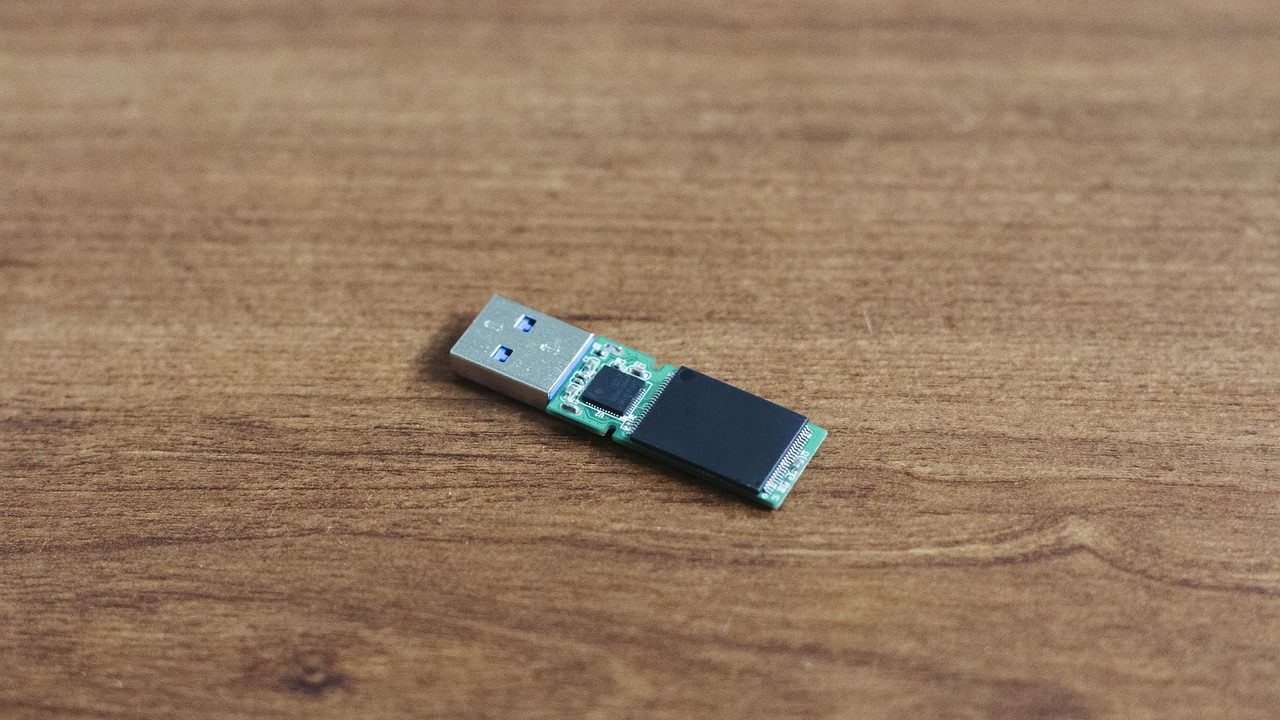
Establishing a comprehensive hardware encrypted USB drive remote work backup policy US IT teams can rely on has become a top operational priority for distributed organizations. Cloud-first backup architectures have long been the standard for distributed workforces, but relying entirely on continuous network connectivity introduces distinct security vulnerabilities. Remote employees working with large datasets, software repositories, financial disclosures, or proprietary customer files face risks ranging from sudden residential internet outages to sophisticated ransomware attacks capable of traversing cloud sync channels. To guarantee complete operational continuity and maintain compliance standards, enterprise security leaders are re-integrating air-gapped local offline backups into their disaster recovery frameworks.
Software-based encryption utilities like BitLocker or FileVault offer baseline disk protections, but they depend heavily on the continuous integrity of the host operating system. If a remote worker’s laptop is compromised by malware, an unpatched zero-day exploit, or a kernel-level keylogger, operating system-managed decryption keys can be intercepted directly in system memory. Hardware-encrypted USB storage devices eliminate this vulnerability by executing all cryptographic functions on an isolated, onboard microprocessor completely separated from the host computer. This guide outlines how IT administrators can select, configure, deploy, enforce, and audit hardware-encrypted USB storage solutions for distributed offsite workforce backups.
The Business Case for Air-Gapped Offsite Backups in Remote Teams
While enterprise cloud backup services offer automated synchronization and centralized administrative control, they present structural single points of failure that local offline hardware mitigates directly:
- Ransomware Air-Gap Protection: Modern ransomware actively targets network mounts, local file mirrors, and active cloud sync folders. If an infected endpoint synchronizes an encrypted payload to a continuous cloud backup repository, recovery becomes complex and time-consuming. A physically disconnected, hardware-encrypted USB drive forms a true physical air-gap that network malware cannot touch or corrupt.
- Bandwidth and ISP Independence: Transferring multi-gigabyte disk images, software builds, CAD models, or database exports across residential cable or wireless internet links can clog local networks and take hours to complete. Hardware-encrypted USB 3.2 drives deliver gigabit-speed local write performance unaffected by home ISP throttles or outages.
- Zero-Trust Business Continuity: If an organization suffers a major Single Sign-On (SSO) or cloud infrastructure outage, remote employees retaining local encrypted offline backups can restore critical working files without waiting for external cloud service restoration.
| Security Vector | Software Encryption (BitLocker/FileVault) | Hardware Encrypted USB Drive |
|---|---|---|
| Key Execution Location | Host RAM / OS CPU | Dedicated Onboard Microprocessor |
| Keylogger Resistance | Vulnerable to OS-level loggers | Immune (Physical Keypad Authentication) |
| OS Dependency | Requires matching OS / File System drivers | OS-Agnostic (Universal Plug-and-Play) |
| Brute-Force Protection | Software rate-limiting (Bypassable) | Hardware crypto-erase after set failed PINs |
| Network Air-Gap | No (Volume remains mounted online) | Yes (Physically disconnected when idle) |
Evaluating Hardware Encryption Standards for Remote Work
Not all encrypted flash drives offer equal protection. Security teams evaluating procurement options must distinguish between low-cost drives relying on host-based software drivers and true hardware-encrypted storage devices validated by independent testing standards.
FIPS 140-2 and FIPS 140-3 Validation Levels
The Federal Information Processing Standard (FIPS) published by the National Institute of Standards and Technology (NIST) represents the benchmark for cryptographic module security. For corporate backup deployment, enterprise policies should require drives validated at FIPS 140-2 or FIPS 140-3 Level 3:
- Level 1: Standard cryptographic algorithm implementation with basic security requirements and no physical security mechanisms required.
- Level 2: Adds requirements for tamper-evident coatings or physical seals that show visible evidence if unauthorized physical access is attempted.
- Level 3: Demands robust physical security mechanisms, including tamper-resistant enclosures, protective epoxy encapsulation surrounding internal components, physical intrusion detection, and automatic zeroization (destruction of encryption keys) if physical breach attempts occur.
Selecting FIPS-validated hardware guarantees that even if a physical backup drive is stolen or lost during remote employee transit, extracting data through advanced physical disassembly or direct memory probing remains practically impossible.
XTS-AES 256-Bit Hardware Encryption
Verify that the drive controller utilizes hardware-based AES 256-bit encryption in XTS cipher mode. Legacy Cipher Block Chaining (CBC) modes have known vulnerabilities to specific pattern-analysis attacks. XTS mode utilizes two distinct 128-bit encryption keys to create a resilient 256-bit key structure that encrypts individual data blocks independently, preventing malicious analysis of repeating pattern data in large backup sets.
Selecting Onboard Keypad vs. Software-Authenticated Hardware Drives
Hardware-encrypted USB devices broadly fall into two architectural categories: onboard physical keypad drives and software-unlocked hardware drives.
Onboard Physical Keypad Drives
These devices feature a physical alphanumeric keypad built directly into the exterior aluminum or rubberized housing. The employee enters their PIN on the device exterior before plugging the drive into the host computer’s USB port. Onboard rechargeable lithium-polymer batteries or internal capacitors power the internal authentication controller while the PIN is entered.
- Pros: Completely OS-agnostic; functions seamlessly across Windows, macOS, Linux, and embedded hardware without requiring host software installation; 100% immune to software-based keyloggers or screen-capture malware operating on the workstation.
- Cons: Higher per-unit hardware cost; small button layout requires user care during entry; requires physical wear maintenance to prevent pin-pad burn-in or button wear analysis.
Software-Authenticated Hardware Encrypted Drives
These devices contain dedicated onboard encryption hardware, but prompt the user for their decryption password via a software GUI that auto-mounts from a read-only partition when connected to a host PC.
- Pros: Lower hardware cost per gigabyte; supports centralized remote administration, cloud-managed key recovery, dynamic policy updates, and remote destruction commands via background client software.
- Cons: Dependent on host OS software compatibility; requires administrative rights to execute background mount services; potential exposure to host-level keylogging during password entry.
For high-security remote environments, physical keypad drives remain the preferred hardware choice due to their total isolation from host software vulnerabilities.
Designing the Operational Remote Backup Policy Framework
A successful hardware encrypted USB drive remote work backup policy US deployment requires structured operational rules. Simply issuing encrypted drives to remote staff without clear usage protocols leads to compliance gaps and lost data. IT administrators should structure the policy framework around five core pillars.
1. Defining Backup Scope and Content Exclusions
Remote backup policies should clearly delineate what content must be archived to local offline media. Attempting to back up complete operating system image drives across USB endpoints creates unnecessary storage overhead and prolongs backup windows.
- Mandatory Backup Items: Uncommitted local code repositories, configuration files, exported database dumps, locally cached client files, project deliverables, and critical digital signatures.
- Excluded Backup Items: Operating system installations, standard corporate applications (Office 365, Slack, developer tools), personal user files, and media downloads. System installations should be re-provisioned remotely via automated Mobile Device Management (MDM) enrollment profiles during hardware recovery.
2. Mandatory PIN Complexity and Authentication Standards
Default factory PINs must be changed prior to deploying hardware to remote staff. Enterprise policies should dictate strict PIN parameters:
- Minimum PIN length of 8 to 12 digits for user access.
- Strict prohibition of repetitive digits (e.g., 111111) or sequential series (e.g., 123456).
- Mandatory separation between the User PIN (assigned to the employee for daily backups) and the Administrator PIN (retained exclusively by enterprise IT security).
- Brute-force lockout thresholds configured to trigger full hardware zeroization (cryptographic key destruction) after a maximum of 10 consecutive failed PIN attempts.
3. Physical Handling and Storage Mandates
An air-gapped backup drive only provides protection if it is physically disconnected when idle. The corporate policy should mandate:
- Immediate Disconnection: Drives must be safely unmounted and physically removed from the laptop immediately following completion of the backup sequence. Leaving an unlocked hardware drive connected continuously negates the air-gap security benefit.
- Secure Idle Storage: When not actively performing backups, the drive must be stored inside a locked desk drawer, briefcase, or fire-rated desktop safe.
- Travel Restrictions: Employees traveling or working from public locations (e.g., coffee shops, airport terminals, co-working facilities) must keep encrypted backup drives physically separate from their primary laptop bags to prevent simultaneous loss or theft of both original and backup media.
Technical Configuration Guide: Provisioning Encrypted Drives
To ensure consistent security controls across distributed teams, IT departments should provision encrypted USB drives centrally before shipping them to employees, or follow a strict staging workflow for drop-shipped hardware.
Step 1: Admin Initialization and Master Key Generation
- Connect the drive to an isolated staging workstation for initial battery charging or capacitor initialization.
- Enter the hardware vendor’s initialization sequence (such as holding key combinations like
UNLOCK + 0) to enter Master Admin Mode. - Set a unique, 12-digit corporate Administrator PIN. Record this PIN within the company’s centralized, zero-knowledge password management vault (e.g., 1Password, Keeper Business, or HashiCorp Vault).
- Enable automated brute-force self-destruct limits set to 10 failed attempts.
Step 2: User Access Provisioning and Storage Formatting
- Generate a temporary, randomized 8-digit User PIN and communicate it to the remote employee via a secure, out-of-band channel (such as an encrypted chat channel or password distribution portal).
- Authenticate the drive using the User PIN and connect it to the staging host.
- Format the primary backup storage volume using standard filesystems compatible with the employee’s assigned workstation (e.g., exFAT for cross-platform environments, APFS for dedicated macOS endpoints, or NTFS for Windows enterprise hardware).
# PowerShell Script Example: Formatting Encrypted USB Drive for Windows MDM Deployments
Get-Disk | Where-Type OperationalStatus -Eq 'OK' | Where-Object IsReadOnly -Eq $False |
  Where-Object PartitionStyle -Eq 'RAW' |
  Initialize-Disk -PartitionStyle GPT -PassThru |
  New-Partition -UseMaximumSize -AssignDriveLetter |
  Format-Volume -FileSystem NTFS -NewFileSystemLabel "Corp_Offline_Backup" -Confirm:$False
Enforcing Endpoint DLP and USB Access Control via MDM
Deploying hardware-encrypted storage drives requires enforcing endpoint Data Loss Prevention (DLP) controls. Without technical enforcement, remote employees might write corporate data to unencrypted personal thumb drives or consumer cloud drives. IT security administrators can use Microsoft Intune, Jamf Pro, or custom MDM policies to enforce strict USB hardware controls.
Configuring Windows Intune Device Control Policies
Enterprise administrators can configure Windows Device Installation Controls to block all unencrypted removable storage devices while whitelisting approved hardware-encrypted Vendor IDs (VID) and Product IDs (PID):
- Navigate to the Microsoft Intune Admin Center.
- Create a new Device Configuration Profile for Windows 10/11 endpoints under Endpoint Security > Attack Surface Reduction.
- Enable **Removable Storage Access Control** and set default read/write permissions to **Block**.
- Add a dynamic inclusion rule based on approved hardware hardware identifiers:
<!-- Example OMA-URI Policy Snippet for Removable Storage Restriction -->
./Vendor/MSFT/Policy/Config/Defender/ApprovedServices
<AllowedOIDs>
  <!-- Whitelist Enterprise FIPS USB Hardware VID/PID -->
  <HardwareID>USB\VID_1B1C&PID_1A00</HardwareID>
</AllowedOIDs>
Configuring macOS Access Controls with Jamf Pro
On Apple workstations, administrators can enforce strict storage restrictions using custom Configuration Profiles containing com.apple.digitalservicetrust payload parameters or third-party DLP agents. System policies can disable mounting of non-approved storage volumes while allowing pre-configured hardware-encrypted drives to mount normally.
Physical Storage, Lifecycle, and Secure Disposal Protocols
The operational security of offline backups extends across the full lifecycle of the storage hardware—from initial deployment to physical destruction.
Routine Employee Backup Workflows
Establish a regular, mandatory backup cadence (e.g., weekly or bi-weekly). A standard employee operational routine should follow these steps:
- Disconnect the workstation from active remote network connections or corporate VPNs (optional but recommended for complete isolation).
- Enter the User PIN on the physical keypad of the hardware-encrypted drive to unlock the cryptographic controller.
- Insert the unlocked drive into the workstation’s USB port.
- Execute the automated backup utility script (e.g., automated rsync scripts, macOS Time Machine, or enterprise backup client).
- Safely unmount/eject the volume in the host OS.
- Disconnect the physical drive from the USB port and verify that status LEDs confirm the unit has returned to a locked state.
- Return the drive to its designated secure physical storage location.
Hardware Offboarding and Secure Sanitization
When a remote employee leaves the company or a hardware drive reaches its scheduled operational retirement, IT teams must follow verified sanitization procedures compliant with NIST SP 800-88 guidelines:
- Admin Zeroization: The IT security manager enters Master Admin Mode and executes a forced hardware reset command. This purges the internal cryptographic encryption keys stored on the drive controller, instantly rendering all stored data unrecoverable ciphertext.
- Physical Destruction Option: For ultra-sensitive roles, retired hardware drives should be returned to corporate headquarters via tracked courier for physical destruction in an NSA/CSS-evaluated solid-state disintegrator or degausser/shredder pipeline.
Common Operational Mistakes and Troubleshooting
Deploying hardware-encrypted drives to distributed non-technical users can introduce operational friction. Being aware of common execution pitfalls helps ensure smooth long-term adoption.
Mistake 1: Leaving Drives Continuously Connected
The most common user mistake is leaving the unlocked encrypted drive plugged into the laptop standardly as an expansion drive. If malware infects the host system while the drive is mounted, the active decryption keys allow the malware to corrupt or encrypt the offline backup set. Remind employees regularly that the primary value of the setup is the physical air-gap.
Mistake 2: Battery Depletion on Physical Keypad Drives
Drives with integrated keypads rely on internal rechargeable lithium batteries to power the PIN authentication chip while offline. If a drive sits in a drawer for six months, the battery may discharge completely, causing PIN inputs to fail. Instruct users to plug the drive into a powered USB port for 15-30 minutes if keypad lights fail to illuminate during PIN entry.
Mistake 3: User Lockouts and Exhausted PIN Attempt Counters
When users enter an incorrect PIN multiple times sequentially, the drive’s internal brute-force counter increments. If the threshold (e.g., 10 attempts) is reached, the drive automatically triggers its self-destruct zeroization routine, permanently destroying the onboard cryptographic master key and wiping all stored data.
Remediation Protocol: Instruct employees to stop after 5 failed attempts and contact the internal IT helpdesk. An IT administrator can use the pre-configured Master Admin PIN to unlock the drive, reset the user counter, and issue a fresh User PIN without losing existing backup files.
Frequently Asked Questions (FAQ)
What makes a hardware encrypted USB drive superior to BitLocker on a standard flash drive?
Software solutions like BitLocker process encryption keys directly within the host system’s RAM and CPU. If host system memory is compromised by kernel-level malware, software keys can be extracted. Hardware-encrypted drives perform all key storage, PIN verification, and encryption/decryption processing on an isolated onboard controller chip completely separate from the host OS, offering superior protection against memory probing and host keyloggers.
Can IT administrators recover data if a remote worker forgets their PIN?
Yes, provided the drive was properly provisioned with a Master Administrator PIN prior to deployment. The IT administrator can enter Admin Mode on the physical device to reset the user PIN and restore access to the encrypted backup volume without losing data. However, if the drive is configured without an Admin PIN and zeroizes, data recovery is mathematically impossible.
Are hardware-encrypted USB drives compatible with both macOS and Windows?
Physical keypad hardware-encrypted drives are completely OS-agnostic because authentication occurs on the physical drive exterior before the USB interface initializes. As long as the underlying storage volume is formatted with a cross-platform filesystem like exFAT, the drive can read and write data seamlessly across Windows, macOS, Linux, and specialized operating systems without requiring background software drivers.
How do hardware-encrypted drives protect against physical tampering?
Enterprise-grade drives validated at FIPS 140-2 or 140-3 Level 3 feature ruggedized metal or heavy-duty rubber housings filled with a tough epoxy resin encasing all internal electronics. Any physical attempt to break open the casing damages the internal microprocessors, rendering data retrieval impossible and zeroizing internal cryptographic keys automatically.
Final Implementation Checklist for Security Teams
Before launching a hardware-encrypted offline backup initiative for remote employees, review this readiness checklist:
- [ ] Procure FIPS 140-2/140-3 Level 3 validated hardware-encrypted USB drives.
- [ ] Establish Master Admin PINs during pre-deployment staging and archive keys securely in an enterprise password manager.
- [ ] Configure MDM policies (Intune/Jamf) to block unapproved, unencrypted USB devices across corporate laptops.
- [ ] Publish clear employee documentation covering PIN complexity, backup execution procedures, physical safe storage, and disconnection guidelines.
- [ ] Set up clear offboarding and hardware sanitization workflows following NIST SP 800-88 guidelines.
By enforcing a structured hardware encrypted USB drive remote work backup policy US organizations can maintain strict operational resilience, safeguard intellectual property against ransomware, and ensure remote teams retain secure, high-speed access to critical corporate files regardless of network availability.