For remote knowledge workers, freelancers, and independent contractors, digital clutter accumulates with alarming speed. Every completed client engagement, discarded draft, raw asset folder, and final export settles onto local drives until your primary workspace feels sluggish and disorganized. While cloud storage services offer an easy escape hatch through endless subscription tiers, relying entirely on continuous sync folders introduces recurring overhead, privacy vulnerabilities, and unexpected access friction when internet connections fail. Implementing a rigorous digital project archiving workflow solves this problem by moving completed work off your active working drives and into a predictable, offline storage system.
Building an effective archiving process does not require specialized enterprise software or complex database configurations. Instead, it relies on discipline, standardized directory structures, and scheduled manual reviews. By treating your local data with the same systematic care that physical businesses apply to paper records, you can reclaim valuable solid-state drive space, protect sensitive client intellectual property, and preserve your professional history indefinitely without paying monthly ransom to tech conglomerates.
The True Cost of Cloud Dependency for Creative Archives
Cloud storage providers market their platforms as effortless solutions for backup and synchronization. For active working files, collaborative documents, and daily communication, cloud tools are undeniably useful. However, using the cloud as a long-term dumping ground for dead projects creates hidden financial and operational costs.
Subscription fatigue is the most obvious penalty. As your professional archive expands from gigabytes into terabytes, basic cloud tiers run out of space, forcing you into expensive higher-tier business plans. Furthermore, cloud storage encourages lazy habits. When storage feels infinite, users stop curating their files. Redundant exports, uncompressed video caches, and half-baked design iterations linger forever, swelling your sync index and slowing down search tools across all your connected devices.
Security and privacy present another critical trade-off. Uploading proprietary client designs, unreleased code repositories, or sensitive financial records to third-party servers exposes that data to potential breaches, corporate policy changes, and terms-of-service shifts. An offline archival model keeps your intellectual property entirely within your physical possession, reducing your attack surface and ensuring complete data sovereignty.
Beyond security and finance, cloud-dependent archives suffer from long-term accessibility drift. If a cloud service alters its API, updates its desktop application architecture, or revokes your legacy grandfathered plan, migrating terabytes of archived files off their platform can take weeks of bandwidth and incur unexpected egress fees. Establishing a local archive insulates you from vendor lock-in and guarantees that your files remain immediately accessible on your own hardware terms, regardless of external market shifts or corporate reorganizations.
Defining the Project Lifecycle States
A functional archiving workflow begins long before files hit an external drive. It starts by recognizing the distinct phases a professional project undergoes from inception to cold storage. Without clear lifecycle definitions, files linger indefinitely in active directories, clogging your day-to-day workspace.
Every professional project should move through four predictable states:
- Active: The project is currently generating billable hours, active iterations, or ongoing client communication. Files live on your primary fast local drive (typically an internal NVMe SSD).
- Pending Review: The deliverables have been accepted, final invoices have cleared, and the project is finished. However, the files remain in a staging area for a brief grace period (usually 30 days) to handle minor revisions or post-launch questions.
- Archived: The project is officially closed. Files are consolidated, cleaned of temporary cache data, compressed if necessary, and moved to your primary cold storage archive drive.
- Deprecated: The project has aged past its retention window, or the underlying file formats are no longer relevant. During annual reviews, deprecated projects are either permanently deleted or consolidated into a minimal reference summary.
By establishing these hard boundaries, you eliminate ambiguity. You never have to guess whether a folder from eighteen months ago is still active or safe to move. Documenting these transitions in a simple task manager or project tracking board ensures that closing out an engagement naturally triggers the downstream digital housekeeping steps required to maintain a clean local environment.

Designing a Standardized Folder Taxonomy
The cornerstone of any successful local archiving system is a predictable, scalable directory structure. When you open an archive drive five years from now to retrieve a specific client logo or budget spreadsheet, you should be able to find it within three clicks without relying on system search functions.
Avoid overly complex folder hierarchies that bury important files beneath layers of subdirectories. A flat, logical taxonomy based on client categories and standardized naming conventions works best for independent professionals.
Consider this proven directory skeleton for an offline archive drive:
- 01_Active_Clients/ (Staging zone for projects nearing completion)
- 02_Archives/ (Primary long-term storage)
- Client_Name_A/
- YYYY-MM_Project-Name-Slug/
- _exports/
- _assets/
- _docs/
- _source/
- YYYY-MM_Project-Name-Slug/
- Client_Name_B/
- Client_Name_A/
- 03_Operations/ (Templates, legal docs, tax records, standard operating procedures)
- 04_Reference/ (Educational materials, code snippets, design inspiration)
Notice the use of numerical prefixes on top-level folders. This forces them to remain in a logical, fixed order within your file manager regardless of sorting settings. Inside each project folder, keeping raw assets separate from final client exports prevents accidental modification of finished deliverables.
Tailoring this structure to your specific discipline is straightforward. For instance, if you are a software developer, your project subdirectories might swap out design assets for `_builds/`, `_source/`, and `_config/`. If you are a copywriter or content strategist, you might prioritize `_briefs/`, `_drafts/`, and `_client_edits/`. The unifying principle across all industries is structural consistency: every single project folder inside your archive should mirror the same internal anatomical layout so your brain instantly knows where to look for source files versus final deliverables.
Standardizing File Naming Conventions
Folder structures alone cannot save you from poor file naming. When organizing old files, consistency is paramount. A chaotic collection of files named “final_v2_edited_final.psd” will inevitably cause headaches during a retrospective search.
Adopt a strict, machine-readable and human-readable naming convention for all project roots and major deliverables. A reliable formula incorporates the start date, client identifier, and a concise project descriptor:
YYYY-MM_[Client]_[Project-Description]
For example: 2023-10_AcmeCorp_BrandRedesign. Within the project directories, avoid spaces in filenames where possible, preferring hyphens or underscores. When saving layered working files or document drafts, append a clear version number or date stamp rather than subjective labels like “new” or “final”. If a file represents the absolute final deliverable handed to a client, prefix it clearly as FINAL_ so it stands out immediately among working assets.
Enforcing these naming rules across your entire business ecosystem prevents files from becoming orphaned when moved between operating systems. Certain operating systems handle special characters, punctuation, and long path strings differently; sticking to alphanumeric characters, hyphens, and underscores guarantees that your archive remains fully compatible with future file systems and migration utilities.
The Step-by-Step Archiving Protocol
Moving a project from your active working drive to your offline cold storage archive should be treated as a deliberate operational ritual, not a rushed end-of-day chore. Follow this step-by-step protocol whenever a project enters the “Pending Review” phase and reaches its archiving window.
First, perform a thorough cleanup sweep of the active project folder. Delete operating system metadata files like `.DS_Store` on macOS or `Thumbs.db` on Windows. Remove heavy temporary cache folders, auto-save backups, and duplicate export folders that served their purpose during active development but offer no long-term value.
Second, generate a plain-text `README.txt` file and place it in the root of the project folder. Inside this file, write a two-sentence summary of the engagement, the exact software versions used (e.g., Adobe Illustrator v28.1, WordPress v6.4), the client contact details at the time, and any special licensing notes or font requirements. This future-proofs your archive, saving you hours of frustration if you ever need to open the files decades later on entirely different hardware.
Third, verify your storage media. Never rely on a single physical drive for your offline archive. The standard redundancy framework for serious local storage involves maintaining two identical physical external hard drives: a primary archive drive that sits on your desk, and a secondary backup archive drive that is updated simultaneously and stored safely off-site or in a fireproof container.
Fourth, execute the file transfer using robust copy utilities that verify data integrity, rather than a simple drag-and-drop operation in a basic graphical file manager. Tools that utilize checksum verification during the copy process ensure that every single bit transferred to your external archive drive matches the source files on your workstation precisely, eliminating the silent risk of data corruption.

Handling Unstructured Legacy Backlogs: A Triage Strategy for Messy Drives
Most remote workers and freelancers do not start with a clean slate; they inherit years of chaotic digital debris spread across desktop folders, old downloads directories, and fragmented external drives. Tackling this legacy backlog can feel daunting, but attempting to organize every historical file in one marathon session is a recipe for burnout.
Instead, apply a triage strategy modeled on disaster recovery sorting. Begin by consolidating all loose legacy folders into a single top-level directory on your archival drive named `_Unsorted_Legacy_YYYY`. Do not attempt to rename individual files or sort them into complex client hierarchies immediately.
Next, allocate dedicated blocks of 30 to 45 minutes per week specifically for backlog processing. During each session, select a single chunk of the unsorted directory, evaluate its contents using the four lifecycle states, and either route the project files into your standardized taxonomy or purge them entirely. You will often find that 40% to 50% of legacy folders consist of temporary exports, redundant installers, and obsolete drafts that can be safely deleted without a second thought. By breaking the backlog down into digestible administrative sprints, you steadily transform a chaotic wasteland of old data into a pristine, searchable archive without disrupting your current billable project work.
Establishing Manual Review Intervals
A digital project archiving workflow fails when it is treated as a one-time setup rather than an ongoing maintenance habit. Without scheduled reviews, your archive drive will slowly accumulate the exact same type of disorganized digital debris you worked so hard to clear from your primary workstation.
To prevent this, calendar two distinct types of manual review intervals:
- Quarterly Backlog Cleanup: Every three months, review your staging folders and active archive additions. Ensure that completed projects from the previous quarter have been properly formatted, documented with a README file, and mirrored to your secondary backup drive.
- Annual Deprecation Audit: Once a year, spend an afternoon evaluating older archive directories. Identify client projects that have aged past your required retention window (typically five to seven years, depending on industry tax and legal requirements). Determine whether certain raw assets can be safely purged to reclaim terabytes of space, or if entire client directories can be compressed into encrypted master zip files.
Manual reviews force you to confront your digital footprint directly. They provide an opportunity to reflect on your professional trajectory, discard obsolete formats, and verify that your hardware redundancy strategy remains intact.
During your annual deprecation audits, pay close attention to changing software ecosystems. If an older project relies on proprietary plugins or application formats that are rapidly losing industry support, consider exporting flat master assets (such as universal PDF/X documents, high-resolution TIFFs, or standard MP4 video exports) alongside your raw working files. This ensures that even if the original software vendor goes out of business or abandons backward compatibility, the core visual and textual record of your past work remains completely legible and usable.
Hardware Selection and Local Storage Best Practices
Because this workflow explicitly rejects cloud dependency, the reliability of your physical hardware is paramount. Choosing the right storage medium ensures your archived work remains accessible for years to come without unexpected degradation.
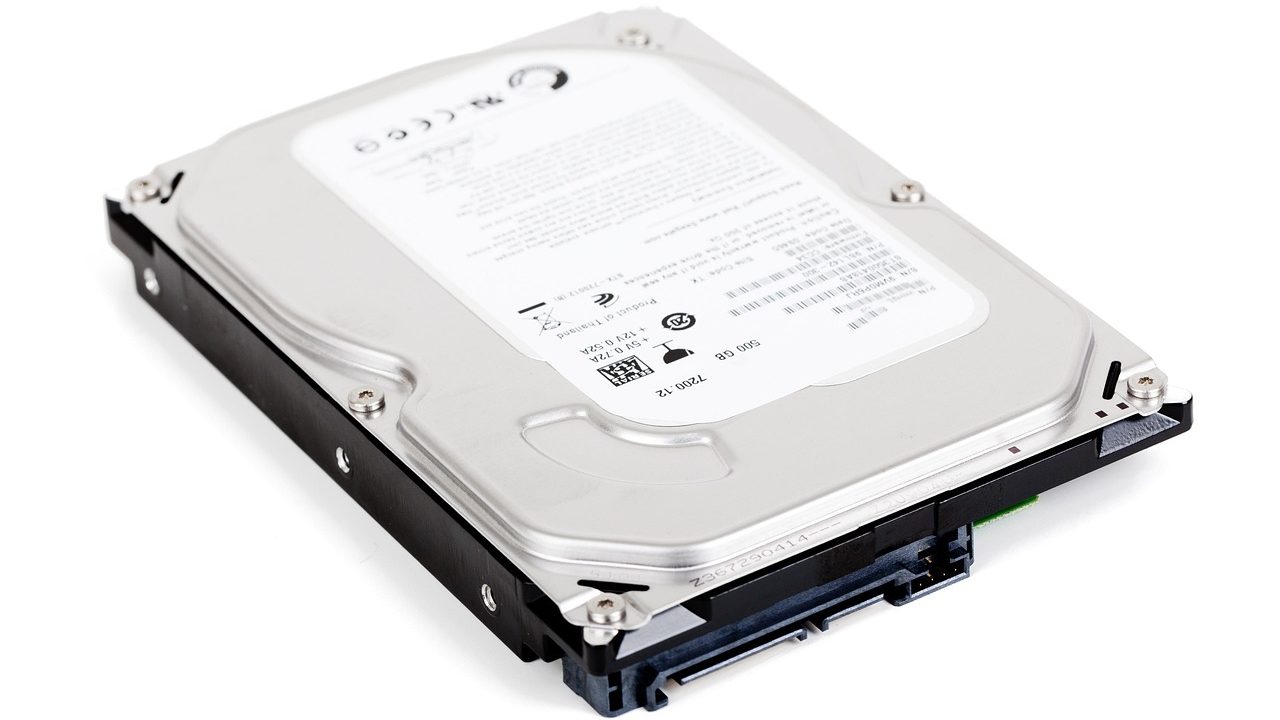
For primary cold storage, desktop-class external hard drives (HDDs) or high-capacity solid-state drives (SSDs) connected via USB-C or Thunderbolt are standard. While SSDs offer incredible speed and durability against physical drops, high-capacity traditional hard drives remain the most cost-effective solution for massive, infrequently accessed multi-terabyte archives.
Observe these fundamental rules for local archive storage:
- Power-On Exercise: Spin up your offline archive drives at least once every six months. Mechanical hard drives left unpowered in a drawer for years can experience bearing stiction or mechanical failure when finally connected.
- File System Consistency: Format your archive drives using universally compatible file systems (such as exFAT for cross-platform flexibility between macOS and Windows, or APFS/NTFS if you operate strictly within a single operating system ecosystem).
- Checksum Verification: For critical long-term archives, use checksum utilities (like HashTab or built-in command-line tools) to generate cryptographic hashes of your project files before and after migration, ensuring zero bit-rot or data corruption occurred during transfer.
Additionally, consider environmental factors when storing physical media. Keep your archive drives away from magnetic fields, extreme temperature fluctuations, and high-humidity environments. If you store your secondary backup drive off-site, select a secure location such as a safety deposit box or a trusted family member’s home, ensuring that a localized disaster at your primary remote workspace will never result in the total loss of your professional history.
Common Pitfalls to Avoid
Even with a solid structure in place, certain common mistakes can undermine your digital project archiving workflow. Being aware of these pitfalls allows you to adjust your habits before data loss or organizational chaos occurs.
The most frequent error is over-compressing or nesting files too deeply. While saving space via ZIP archives sounds appealing, compressing every single project folder makes searching and selective retrieval tedious. Keep completed project folders uncompressed in your directory tree unless they contain thousands of tiny raw assets that benefit from containerization.
Another trap is neglecting documentation. Skipping the simple `README.txt` step feels efficient in the moment, but returning to a complex code repository or multi-layered design file two years later without notes on dependencies, plugins, or software versions turns a simple retrieval task into an arduous forensic puzzle.
Finally, never treat an external archive drive as a working scratch disk. Do not open massive video or design projects directly from your cold storage drive over a slow USB hub and expect smooth performance. If a dormant project suddenly reactivates and requires extensive editing, copy the folder back to your fast internal NVMe drive, treat it as active for the duration of the new engagement, and run through the archiving protocol again once finished.
Another subtle pitfall is failing to test your backups. Simply copying files to an external hard drive gives a false sense of security if the drive itself has developed unreadable sectors. Make it a habit during your quarterly reviews to randomly spot-check three archived projects by opening their files and verifying that data integrity is fully intact across both your primary and secondary backup drives.
Frequently Asked Questions About Offline Archiving
Transitioning from cloud-based convenience to a disciplined local archiving workflow often raises practical questions for independent professionals. Reviewing these common scenarios helps clarify how to adapt the framework to your unique workflow.
What should I do if a past client requests major revisions to an archived project years later?
When an old project reactivates, locate the compressed or stored folder on your archive drive, copy the entire directory back onto your internal working SSD, and elevate its status back to “Active.” Create a new subfolder inside the project root named `_Revision_YYYY-MM` to isolate the new changes from the original frozen deliverables. Once the revision is complete, accepted, and invoiced, run through the complete archiving protocol once more.
How do I manage extremely large video, audio, or 3D rendering archives that quickly consume local drive capacity?
For heavy media professionals, multi-terabyte project volumes require dedicated high-capacity storage arrays, such as multi-bay RAID enclosures or high-capacity desktop hard drives. In these cases, separate raw source footage and uncompressed render caches from the final master deliverables. You can often purge raw camera footage or intermediate scratch renders during your annual deprecation audit while retaining the final master exports and project project files, dramatically reducing your long-term storage footprint without losing core value.
Is local offline archiving truly safer than a reputable enterprise cloud backup provider?
Safety is relative to your threat model. While cloud providers protect against physical fire or theft at your home office, they expose you to third-party data breaches, subscription price hikes, account lockouts, and terms-of-service disputes. An offline local archive with a mirrored off-site backup guarantees absolute data sovereignty, immediate access without internet dependency, and zero recurring subscription overhead, placing the security of your professional intellectual property entirely in your own hands.
Conclusion
Taking control of your digital workspace requires stepping away from the endless cycle of paid cloud storage tiers and taking direct ownership of your professional history. By implementing a disciplined digital project archiving workflow—anchored by predictable folder taxonomies, rigorous file naming conventions, strict lifecycle states, and scheduled manual reviews—you create a resilient, self-sustaining system. Your primary computer stays fast and uncluttered, your sensitive client work remains securely within your physical possession, and your past projects are neatly organized and ready whenever inspiration or necessity calls.