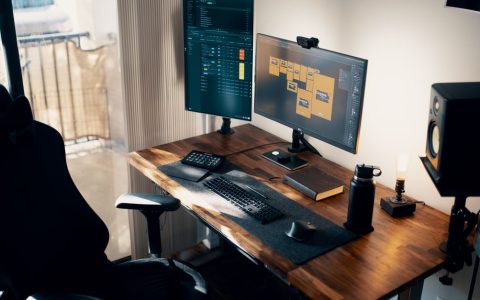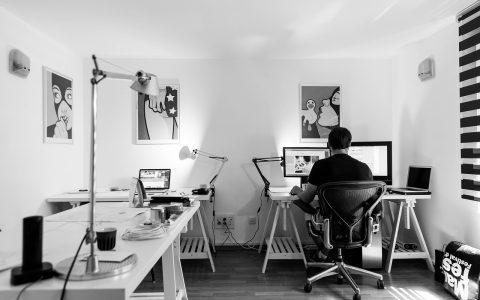
When you spend eight to ten hours a day at a desk, your physical environment dictates your physical comfort. For remote knowledge workers who rely on powerful portable computers, turning a laptop into a desktop replacement is one of the most effective ways to upgrade a home office. However, simply plugging an external monitor into a laptop sitting flat on a desk usually results in poor ergonomics, awkward head tilting, and a cramped workspace. A properly planned vertical laptop stand desk setup solves these physical and spatial limitations.
By stowing your portable computer upright in a dedicated dock and pairing it with an external display riser, you reclaim valuable desktop real estate while positioning your screens correctly. Operating in clamshell mode—where the laptop runs with its lid closed while connected to an external keyboard, mouse, and monitor—turns your portable machine into a stationary workstation. Building this configuration correctly, however, requires more than buying a random metal slot and dropping your computer into it. You must consider thermal airflow, port accessibility, cable strain, and exact monitor height.
The Ergonomic Case for Vertical Docks and Risers
The primary driver behind any office hardware modification should be human posture. Laptops are inherently compromised ergonomic devices. Because the keyboard and screen are permanently attached, using the built-in screen forces you to look downward, putting chronic strain on your cervical spine. Conversely, if you elevate the laptop on a standard stand to bring the screen to eye level, your keyboard becomes uncomfortably high, forcing your shoulders upward and straining your wrists.
Separating the display from the input devices is the only way to achieve a neutral posture. When you use an external monitor, that screen becomes your visual focal point. Your keyboard and mouse sit flat on the desktop, allowing your elbows to rest at a comfortable ninety-degree angle. By placing your laptop into a vertical dock off to the side, you eliminate visual clutter and ensure your desk surface remains dedicated to your active input tools and reference materials.
An external display riser or adjustable monitor arm completes the geometric equation. Your top line of text on the primary monitor should sit roughly at or slightly below eye level, ensuring your neck remains in a neutral, unforced position. When your monitor and your seating are dialed in, you eliminate the late-afternoon shoulder tension and lower back fatigue that plague remote workers who hunch over poorly configured portable setups.
Beyond basic neck alignment, maintaining a neutral posture impacts long-term musculoskeletal health. Repetitive strain injuries (RSIs) in the wrists and forearms frequently stem from awkward typing angles forced by flat, low-profile laptop keyboards or elevated laptop trays. When you transition to a dedicated desktop keyboard—whether mechanical or low-profile scissor-switch—you can position your wrists in a flat, unbent plane. Coupled with a supportive ergonomic office chair that features adjustable armrests, your entire upper body works in mechanical harmony, reducing the cumulative micro-traumas that lead to chronic pain.
Evaluating Vertical Laptop Stands and Docks
Not all vertical stands are created equal. When shopping for hardware, you will generally find two categories: passive vertical stands and powered vertical docking stations. Passive stands are essentially weighted or adjustable metal cradles that hold your computer upright. Powered docks feature integrated USB-C or Thunderbolt hubs, routing power, display signals, and peripheral connections through a single cable.
If your computer relies on a complex array of peripherals—such as wired Ethernet, multiple monitors, audio interfaces, and external drives—a dedicated multi-port dock or a heavy-duty vertical dock with built-in pass-through ports is indispensable. It transforms your setup into a true single-cable docking station. You simply slide the laptop into the slot and plug in one connector at the beginning of your workday.
Width adjustment is another critical factor. Many vertical stands feature an adjustable screw or interchangeable silicone inserts to accommodate different laptop thicknesses. If you frequently upgrade your hardware or use multiple machines—such as a personal MacBook and a corporate Windows laptop—an easily adjustable stand ensures you are not buying new accessories every time your tech stack changes. Look for solid aluminum construction with protective rubber padding to prevent scratching your laptop’s chassis.
When selecting a passive or powered dock, weight distribution is also paramount. A lightweight aluminum stand combined with a heavy, thick laptop can become top-heavy or unstable if bumped accidentally. Look for stands featuring wide, weighted steel or aluminum baseplates with anti-slip silicone footings. If you are using a dual-slot vertical stand to house both a work laptop and a personal machine simultaneously, ensure the base is wide enough to counteract any tipping forces when a single machine is docked or removed.

Managing Thermal Airflow in Clamshell Mode
One of the most common concerns regarding clamshell mode operation is thermal management. Modern laptops generate significant heat under heavy computational loads, such as compiling code, rendering video, or running intensive data analysis. Many laptops exhaust warm air through the hinge area—precisely the zone that faces downward when placed in a vertical stand.
Before committing to a vertical layout, check your specific laptop model’s thermal architecture. Some manufacturers explicitly design their machines to dissipate heat through the keyboard deck, meaning running them closed under heavy loads can trap heat and lead to thermal throttling, reduced performance, and accelerated battery degradation. If your laptop tends to run hot, look for vertical stands crafted from thick aluminum, which acts as a passive heatsink, and ensure the bottom intake vents are not obstructed by the base of the stand.
For users who push their hardware to the limit daily, keeping performance utility monitors running in the background during the first week of a vertical setup is wise. If you notice fan speeds ramping up constantly or performance dipping during basic tasks, you may need to position the laptop with its exhaust vents pointing upward or consider an alternative desk configuration that keeps the lid cracked open.
It is also worth noting how environmental factors inside a home office influence system temperatures. Placing your vertical stand directly next to a sunny window or trapped inside a closed desk compartment can drastically raise ambient temperatures, causing internal fans to run at maximum capacity even during idle periods. Ensure your desk setup has adequate air circulation around the perimeter of the workstation, and clean your laptop’s intake and exhaust ports with compressed air every few months to prevent dust accumulation from compounding thermal bottlenecks.
Integrating External Monitors and Risers
The external display is the anchor of your workstation. Whether you use a single ultrawide monitor or a dual-monitor array, your riser or monitor arm must provide rock-solid stability. Desktop risers often include built-in storage drawers or keyboard cubbies underneath, which help maximize small home office footprints.
When positioning your display, pay close attention to viewing distance and glare. Your monitor should sit approximately an arm’s length away from your face. If you wear progressive lenses or have specific vision requirements, lower the monitor slightly so you look down into the screen naturally without tilting your chin backward.
If you prefer a dual-monitor layout alongside your vertical laptop, consistency is key. Match color profiles and resolution scaling as closely as possible between screens to minimize visual fatigue when dragging windows back and forth. Position your primary monitor directly in front of you, with the secondary screen angled slightly to the side for reference applications like communication tools or calendar dashboards.
Beyond physical positioning, consider the display connection protocols you use. Connecting high-refresh-rate or ultra-high-definition monitors requires robust cabling. Ensure your docking station or direct monitor cables support modern standards like DisplayPort 1.4 or HDMI 2.1 to prevent bandwidth throttling, flickering, or dropped frames. If you are daisy-chaining monitors through a single USB-C cable, verify that your laptop’s graphics processor and dock support Multi-Stream Transport (MST) or Thunderbolt bandwidth allocations adequately.
Cable Management and Workspace Cleanliness
A vertical laptop setup dramatically reduces visual clutter, but only if you master your cable routing. Because your computer is standing on its side, ports that were once hidden along the sides of the chassis are now prominently exposed. Unmanaged cables sprouting upward from a vertical dock can ruin the aesthetic and create snag hazards.
To achieve a clean finish, invest in right-angle USB-C adapters or low-profile cables that hug the chassis closely. Route your power, display, and peripheral cables downward behind the desk using weighted cable anchors, under-desk raceways, or flexible split-sleeve tubing.
Creating a tidy cable infrastructure also makes maintenance easier. If you need to take your laptop on the road, a clean single-cable disconnect process means you can unclip your machine in seconds without wrestling with a rats’ nest of power bricks and HDMI cords tangled behind your desk.
To take cable organization a step further, mount your power strip, charging bricks, and Thunderbolt hubs directly to the underside of your desk using heavy-duty mounting brackets or cable management trays. This keeps all high-voltage connections off the floor, protecting them from dust bunnies, pet hair, and accidental kicks. Use color-coded Velcro ties or cable labels near the connector heads so you can instantly identify which line supplies power, audio, or network data during troubleshooting sessions.

Step-by-Step Assembly and Optimization Process
Transitioning to an upright workspace requires a methodical approach. Follow these steps to ensure a stable, ergonomic build:
- Clear and evaluate your desk: Remove all existing equipment and clean the desktop surface. Assess where natural light falls to minimize screen glare.
- Position your primary display: Place your monitor riser or arm in the center of the desk. Adjust the height so the top of the screen aligns with your eye level.
- Configure your input devices: Place your external keyboard and mouse on the desktop. Adjust your chair height so your feet rest flat on the floor and your elbows form a ninety-degree angle.
- Adjust the vertical stand: Measure the thickness of your laptop with its protective case (if applicable) and adjust the stand’s retention screws or inserts accordingly.
- Connect peripherals and test thermal performance: Dock your laptop, connect your cables, and run a test work session while monitoring system temperatures and fan behavior.
Once the physical hardware is locked into place, perform a thorough software check. Ensure your operating system’s display settings recognize the external monitor as the primary display and that scaling options are configured to prevent blurry text rendering. If you utilize external speakers or a USB microphone, test your audio input and output settings to ensure peripheral routing defaults correctly upon docking.
Common Mistakes to Avoid
Even with good intentions, remote workers often make a few avoidable errors when setting up vertical docks. Being aware of these pitfalls saves time and prevents hardware frustration:
- Ignoring power delivery limits: Ensure your dock or monitor supplies enough wattage to charge your specific laptop model under load. Underpowered chargers will slowly drain your battery while you work.
- Blocking exhaust vents: Placing a vertical stand on a thick desk mat or against a fabric wall panel can trap heat. Ensure adequate clearance around ventilation grills.
- Neglecting external webcam placement: Operating in clamshell mode disables your laptop’s built-in webcam. Budget for an external USB webcam mounted to the top of your monitor if you take frequent video calls.
- Over-tightening adjustable stands: Clamping a vertical stand too tightly against a laptop chassis can crack screens or warp aluminum bodies. Snug it gently until secure, but never force it.
Another frequent oversight is failing to configure operating system sleep behaviors correctly when closing the lid. By default, some operating systems are configured to sleep immediately when a laptop lid closes, even if an external power source and monitor are attached. You may need to adjust your power and battery settings to allow external display output during lid-closed clamshell operation.
Troubleshooting Clamshell Mode and Connectivity Quirks
Transitioning to a vertical dock occasionally introduces minor hardware handshake issues. If your external monitor fails to wake up when you open your office door and sit down at your desk, the culprit is often a sleep state conflict or handshake failure between the dock and the graphics card.
First, verify that your laptop is receiving consistent AC power through the dock. Many multi-port hubs require an external power supply brick plugged into a wall outlet to deliver sufficient wattage for both laptop charging and video signal transmission. If your monitor flickers or drops signal intermittently when heavy USB devices like external hard drives are plugged into the same hub, you may be exceeding the total data or power bandwidth of your USB-C connection.
Bluetooth peripheral lag is another common annoyance in vertical setups. Because the laptop lid is closed and the metal chassis is tucked away upright, wireless Bluetooth signals from your mouse or keyboard can suffer from interference or reduced range. If you experience stuttering cursor movement, try connecting your input devices via a dedicated USB wireless receiver plugged into the front-facing port of your dock or monitor, using a short USB extension cable to bring the dongle closer to your desktop surface.
Frequently Asked Questions
Will running my laptop in clamshell mode ruin the internal battery?
Modern operating systems and laptops feature smart charging algorithms designed to manage battery health, even when plugged in continuously. However, if your laptop runs exceptionally hot in a vertical stand due to intense workloads, elevated temperatures can accelerate chemical degradation. Ensuring proper airflow around the chassis mitigates this risk.
Can I use a vertical stand with a laptop that has a side-mounted power button?
Yes, but you will need to familiarize yourself with your operating system’s wake-on-USB or keyboard wake settings. Since the physical power button on your laptop will be inaccessible inside the closed stand, you will want to wake your computer by pressing a key on your external keyboard or clicking your mouse.
How do I clean dust out of my laptop when it lives in a vertical dock?
Dust accumulation is inevitable in home offices. Every few months, unclip your laptop, take it to a well-ventilated area, and use a can of compressed air to gently clear out the intake and exhaust vents while holding the fan blades still with a toothpick if necessary to prevent over-spinning.
Conclusion: Maintaining Your Ergonomic Workspace
A well-executed vertical laptop stand desk setup bridges the gap between the flexibility of portable computing and the comfort of a dedicated desktop workstation. By prioritizing ergonomic alignment, maintaining strict thermal awareness, and organizing your peripheral cables, you create a healthy, efficient environment tailored for deep work. Take the time to fine-tune your monitor height and cable routing, and your neck, shoulders, and productivity will thank you for years to come.