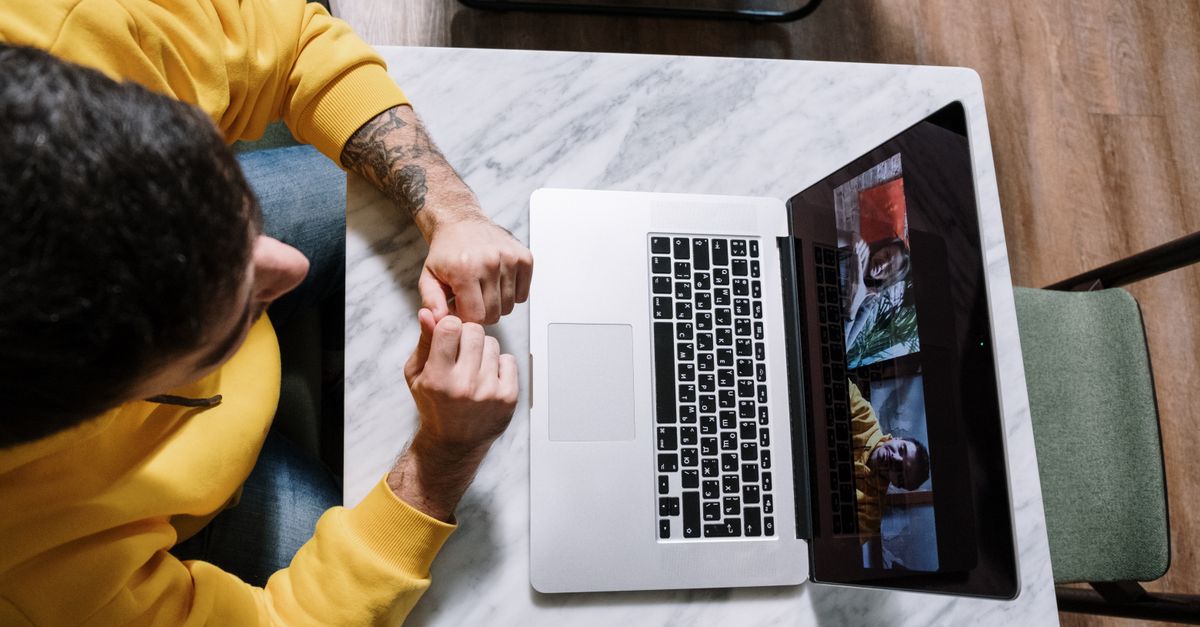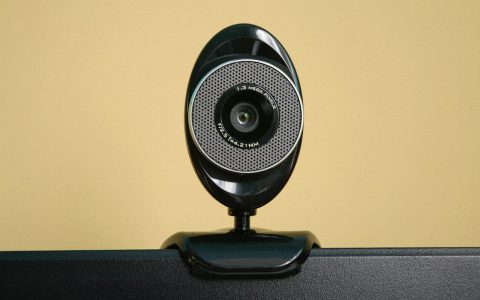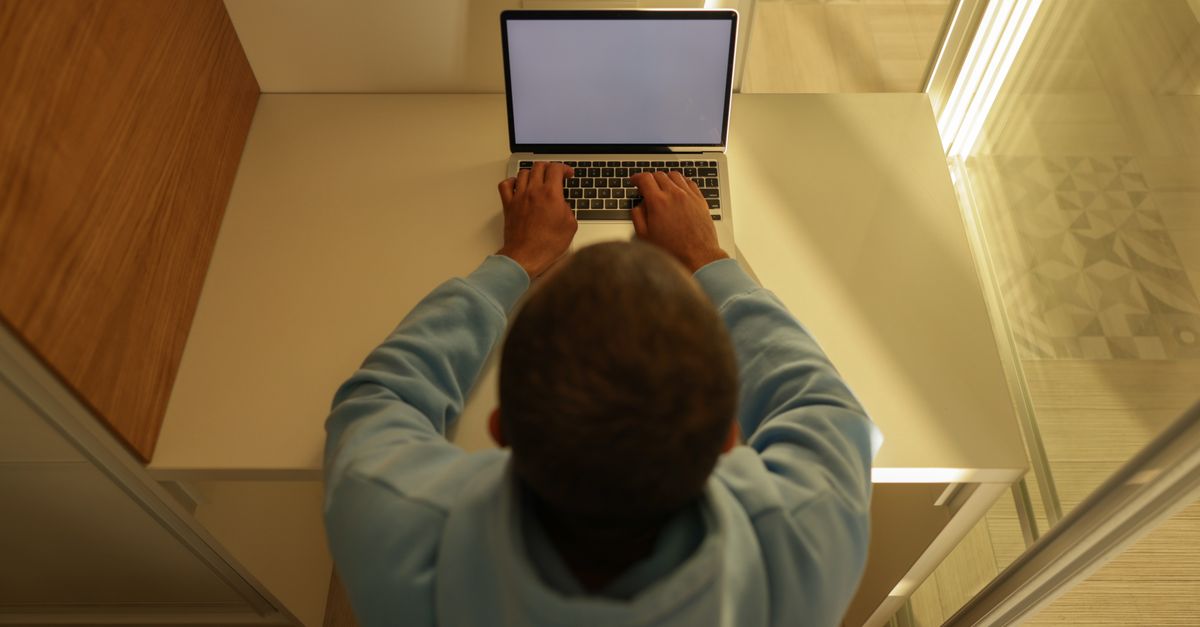
Working remotely with sensitive client files introduces security risks that go far beyond VPN tunnels and strong passwords. When you handle confidential financial records, medical charts, or proprietary corporate data in an open-concept apartment, a shared co-working space, or a coffee shop, your physical environment becomes a major vulnerability. Passersby, roommates, or patrons at adjacent tables can easily capture confidential details simply by glancing at your monitor. Furthermore, poorly positioned webcams during client video calls can inadvertently broadcast sensitive background details or personal living spaces to external participants.
Executing a reliable remote work screen privacy filter setup requires more than just snapping a tinted plastic shield onto your monitor. It demands a holistic physical security strategy that addresses your screen’s viewing angles, window placements, ambient lighting, and camera framing. By optimizing these physical hardware elements, you protect your clients’ confidentiality, meet strict compliance frameworks, and build a more controlled, distraction-free workspace.
Understanding Visual Data Leaks in Remote Work Environments
Data breaches are frequently associated with sophisticated cyber attacks, yet visual hacking remains one of the most common methods for stealing confidential information. Visual hacking occurs whenever an unauthorized person captures sensitive data by looking directly at a computer screen, tablet, or smartphone. In remote work scenarios, this vulnerability spikes significantly. When working outside a secure corporate office, you lose the natural physical barriers of security badges, locked entry doors, and private cubicle walls.
Knowledge workers in fields such as legal services, wealth management, and healthcare routinely review protected data on laptops while traveling or working from home. If your desk faces a window, apartment hallway, or shared common area, anyone walking past has a direct line of sight to your display. During video calls, the risk compounds. You might share your screen to review a document, inadvertently exposing background tabs, desktop folders, or physical notes on your desk. Implementing physical safeguards ensures that your workspace mirrors the baseline security expected in a professional corporate environment.
To truly grasp the scope of visual hacking, it helps to examine how information flows through a modern remote workspace. Unlike encrypted data packets traveling across a wireless network, light emitted from your monitor travels in plain sight. Anyone within a 180-degree radius can theoretically decode text, charts, and images if they possess a clear line of sight. In shared environments such as airport lounges, trains, or even multi-generational households, this exposure is constant. Employees often underestimate how easily an opportunistic observer can memorize account numbers, client names, or proprietary software architectures in mere seconds.
Moreover, modern regulatory frameworks—including HIPAA, GLBA, and various state privacy laws—hold organizations strictly accountable for the physical handling of protected data. A compliance audit does not stop at your firewall; it extends to your physical desk layout. If an auditor or client observes that your screen is viewable from a public corridor, your organization could face severe penalties regardless of how robust your cybersecurity software might be. Establishing robust physical countermeasures is therefore a core component of professional due diligence.

Choosing and Installing the Right Physical Privacy Filter
The foundation of any physical visual security plan is the hardware screen filter. Modern privacy filters rely on microscopic louver technology—essentially tiny vertical blinds embedded within a thin sheet of plastic or tempered glass. These micro-louvers permit light to pass straight through to the user sitting directly in front of the screen, but block and reflect light striking the display from side angles, typically anything beyond a 30-to-45-degree arc.
When selecting a filter for your laptop or external monitor, precise sizing is critical. Measure your screen’s viewable area diagonally, excluding the plastic bezel, and match it to the exact manufacturer dimensions. Filters generally come in two mounting styles: permanent adhesive strips and removable slide mounts. Removable mounts use small plastic tabs attached to the bezel, allowing you to slide the filter on and off depending on whether you are working in a public space or a private home office. While convenient, ensure that removable filters sit flush against the glass; air gaps can create distracting visual distortion and rainbow artifacts.
Installation requires a meticulous approach to prevent dust and air bubbles. Clean your display thoroughly with a microfiber cloth and an approved electronics cleaner before application. Any trapped particle will create a persistent halo or raised bump that degrades screen clarity over time. Once installed, test the filter by moving your head to the left and right. A properly fitted filter should render the display completely dark or unreadable once you move past a standard viewing angle.
When evaluating different market options, consider the material composition of the filter. Tempered glass filters offer superior scratch resistance and mimic the feel of your laptop’s original glass display, but they are heavier and more expensive. Plastic film filters are lightweight and easy to trim if necessary, but they scratch more easily and may require replacement every 12 to 18 months depending on usage. For professionals who frequently travel, a durable magnetic mounting system provides the ideal balance of quick removal and secure daily attachment.
Balancing Antiglare Properties and Screen Brightness
A frequent drawback of physical privacy filters is their tendency to reduce overall screen brightness and introduce surface glare. Because micro-louvers block off-axis light, they also absorb a portion of the light traveling outward from your backlight. This means you will likely need to increase your display’s brightness settings to maintain readability, which can modestly impact battery life on portable devices.
Many quality filters feature a dual-sided design: one side is glossy to maximize color vibrancy and contrast, while the reverse side features an antiglare matte coating designed to diffuse ambient overhead lighting. For remote workers operating under harsh fluorescent office lights or near bright household windows, the matte surface is almost always the better choice. It prevents mirror-like reflections of lamps and windows from obscuring text and charts.
To mitigate the dimming effect of your filter without straining your eyes, adjust your workspace lighting to complement your screen. Avoid sitting with a bright light source directly behind you, as this creates intense glare on the filter’s surface. Instead, position ambient light sources to the side or slightly in front of your desk at a neutral angle. Calibrating your operating system’s dark mode or adjusting contrast settings can also help restore visual legibility once the filter is in place.
Another technical factor to keep in mind is color accuracy. If your daily work involves graphic design, detailed video editing, or color-critical financial charts, a heavy privacy filter can slightly distort color fidelity and contrast ratios. To counteract this, always perform a manual color calibration after installing your filter if your operating system supports it. Be mindful that while matte filters reduce specular reflections, they can also introduce a slight microscopic graininess to white backgrounds. Balancing these trade-offs requires testing the filter under your typical working conditions for at least a full business day before committing to it long-term.
Optimizing Workspace Positioning and Window Blind Placement
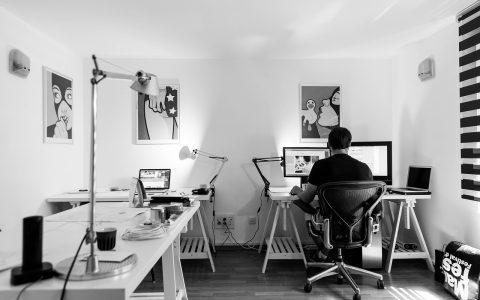
Hardware filters alone cannot protect you if your physical desk placement compromises your line of sight. Workspace ergonomics and room layout play a pivotal role in preventing visual data leaks. Ideally, your desk should be positioned against a solid wall with your back facing away from high-traffic zones, doorways, or shared living spaces. If your room layout requires you to face a doorway, ensure there is enough physical distance between your screen and the entrance to make casual viewing impossible.
Windows present a distinct challenge for remote workers. Natural sunlight shifting throughout the day can wash out your monitor or create severe contrast issues that confuse auto-brightness sensors. More importantly, large uncovered windows make your entire workspace visible to neighbors or people on the street. Installing adjustable window treatments—such as horizontal blinds, roller shades, or light-filtering cellular shades—allows you to control the amount of incoming light without plunging your room into complete darkness. Tilt your blinds upward or downward at an angle that blocks outside visibility while still allowing soft, diffused daylight to enter the room.
When positioning your desk relative to windows, avoid setting up with the window directly behind you or directly in front of you. Placing a window directly behind you casts harsh backlighting on your face during video calls, turning you into a dark silhouette and making it impossible for clients to read your facial expressions. Conversely, placing the window directly behind your monitor causes intense glare and forces your webcam to overcompensate for the blown-out light source. The optimal layout places your desk perpendicular to the window, allowing soft, even natural light to illuminate your workspace from the side.
Configuring Camera Angles and Background Framing
Beyond protecting what is on your screen, you must secure what your webcam captures during client video conferences. A poorly angled camera can reveal sensitive documents pinned to a bulletin board, family photos, or clutter that detracts from professional credibility. Begin by evaluating your camera’s field of view. Sit down in your normal working posture and examine your video preview window to see exactly what the lens encompasses.
Elevate your laptop or external webcam so that the lens sits at eye level. This prevents the unflattering upward angle common in laptop work and encourages better posture. If your background cannot be easily cleared of personal items, consider positioning your desk perpendicular to a neutral wall rather than parallel to an open room. While virtual background software is popular, it often struggles with hair edges, headset wires, and fast movements, occasionally glitching and revealing glimpses of your actual environment. A clean, physical background paired with careful framing is always more reliable and professional.
When sharing your screen during a client call, exercise strict discipline. Never leave confidential client tabs, email notifications, or messaging apps open in the background. Use operating system focus modes to suppress pop-up notifications, and share only the specific application window rather than your entire desktop display.
In addition to software safeguards, take a moment to evaluate the physical objects within your camera’s field of view. Whiteboards, sticky notes, open notebooks, and incoming mail left on nearby tables can inadvertently display sensitive names, phone numbers, or passwords. Make it a habit to sweep your camera’s frame before launching any client call. Using an adjustable physical webcam privacy shutter when the camera is not in use also provides a tangible layer of security, ensuring that you control precisely when your lens is active.
Common Setup Mistakes to Avoid
Even with high-end equipment, certain recurring oversights can undermine your privacy setup. Being aware of these pitfalls saves time and prevents embarrassing security lapses:
- Neglecting side-angle testing: Assuming a filter works without physically moving your perspective to verify that data is obscured from neighboring seats.
- Ignoring overhead lighting: Placing your desk directly beneath a harsh overhead light that bounces off the matte or glossy surface of the privacy filter.
- Over-relying on software backgrounds: Trusting virtual background filters while handling regulated data in a chaotic or shared physical space.
- Forgetting physical security during breaks: Leaving your computer unlocked and visible when stepping away from your desk, even for a moment, in a semi-public environment.
- Poor cable and peripheral management: Allowing loose paperwork, notebooks containing client notes, or printed invoices to sit uncovered within camera view on your desk.
By systematically addressing these common errors, you create a robust physical security baseline that protects both your clients’ data and your professional reputation.
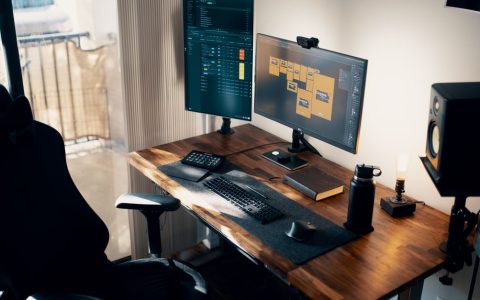
Another frequent oversight is failing to secure secondary monitors. Many remote professionals utilize a multi-monitor workflow to maximize productivity, yet they often install a privacy filter only on their primary laptop screen while leaving an external secondary monitor completely exposed. If you routinely display confidential spreadsheets or communication channels on a second screen, it requires an identical hardware filter and careful positioning to prevent lateral visual leaks.
Maintaining Your Privacy Setup Over Time
A privacy filter and workspace arrangement require periodic maintenance to remain effective. Dust, skin oils, and microscopic debris accumulate quickly on both your screen and the filter surface, reducing clarity and causing eye strain. Remove removable filters monthly and clean both sides with a specialized optical microfiber cloth. Avoid household window cleaners containing ammonia or harsh solvents, as these chemicals can strip anti-reflective coatings from the filter or your display glass.
As your remote work habits evolve—such as transitioning between a home office, a client site, or a shared workspace—re-evaluate your physical layout. Ensure that your viewing angles remain secure in every new location. By treating your physical workspace with the same rigorous security mindset as your digital network, you establish a professional standard that safeguards sensitive information wherever your work takes you.
Finally, establish a recurring audit of your home office or remote workspace. Every six months, sit in the various visitor or passerby positions around your desk to verify that environmental changes—such as rearranging furniture, adding new lamps, or moving house plants—have not inadvertently created new lines of sight to your monitor. Diligence in maintaining these physical safeguards ensures that your remote work environment remains as secure, compliant, and trustworthy as any traditional corporate office.