If you spend eight hours a day clicking, scrolling, and dragging across a flat desk, your forearm bones are likely locked in a constant, unnatural twist. Traditional computer mice force your hand flat against the desk surface—a position known medically as forearm pronation. Over thousands of repetitive daily motions, this twisting tension strains the flexor tendons, compresses the median nerve inside the carpal tunnel, and radiates fatigue up into your elbow and shoulder. Transitioning to an ergonomic design is the first step, but hardware alone is rarely enough. Mastering a proper vertical mouse setup guide ensures you eliminate the underlying torque causing your discomfort.
A vertical mouse alters your grip from a palms-down pancake orientation to a natural handshake posture. While this structural shift immediately relieves internal wrist pressure, many remote workers make the mistake of plugging in a vertical mouse and using it with the exact same habits, muscle memory, and desk layout they used for a traditional flat mouse. Without intentional adjustments to your grip pressure, cursor sensitivity, desk friction, and armrest height, you can easily develop new aches or struggle with precision control. This guide walks you through the precise mechanics of configuring your workspace, hand posture, and device settings for long-term comfort and pain-free remote work.
Understanding Forearm Pronation and Carpal Tunnel Strain
To understand why your wrists hurt after a long day of remote work, look at your arms when they rest naturally by your sides. Your thumbs point forward, and your palms face your torso. This neutral position places zero twisting tension on the radius and ulna, the two bones of your forearm. When you place your hand flat on a standard mouse, you rotate your forearm roughly ninety degrees downward. This pronation crosses the two forearm bones over each other and keeps the flexor muscles under constant isometric tension.
When these forearm muscles remain chronically contracted, they pull on the tendons that pass through the carpal tunnel in your wrist. Coupled with the downward pressure of your palm resting against the desk or mouse body, this friction irritates the median nerve, leading to numbness, tingling, aching, and classic repetitive strain injury (RSI) symptoms. A vertical mouse eliminates this structural twist by keeping your forearm in that comfortable, neutral handshake posture. However, realizing the full ergonomic benefits requires understanding how your entire upper limb interacts with your desk environment.
Beyond the immediate physical tension, traditional mice encourage micro-movements that rely heavily on the smaller, more fragile muscles and tendons in the hand and wrist. When you transition to a vertical model, the physics of your arm change. The larger muscles of your upper arm and shoulder take on a stabilizing role, while your hand simply rests against the vertical chassis. Understanding this anatomical shift is crucial because it changes how you think about exertion during a heavy workday. Instead of fighting the device, your hand learns to let the hardware match your skeletal geometry.
Choosing the Right Vertical Angle and Sizing
Not all vertical mice are created equal, and one of the most common pitfalls is buying a device that does not match your hand dimensions or structural needs. Vertical mice typically feature grip angles ranging from 45 degrees to a full 90 degrees of vertical elevation. A 45-degree angle can serve as an easy transition tool if you have used flat mice your entire life, but a true 57-to-90-degree angle provides the most complete relief from pronation torque.
Hand sizing is equally critical. If your vertical mouse is too small, your fingers will cramp, and you will resort to a tight pinching grip. If it is too large, your wrist will drag awkwardly across the mousepad, introducing friction and awkward lifting motions. When selecting a device, measure your hand from the base of your palm to the tip of your middle finger. Look for a manufacturer specification that pairs with your hand length. Your entire palm should make contact with the body of the mouse, and your thumb should rest comfortably in its designated cradle without overextending.
It is also worth evaluating whether you need a wired or wireless model, and how the weight distribution affects your daily routine. Heavier mice require more initial force to move, which can tax your hand if you have existing strain. Conversely, ultra-lightweight models can sometimes feel unstable if you have a heavy-handed grip. Look for a balanced weight distribution that allows the mouse to glide smoothly without feeling like it is floating away or dragging anchors.
Step-by-Step Desk Layout and Positioning
Even the best ergonomic hardware will fail if your workspace layout forces you to reach or twist. Proper positioning starts with keeping your input devices directly in front of your shoulders.

Many remote workers place their mouse far out to the right or left, forcing chronic shoulder abduction and slight torso rotation. Over hours of work, this asymmetrical posture strains your neck and upper back. Pull your vertical mouse directly in line with your shoulder. It should sit immediately adjacent to your keyboard. If you use a compact keyboard without a numeric keypad, you bring the mouse even closer to your centerline, dramatically reducing the distance your arm travels throughout the day.
Pay attention to your desktop surface material and mousepad choice as well. Vertical mice have a taller center of gravity than flat mice, meaning they require smooth, consistent glide resistance. A high-friction desk surface or a worn-out mousepad can force you to exert extra muscular effort to push the device, defeating the purpose of an ergonomic upgrade. Pair your setup with a clean, low-friction micro-texture mousepad that allows the mouse to glide effortlessly under minimal finger pressure.
Furthermore, consider the vertical clearance of your workspace. If you work on a pull-out keyboard tray, ensure there is enough vertical room to accommodate the taller profile of a vertical mouse without forcing your elbow into an awkward upward angle. The tray must be sturdy enough to support both your keyboard and mouse without wobbling, as instability forces your hand to micro-correct constantly.
Refining Your Grip and Eliminating Pinching Habits
One of the steepest learning curves of switching to a vertical design involves unlearning bad grip habits. With flat mice, people often anchor their wrist to the desk and pivot their hand entirely from the wrist joint, or they grip the sides of the mouse tightly with their thumb and pinky to lift and reposition it.
On a vertical mouse, wrist-anchoring restricts your range of motion and concentrates friction at the base of your palm. Instead, your entire arm should move from the elbow and shoulder when navigating across wide screens or multiple monitors. Your hand should drape over the mouse shell like a relaxed glove. Let the weight of your hand rest naturally against the vertical wall of the device rather than actively squeezing it. Your thumb should rest lightly in its groove, and clicking should originate from the gentle downward weight of your index and middle fingers, not a tense muscular contraction from your forearm.
Pay close attention to your pinky finger and outer palm edge. Many beginners tend to drag their outer palm or pinky along the mousepad to act as a brake. This creates asymmetric drag and forces your hand into a sideways tilt. Lift your outer hand slightly, letting the mouse support your palm fully while your fingers drape naturally over the primary click buttons and scroll wheel.
Adjusting Cursor Speed and Sensitivity Settings
Precision issues are the primary reason people abandon vertical mice within the first week. Because your hand is in a new orientation, your brain struggles initially to translate small hand movements into on-screen cursor trajectories. Rather than fighting this by gripping the mouse harder or making sweeping arm movements, adjust your software sensitivity settings.
Open your operating system’s mouse settings or the dedicated software suite provided by your hardware manufacturer. Increase the cursor speed (DPI) so that you can navigate your entire desktop with minimal physical movement from your forearm. High DPI settings allow you to make micro-adjustments using just your fingers and subtle wrist pivots, preventing fatigue. Spend the first two or three days working at a slightly lower speed if high DPI feels erratic, then incrementally step up the sensitivity as your muscle memory adapts to the new angle.
Don’t overlook acceleration curves within your OS settings either. Linear tracking is generally preferred for ergonomic setups because it provides a predictable, 1:1 relationship between physical hand movement and cursor travel on screen. When your cursor behavior is predictable, your hand relaxes because it no longer has to guess how far the pointer will jump based on how fast you flick the mouse.
Coordinating Armrests and Chair Ergonomics
Your vertical mouse setup cannot be viewed in isolation from your chair and desk height. Your armrests play a vital supporting role in keeping your forearm relaxed and strain-free.
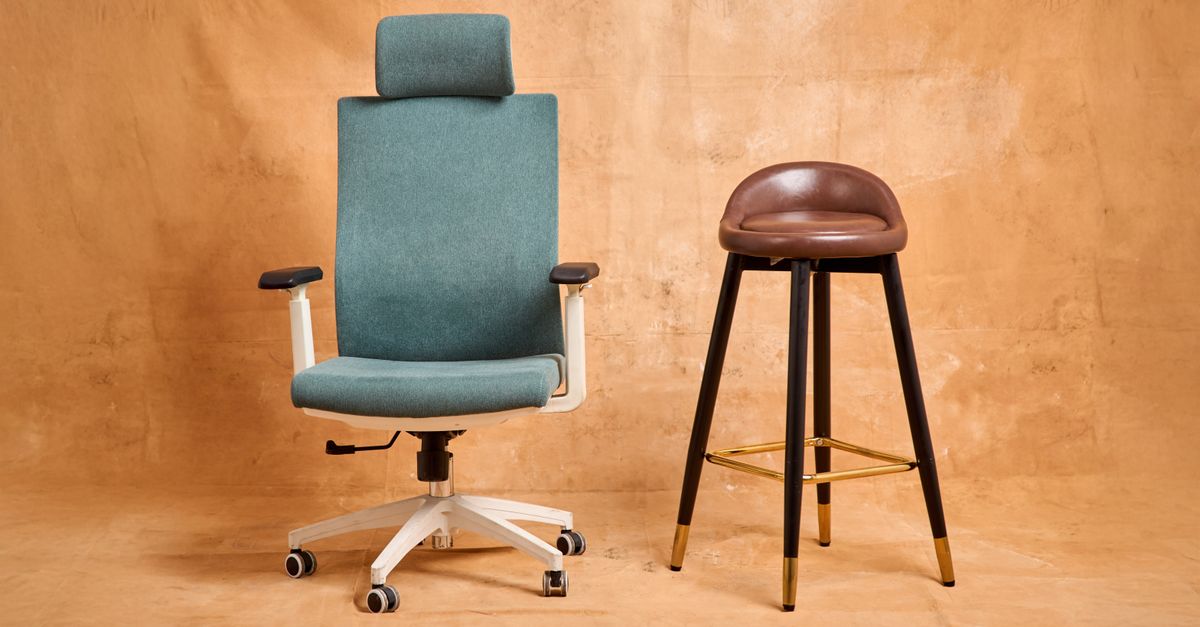
Adjust your office chair armrests so that your elbows form an open angle of approximately 90 to 100 degrees, with your forearms parallel to the floor or sloping slightly upward toward the desk. The armrests should support the weight of your elbows and forearms without pushing your shoulders up toward your ears. If your armrests are too low, your shoulders will slouch, and your arm weight will pull down on your wrist tendons. If they are too high, your shoulders will shrug, creating tension in your trapezius muscles that travels down into your arms.
Ensure your desk height allows your feet to rest flat on the floor or on a stable footrest. Your knees should sit at a level equal to or slightly lower than your hips. When your lower body is properly supported, your core stabilizes, allowing your upper limbs to operate with relaxed, fluid motion.
It is also beneficial to check whether your armrests interfere with your desk edge. If your chair cannot slide close enough to the desk because the armrests hit the edge, you will be forced to lean forward and reach out. This ruins your shoulder alignment and places unneeded strain on your lower back and arms. Adjust or remove armrests if they prevent you from sitting flush against your workstation.
Common Vertical Mouse Setup Mistakes
- Anchoring the wrist: Keeping your wrist planted firmly on the desk while pivoting your hand creates friction and compresses the carpal tunnel. Move from your elbow instead.
- Over-squeezing the device: Gripping the vertical mouse too tightly with your thumb and pinky tires out the small intrinsic muscles of your hand.
- Reaching too far: Positioning the mouse too far to the side causes shoulder abduction and neck strain. Keep it tucked tightly beside your keyboard.
- Ignoring DPI adjustments: Failing to increase cursor sensitivity leads to excessive physical exertion when dragging the mouse across large dual-monitor displays.
- Neglecting chair alignment: Operating without proper elbow and forearm support shifts structural weight directly onto your wrist joints.
Building a Progressive Adaptation Protocol
Switching to a vertical mouse introduces novel movement patterns for muscles that may have remained dormant or underutilized under a flat mouse regime. Consequently, you might experience mild muscular fatigue during the first week of transition. This is normal adaptation soreness, distinct from sharp nerve pain or tendon inflammation.
To manage this transition smoothly, adopt a phased integration approach. On your first day using a vertical mouse, commit to using it for two hours, then switch back to your old mouse if you feel significant fatigue. On the second day, extend that window to four hours. By the end of your first week, you should be operating exclusively with your vertical setup. Pair this schedule with micro-breaks: every 45 minutes, drop your hands to your sides, shake out your fingers, and perform gentle, pain-free wrist stretches to maintain blood circulation.
Keep a close journal of your physical sensations during this adaptation week. Mild muscle tiredness in your forearm or upper arm is expected as postural muscles wake up. However, if you experience sharp, shooting pains, numbness, or worsening carpal tunnel symptoms, stop immediately and reassess your grip pressure, desk height, and device sizing. Ergonomic tools are designed to alleviate strain, but incorrect usage can sometimes introduce new friction points.
Maintaining Long-Term Desk Ergonomics
Configuring your vertical mouse and dialing in your desk geometry is not a one-time project; it requires ongoing maintenance as your workflow evolves. Periodically audit your workspace. Are you slouching as the afternoon wears on? Has your mouse drifted outward across the desk? Are your chair settings still aligned with your footwear and posture? By combining a properly adjusted vertical mouse, neutral forearm pronation angles, thoughtful desk organization, and conscious movement habits, you build a resilient workstation that protects your joints and keeps you comfortable through years of intensive remote desk work.
Remember to evaluate your software environment as well. Customizing button assignments on your vertical mouse to handle frequent shortcuts—such as copy, paste, or browser navigation—can drastically reduce the total number of repetitive clicks and finger stretches you perform each day. By treating your input devices, furniture, and software shortcuts as an integrated ergonomic ecosystem, you create a sustainable foundation for long-term remote productivity and health.