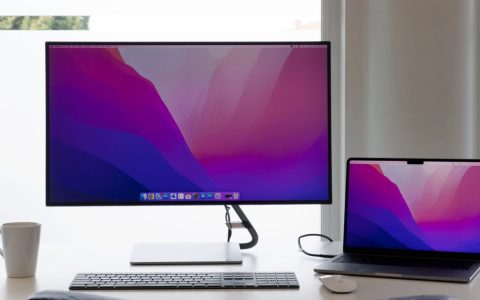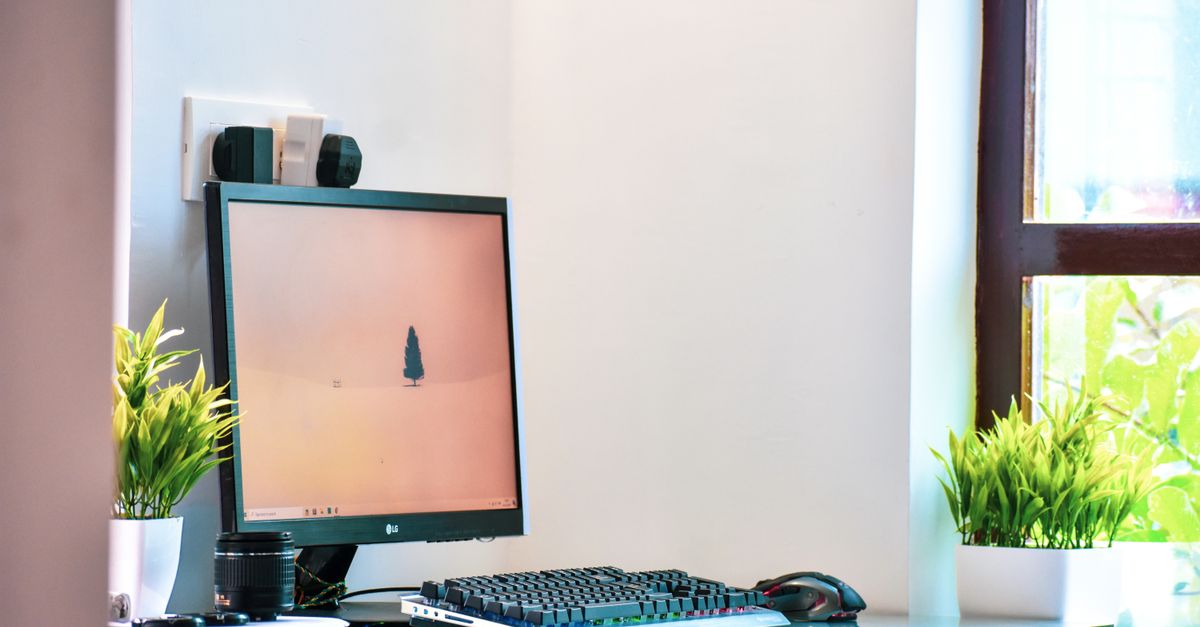
Few things disrupt a productive workday quite like a blinding streak of sunlight cutting across your computer monitor. If you work from home, dealing with daytime window glare is a constant battle. Not only does it wash out your screen, forcing you to squint and crane your neck just to read spreadsheets or draft emails, but it also sabotages your appearance on video calls. Colleagues often see a dark silhouette washed out by a blown-out background window rather than your face.
Building an effective anti glare remote work desk setup requires understanding how light moves through your home office and interacting with glass surfaces. Rather than buying expensive gadgets blindly, you need a systematic approach to window treatments, room layout, desk orientation, and task lighting. This guide breaks down the exact steps required to reclaim your workspace from frustrating reflections.
Understanding the Physics of Office Screen Glare
Before moving furniture or buying accessories, it helps to understand why glare happens. Modern computer displays use either glossy or matte glass panels. Glossy screens offer punchier colors and deeper blacks, but they act like a mirror, reflecting any light source behind you or to the side. Matte screens diffuse incoming light using a microscopic textured coating, which cuts down mirror-like reflections but can make images look slightly hazy under direct, intense light.
When light hits your screen, it competes directly with the light your monitor emits. If the ambient light in the room or the light from a window is brighter than your display, your pupils constrict, and you lose contrast. This forces your eyes to work overtime, resulting in digital eye strain, headaches, and fatigue by mid-afternoon. Solving this problem means controlling the intensity and angle of all light sources hitting your workspace.
To measure your environment effectively, lighting professionals use units like lumens (total light output) and lux (lumens per square meter). A comfortable office workspace typically requires around 300 to 500 lux of ambient light. However, direct midday sunlight streaming through an unshaded window can easily exceed 10,000 to 50,000 lux. When your monitor emits roughly 250 to 350 nits (candelas per square meter) of brightness, it is mathematically impossible for the display to compete with direct solar radiation. The light from the sun completely overwhelms the backlight of your LED or OLED panel, washing out colors and turning your sleek monitor into a reflective mirror.
Furthermore, specular reflection—where light bounces off a smooth surface at a precise, predictable angle—plays a major role in office discomfort. When an unshaded window sits directly behind your chair, light rays travel across the room, strike the front glass of your display, and bounce straight into your corneas. Diffuse reflection, on the other hand, occurs when rougher surfaces scatter light in multiple directions. Matte monitor coatings deliberately exploit diffuse reflection to break up harsh mirroring, though they introduce a minor trade-off in perceived black levels and text crispness.
Evaluating Your Desk Orientation and Window Placement
The single most impactful change you can make costs nothing: changing where your desk faces relative to your windows. Many home offices are set up haphazardly based on where the electrical outlets are, leaving workers staring directly into a window or sitting with a massive window directly behind them.
Avoid placing your desk facing a window. While looking outside sounds pleasant, having an unshaded window directly in your line of sight creates an extreme contrast ratio between the bright outdoors and your monitor. Your eyes constantly adjust between the two, leading to rapid fatigue. Similarly, placing your back to a window means every ray of sunlight hits the back of your monitor and bounces straight into your webcam and eyes.
The ideal desk orientation is perpendicular to the window. Position your desk so the window is to your left or right side. This minimizes direct light hitting the front or back of the screen. If you must have a window in front of you, pull the desk back at least six to eight feet and ensure you have heavy window treatments to diffuse the incoming light.
When executing a perpendicular desk layout, pay attention to your handedness and shadow placement. If you are right-handed and your desk is oriented with the window on your left side, your hand and arm will not cast annoying shadows across your notepad or physical documents as you write. Conversely, if you use dual monitors, ensure neither screen angles directly toward the side window. A slight inward tilt on your secondary monitor can catch lateral sunlight at an oblique angle, turning half of your digital workspace into an unreadable glare zone.
Another structural consideration is room geometry. In narrow home offices or converted bedrooms, finding a perpendicular arrangement can feel constrained. If space forces you to angle your desk diagonally across a corner, make sure your monitor backs up against a solid, neutral-colored wall rather than an open glass balcony door or floor-to-ceiling windows. Creating a buffer zone between your hardware and primary light apertures is essential for long-term visual comfort.
Controlling Natural Light with Effective Window Treatments
Standard sheer curtains or thin blinds are rarely enough to stop harsh daytime glare. To truly eliminate screen reflections, you need to manage natural light at the source. Depending on your budget and rental agreements, several window treatment options work well for home offices.
Cellular shades, also known as honeycomb shades, are exceptional for home offices because they trap air and offer various opacities, from light-filtering to true blackout. A light-filtering dual shade system allows you to drop a sheer layer during cloudy days to cut glare while maintaining natural light, and drop an opaque layer when the afternoon sun hits full force.
Vertical blinds or wooden Venetian blinds give you directional control. By tilting the slats upward toward the ceiling, you bounce incoming sunlight up into the room rather than letting it hit your desk surface. This indirect light brightens the space without creating direct beam reflections on your glass monitor.
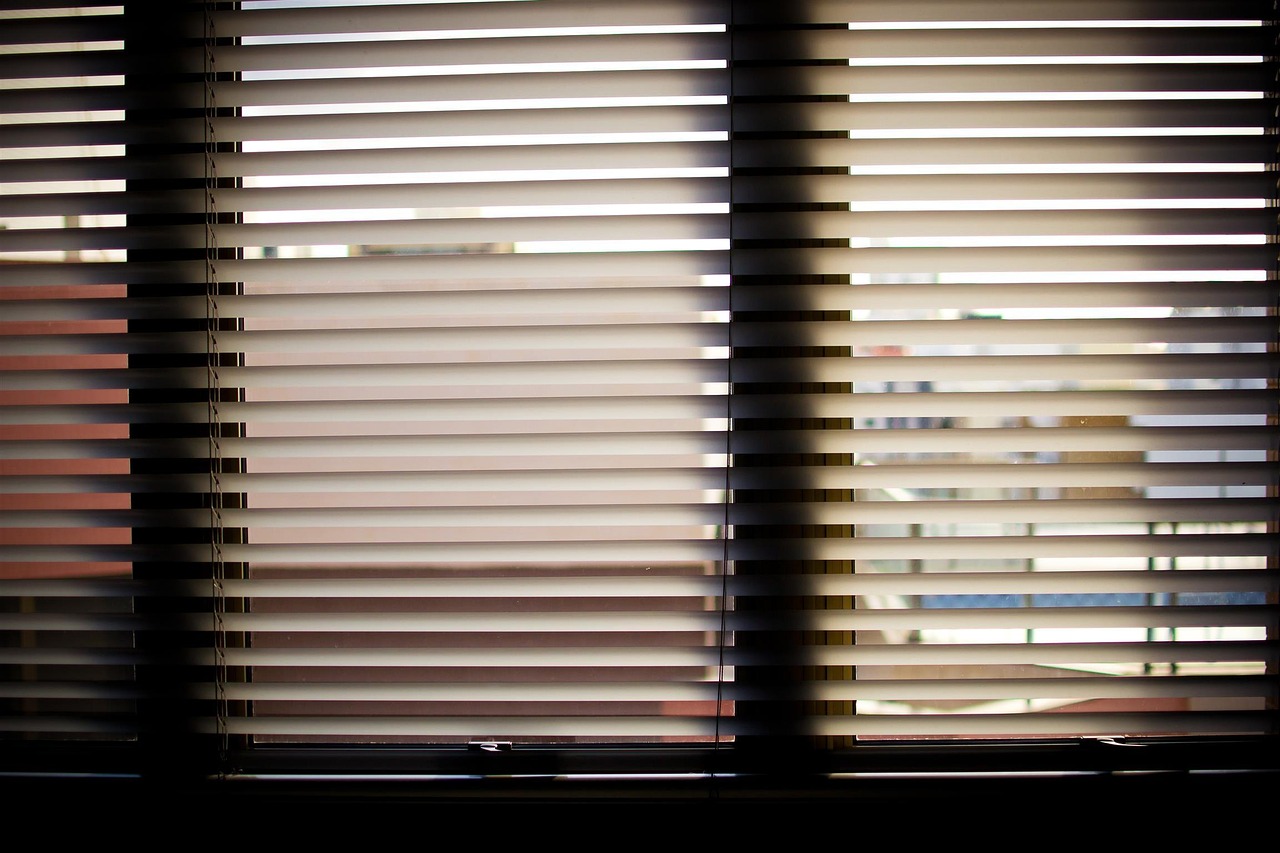
For rooms facing harsh southern or western exposures, consider adding adhesive window films or solar control window tinting. These transparent films reject a significant percentage of infrared heat and ultraviolet rays while cutting down visible light transmission without making your room feel like a dungeon. If rental restrictions prevent permanent modifications, tension-rod roller shades or temporary static-cling window films provide a clean, reversible alternative that solves glare instantly.
When evaluating roller shades, look for fabrics with openness factors ranging from 1% to 5%. An openness factor of 3% represents a sweet spot for home offices, allowing adequate soft natural illumination while blocking the sharp heat and glare spikes associated with direct solar exposure. Pairing these shades with side channels can eliminate pesky light leaks around the frame edges, ensuring complete control over the luminous environment of your remote workspace.
Evaluating Monitor Panel Technologies and Surface Coatings
Beyond room layout, the physical properties of your display hardware dictate how well your setup resists glare. When shopping for computer monitors, understanding panel types—such as IPS (In-Plane Switching), VA (Vertical Alignment), and OLED—helps you make an informed investment that protects your eyesight.
IPS panels are widely regarded as the gold standard for office work due to their wide viewing angles and accurate color reproduction. Most quality IPS monitors feature a hard-coated matte finish (typically 3H hardness) that effectively diffuses ambient room light. VA panels offer superior contrast ratios with deep blacks, making them wonderful for dark rooms, but glossy or semi-gloss VA variants can prove treacherous near bright windows. OLED displays deliver infinite contrast, but consumer models frequently ship with glossy glass panels that act as mirrors in sunlit environments unless paired with rigorous external shading solutions.
If your current monitor suffers from an overly reflective glossy finish, you do not necessarily need to buy a brand-new display. Third-party anti-glare screen protectors custom-cut for popular monitor sizes can be applied directly to the glass. However, installation requires meticulous cleaning to avoid trapped dust particles. Always test the film in your specific lighting conditions before committing, as low-grade adhesives can create a sparkling artifact pattern that strains your focus during long reading sessions.
Balancing Ambient Lighting and Task Lamps
Once you control the natural light, you must address the artificial light inside your room. A common mistake is working in a dim room with a super-bright monitor. This creates a high-contrast environment that strains your eyes.
To fix this, introduce balanced ambient lighting. Instead of relying on a harsh overhead ceiling light that casts shadows and glares downward, use indirect lighting. Place a torchiere floor lamp in a corner, directing the light upward toward the ceiling to bounce a soft, diffuse glow throughout the office.
When adding desk lamps, ensure the bulb is positioned beside or slightly behind the monitor, never in front where it can reflect off the screen. Look for LED desk lamps with adjustable color temperatures. Cooler daylight tones (around 5000K) help you stay alert during morning hours, while warmer tones (around 3000K) reduce harsh blue light contrast as evening approaches.
Another exceptional tool for modern anti-glare setups is the asymmetric LED monitor light bar. These specialized lamps mount directly to the top bezel of your display. Because of their precision optics, they project a focused beam of light downward onto your physical desk surface and keyboard without spilling light onto the glass monitor panel. This ensures your documents are well-lit for reading while completely avoiding screen reflections.
To dial in your lighting ecosystem further, consider smart bulbs or dimmer switches. Being able to scale down artificial illumination as late-afternoon sunlight fades helps maintain a consistent photometric balance across your entire workspace, preventing sudden blinding adjustments when switching your gaze between paperwork and digital windows.
Choosing Between Matte Monitors, Hoods, and Polarizing Filters
If adjusting your room layout and window blinds is not enough, you may need to modify your hardware. When shopping for a new monitor, prioritize models featuring IPS panels with matte anti-glare coatings rather than glossy glass surfaces.
If you already own a glossy monitor that you cannot replace, consider a monitor hood or visor. These three-sided shades attach to the top and sides of your display, blocking stray ambient light from overhead fixtures and side windows. Video editors and colorists use monitor hoods to maintain color accuracy, but they work equally well for remote workers battling glare.
Another option is applying an anti-glare screen protector or polarizing film. These stick-on filters diffuse light similarly to a matte screen. However, apply them carefully; trapped dust bubbles or cheap low-quality films can distort text clarity and introduce a grainy texture that defeats the purpose.
When evaluating hardware options, also consider the maximum brightness (nit count) of your display. Monitors rated below 250 nits struggle in rooms with high ambient light. Upgrading to a display featuring 350 to 500 nits of peak brightness gives you the headroom needed to overpower remaining ambient light reflections without cranking settings to levels that induce thermal strain or rapid eye fatigue.
Optimizing Your Setup for Remote Video Calls
Eliminating glare for your own eyes is only half the battle. As a remote worker, you also need to look professional on Zoom, Microsoft Teams, or Google Meet video calls. If a window is behind you, you appear as a dark shadow. If a window is to your side, one half of your face is brilliantly lit while the other is in deep shadow.
To achieve clean video lighting, use front-facing key lighting. A small ring light or square LED panel mounted behind your monitor helps fill in shadows and balances the exposure between your face and the bright background. Additionally, adjust your webcam’s auto-exposure settings or use manual exposure controls in your video conferencing software to prevent the camera from overcorrecting for bright window light.
Position your key light slightly off-center (at roughly a 45-degree angle to your face) to create natural depth and contouring rather than a flat, washed-out look. Pair this with a fill light on the opposite side at a lower intensity level to soften harsh facial shadows. By separating your task lighting for your workspace from your facial lighting for your webcam, you maintain total control over both your personal comfort and your professional on-camera appearance.
Furthermore, pay attention to color rendering index (CRI) ratings when selecting video call lighting. Lights with a CRI of 90 or higher render skin tones accurately and naturally, preventing the washed-out, sickly pallor often caused by cheap generic LEDs. Combined with your glare-free monitor arrangement, professional lighting ensures your video presence remains crisp, engaged, and free of distracting background flare.
A Step-by-Step Home Office Lighting Audit Checklist
To ensure your workspace is fully optimized, walk through this quick sequential audit:
- Step 1: Map the Light Sources. Identify every window, lamp, and overhead fixture in your office. Note how light moves across your desk from morning to evening.
- Step 2: Check Desk Angle. Verify that your main display sits perpendicular to primary windows rather than directly facing or backing them.
- Step 3: Test Window Treatments. Drop blinds or shades during peak sun hours and check whether direct beams are successfully diffused into soft ambient room light.
- Step 4: Audit Monitor Brightness. Ensure your display’s nit output matches room illumination levels without washing out or blinding your eyes during dark-mode work.
- Step 5: Verify Video Exposure. Open your preferred video conferencing app to confirm your face is evenly lit without blown-out background windows or harsh side shadows.
Common Mistakes to Avoid in Anti-Glare Setups
When trying to fix home office glare, avoid these frequent pitfalls:
- Relying solely on software adjustments: Turning up monitor brightness only makes white backgrounds feel like a flashlight and increases eye strain. Fix the light sources in the room first.
- Ignoring wall color and desk surfaces: Highly glossy white desks or bright white walls directly opposite a window will bounce reflected light right back onto your screen. Opt for matte desk finishes and neutral, non-reflective wall paint.
- Forgetting about time-of-day changes: The sun moves. A setup that is glare-free at 9:00 AM might be completely washed out by 2:00 PM. Design your window treatments with adjustability in mind so you can adapt as the sun shifts.
- Placing mirrors opposite windows: Decorative wall mirrors amplify natural light reflections across the entire room, compounding screen glare issues if positioned incorrectly.
Frequently Asked Questions About Anti-Glare Remote Work Setups
Navigating home office lighting adjustments often raises specific questions regarding rentals, hardware limitations, and daily maintenance. Here are answers to common concerns faced by remote professionals:
Can I fix screen glare without drilling holes for blinds or curtains?
Yes. Temporary tension rods, static-cling window films, and clamp-on monitor light bars require zero hardware modifications, making them ideal for rental properties or temporary workstations.
Why does my anti-glare screen protector make text look blurry?
Low-quality matte films use aggressive texturing that scatters light unevenly, causing a sparkling or grainy effect over crisp text. Invest in high-clarity tempered glass or premium branded anti-glare films to preserve font sharpness.
Is it better to work in total darkness to avoid reflections?
No. Working in a pitch-black room with a glowing monitor creates extreme contrast that accelerates eye fatigue. Always maintain a gentle, indirect ambient light level across your workspace.
Ergonomics and Eye Health: Beyond the Screen
Managing glare is fundamentally an ergonomic endeavor. When your eyes constantly fight reflections and high contrast ratios, your blink rate drops significantly—often by half. This leads to dry eye syndrome, irritation, blurred vision, and tension headaches that radiate from your temples down into your neck and shoulders.
Incorporate the 20-20-20 rule into your daily remote work routine: every 20 minutes, look at something located at least 20 feet away for at least 20 seconds. This simple habit allows your ciliary eye muscles to relax after holding a fixed focal distance on a nearby display. Combined with an optimized anti-glare setup, these small behavioral adjustments protect your long-term ocular health.
Putting Your Anti-Glare Plan into Action
Creating a comfortable, distraction-free workspace does not require a complete office remodel. Start with the easiest, lowest-cost adjustments before buying new gear. Reposition your desk so windows are to your side, invest in sturdy light-filtering shades to tame direct sunlight, and balance your room’s ambient lighting with indirect floor lamps.
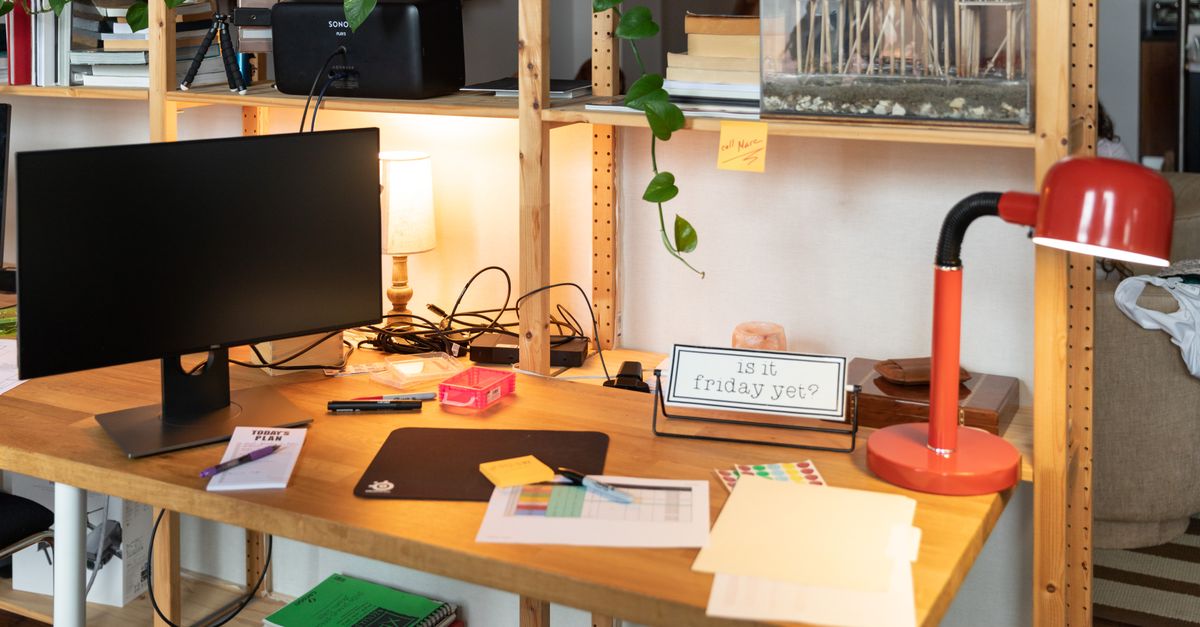
By taking a methodical approach to light management, you will protect your vision, reduce daily fatigue, and present a polished, professional image on every video call. A well-optimized workspace lets you focus entirely on your work rather than fighting the sun.