When a sudden summer thunderstorm rolls through or local grid maintenance triggers an unexpected blackout, remote knowledge workers face more than just a flickering lightbulb. If you rely on a desktop workstation, a sudden loss of power can corrupt open files, interrupt live video calls, and potentially damage sensitive computer components over time. Integrating an uninterruptible power supply into your workspace is the standard defense against these electrical anomalies. However, keeping a heavy battery unit on your floor creates clutter, traps dust, and eats up valuable legroom. Executing a secure under desk UPS battery backup setup solves these physical and electrical problems simultaneously, lifting your heavy hardware off the ground and anchoring it safely within arm’s reach.
Achieving a safe and reliable installation requires more than simply sliding a heavy brick onto a generic plastic shelf. Consumer battery backup units are remarkably dense, often packing heavy lead-acid or lithium-ion cells into a compact chassis that can easily weigh twenty to thirty pounds. Mounting a heavy object beneath a wooden or composite desktop introduces structural, thermal, and ergonomic challenges that demand careful planning. This guide details how to evaluate your desk’s construction, choose the right mounting hardware, manage thermal output, and route your power cables safely for long-term home office reliability.
Evaluating Your Desk Construction and Weight Limits
Before buying any brackets or shelving, you must inspect the structural integrity of your desk. Many modern remote work desks use hollow-core particleboard, honeycomb paper interiors, or thin steel frames rather than solid hardwood. A solid-wood or thick plywood desk easily handles heavy vertical loads and clamping pressure. Conversely, hollow-core desks can crush, warp, or pull apart under concentrated clamping stress or heavy screw loads. When assessing your workspace, look closely at how the manufacturer constructed the desktop panel. Tap the surface to listen for hollow sounds, or check the underside edges where pre-drilled holes reveal the core material.
Check the underside of your desk for a structural apron, metal reinforcement rails, or solid wood framing. If your desk features a solid perimeter frame, you have ideal anchor points for mounting hardware. If your workspace is an adjustable standing desk, you must also factor in the maximum dynamic and static load ratings of the lifting columns. Adding a twenty-five-pound battery backup to the underside adds permanent static weight, which reduces the total lifting capacity available for your monitors, computer tower, and desktop accessories. Furthermore, electric standing desks rely on synchronized motors; an unevenly distributed load under one side of the desktop can strain the drive shafts or cause the lifting columns to bind during height adjustments.
Furthermore, consider how your desk is assembled. Cam-lock fasteners and dowels common in flat-pack furniture are not designed to withstand lateral or pulling forces created by hanging heavy gear. If you spot structural vulnerabilities, you may need to add a supplementary backing board or plywood reinforcement plate across the underside of the desk to distribute the weight of the UPS mounting brackets safely across multiple structural ribs. Taking these extra structural precautions prevents catastrophic failures that could drop a heavy battery onto your feet or rip your desk apart from the inside out.
Understanding Weight Capacity and Shelf Selection
When shopping for a desktop UPS mounting bracket or specialized under-desk shelf, look closely at the manufacturer’s stated weight limits. Never push a shelf to its absolute maximum limit; aim for a mounting solution where your UPS unit utilizes no more than sixty to seventy percent of the rated capacity. This safety margin accounts for dynamic forces, accidental bumps from your knees, and the vibrations generated by internal cooling fans or transformers. A bracket rated for fifty pounds might sound more than adequate for a twenty-five-pound UPS, but overhead clamping mechanisms lose some of their friction grip under constant downward tension and daily room vibrations.
Under-desk mounts typically fall into two categories: heavy-duty clamp-on shelves and direct screw-mounted steel slings. Clamp-on styles are popular for renters or those who prefer not to drill holes into their furniture. They rely on heavy steel C-clamps and rubberized friction pads to grip the desktop without leaving permanent scars. Direct-mount steel shelves, which screw straight into the underside of the desktop, offer superior permanent stability for heavier units, provided your desktop material is thick enough to accept wood screws without stripping. Always check the thread pitch and length of included screws to ensure they will not puncture the top surface of your work desk.
When selecting your shelf, measure the exact dimensions of your uninterruptible power supply unit, including its protruding faceplate and rear cable clearance. Many standard PC tower stands or printer shelves are either too narrow or too shallow for a bulky line-interactive UPS chassis. Look for adjustable steel platforms featuring open-air sides and a solid, lip-edged bottom tray that prevents the unit from sliding forward or backward during everyday office activities. A high-quality shelf will also feature slotted cutouts on the bottom panel, which allow heat to dissipate downward away from the sensitive battery compartment.
Managing Thermal Clearance and Airflow
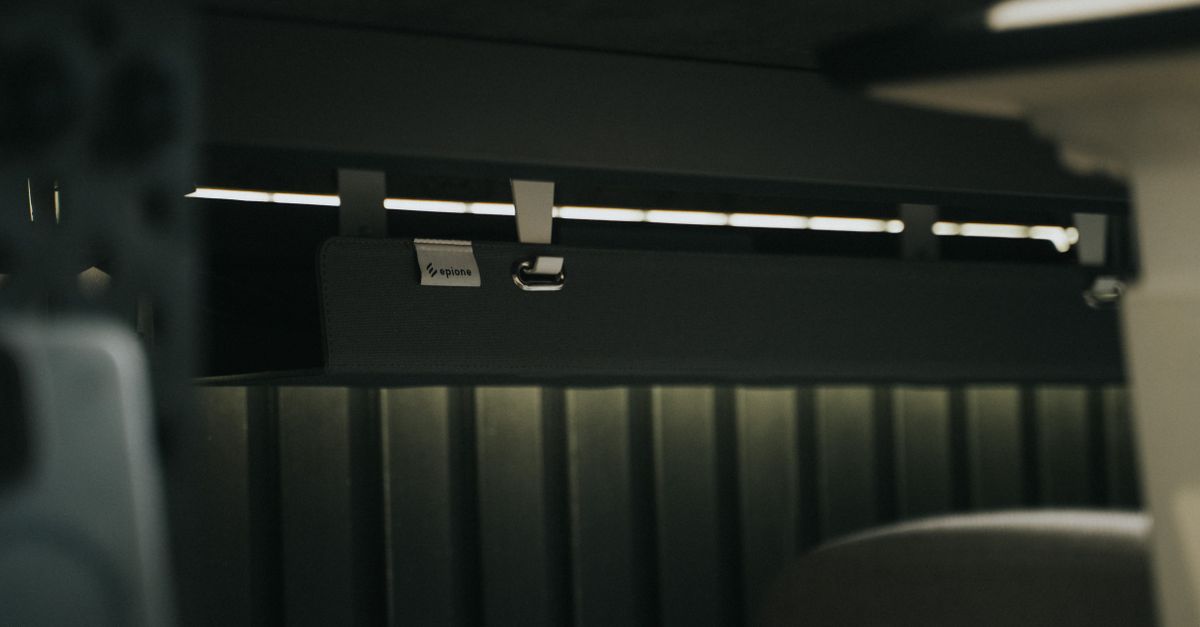
Batteries generate heat during normal operation, charging, and heavy discharging cycles. Enclosing a battery backup unit in a tight under-desk compartment can trap heat, which accelerates battery degradation and reduces the lifespan of the internal cells. When planning your layout, ensure there is at least two to three inches of open clearance around the top, sides, and rear ventilation grills of the UPS chassis. This airspace is crucial for allowing convective air currents to pull cool air across the internal transformer and exhaust warm air into the wider room.
Avoid placing soft materials like carpet scraps, packing foam, or dense fabric organizers directly against the housing of the unit. If you use an enclosed cabinet style or a deep shelf with side walls, verify that cooling air can circulate freely. Keeping the unit well-ventilated prevents premature thermal shutdown, ensuring the inverter remains ready to kick on the moment grid power sags or fails entirely. Overheated lead-acid batteries can swell, leak, or rapidly lose their capacity to hold a charge, turning a safety device into a maintenance liability.
It is also wise to monitor the ambient temperature underneath your desk. In warm summer months without central air conditioning, stagnant air pockets can form near the floor or just beneath the desktop surface. Positioning your UPS shelf where natural room drafts or computer tower exhaust fans do not blow directly onto its intake vents helps maintain optimal operating temperatures recommended by the battery manufacturer. Most standard consumer UPS units perform best in ambient environments ranging from 50 to 95 degrees Fahrenheit; exceeding these limits significantly shortens battery service life.
Planning Cable Routing and Cord Lengths
One of the most common oversights during an under-desk UPS battery backup setup is underestimating the physical reach of your power cords. Once the battery unit is suspended beneath your desk, the distance between the floor wall outlet and the UPS input cord changes. Measure carefully to ensure the main power cord reaches the wall outlet without pulling tight across walking paths or stretching over sharp furniture edges. A taut power cord creates a major safety hazard if someone accidentally kicks or snags it while walking past your workstation.
Similarly, check the reach of your computer tower, monitor power bricks, and peripheral cords. If your critical hardware cables are too short to reach the rear outlets of the newly positioned UPS, do not daisy-chain cheap extension cords together. Instead, map your power needs in advance and invest in properly rated extension cables or reposition the mounting shelf slightly closer to the center of your workstation leg span. Daisy-chaining power strips or extension cords violates electrical codes and can easily overload the internal circuitry, causing tripped breakers or thermal melting.
Proper cable management also involves separating high-voltage power lines from low-voltage data and USB cables. Running parallel power and data lines too closely can induce electromagnetic interference (EMI), leading to stuttering USB peripherals or network packet loss. Utilize split-loom tubing or braided sleeves to bundle power lines separately from your ethernet and display cables. Securing these bundles with heavy-duty J-channels or adhesive cable clips mounted along the desk framing keeps your workspace looking exceptionally tidy while protecting cable insulation from constant friction against metal desk frames.
Step-by-Step Installation Workflow
Executing the physical installation requires patience and a methodical approach. Follow these core steps to ensure a secure setup:
- Unplug and clear the workspace: Disconnect your UPS from the wall and your computer equipment before handling it. Remove the internal battery cartridge if the model is heavy, as this makes the chassis significantly easier to lift during installation and reduces the risk of dropping expensive electronics.
- Test-fit the mounting hardware: Hold your chosen bracket or shelf against the underside of the desk without the UPS. Check for knee clearance, leg movement, and interference with drawer slides, modesty panels, or keyboard trays.
- Secure the mount: Tighten heavy-duty clamps evenly or drive pilot holes and secure wood screws carefully. If you are screwing into solid wood, use flat washers to distribute the clamping force across a wider surface area and prevent screw heads from pulling through the mounting tabs.
- Mount the UPS chassis: Once the shelf or bracket is firmly anchored, slide or strap the UPS unit into position. Reinstall the internal battery cartridge if you removed it during step one, ensuring terminal connections are fully seated.
- Connect essential gear: Plug your computer tower, primary monitor, and networking router into the battery-backed outlets. Keep non-essential items like laser printers plugged into surge-only outlets to prevent overloading the inverter during a blackout.
Balancing Battery Backup Desk Organization
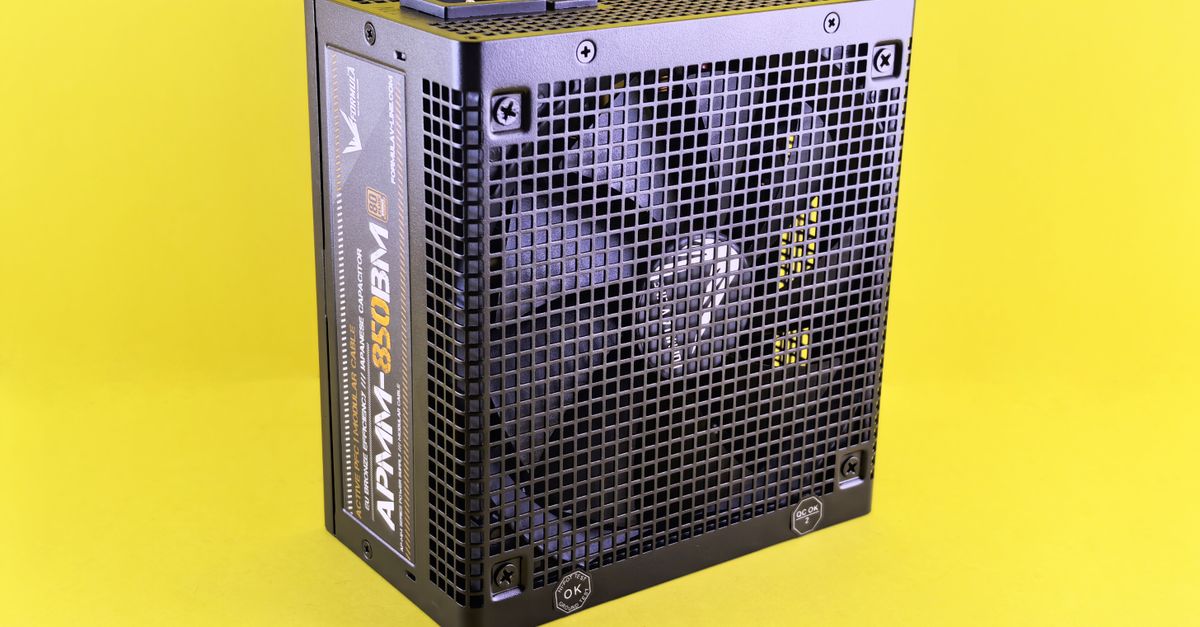
Beyond raw electrical safety, an under-desk setup drastically improves your overall battery backup desk organization. Tangled cords hanging loosely near your feet create a tripping hazard and collect dust bunnies that are difficult to vacuum. By pairing your UPS mounting shelf with a secondary wire mesh cable tray or J-channel raceway, you can bundle excess slack out of sight and maintain a professional, streamlined workspace.
Route the thick black power cables along the underside of the desk frame using adhesive-backed clips or Velcro straps. Keeping your floor entirely clear of transformer bricks and power strips makes cleaning your home office vastly easier and gives your workspace a clean, professional aesthetic reminiscent of a commercial studio. When your cables are off the floor, you eliminate the risk of rolling your office chair casters over power cords, which can crush internal copper conductors and create hidden short-circuit hazards.
Organizing your cables also ensures that when you need to unplug a specific peripheral or reset your router, you can trace the wire instantly without disturbing the main power distribution line. Labeling individual plugs with small cord tags adds an extra layer of convenience for future troubleshooting sessions. A well-organized under-desk power ecosystem transforms a chaotic rats-nest of wires into an orderly, manageable system that respects both your hardware and your peace of mind.
Routine Maintenance and Testing
An under-desk installation makes your battery backup slightly less visible, which means it is easy to forget about routine maintenance until an outage strikes. Set a calendar reminder every six months to perform basic checks on your hardware to ensure the battery cells remain healthy and capable of holding a full charge.
Test the unit by running a self-diagnostic test via its management software or pressing the physical front-panel test button if available. Listen for unusual humming or clicking noises that might indicate failing internal relays or inverter wear. Furthermore, keep an eye on indicator lights for battery replacement warnings. Consumer UPS batteries typically last between three to five years depending on ambient room temperature and the frequency of local power sags. When the battery health indicator flashes or the unit fails to hold a charge during a quick test, order a replacement cartridge before you face a true emergency.
Additionally, keep the exterior of the chassis free of dust buildup. Even when mounted under a desk, cooling fans draw in ambient dust over time. Use a can of compressed air or a soft brush attachment on a vacuum cleaner once a year to clear out the ventilation slots and maintain unobstructed airflow. Regular cleaning prevents dust insulation blankets from forming around hot electronic components, extending the overall lifespan of your power protection equipment.
Common Installation Mistakes to Avoid
Avoiding a few frequent errors will save you from hardware damage and frustration. First, never mount a UPS unit upside down or vertically on its side unless the manufacturer’s manual explicitly approves orientation changes; improper positioning can compromise internal battery seals and cooling efficiency, potentially leading to acid leaks or thermal runaway.
Second, do not overload the UPS wattage rating by plugging in high-draw heating appliances, space heaters, or heavy laser printers. Reserve the battery-backed outlets strictly for sensitive computing gear, routers, and essential monitors. Finally, avoid installing the shelf in a location where your knees or office chair armrests constantly bump against the chassis, as repetitive mechanical shock can loosen desk clamps and weaken structural screw anchors over time.
Another common misstep is failing to account for emergency access. Make sure your power button and status indicators remain visible or accessible without requiring you to crawl entirely underneath the desk in the dark during an outage. Being able to quickly check error lights or silence a low-battery alarm makes operating your workstation much smoother when grid issues occur.
Frequently Asked Questions About Under-Desk UPS Setups
Navigating the nuances of power backup mounting often raises specific technical questions for remote workers. Here are answers to common concerns regarding hardware safety, compatibility, and maintenance:
Can I mount any consumer UPS unit under a desk?
Most standard desktop UPS models can be mounted, provided you have a sturdy shelf or bracket capable of supporting their exact weight. However, very large tower units designed for server rooms are far too heavy and deep for standard office desks and should remain on the floor.
Will mounting a UPS upside down damage the battery?
Yes. Most sealed lead-acid batteries are designed to operate upright or flat. Mounting them upside down can cause internal electrolyte shifting and venting issues, drastically reducing their lifespan and creating safety risks.
How do I know if my standing desk motor will strain under the extra weight?
Check the total lifting capacity of your standing desk legs (often listed between 150 and 300 pounds). Subtract the weight of your desktop, monitors, computer, and accessories. If the remaining margin is comfortably above thirty pounds, your desk can safely accommodate a mounted UPS.
Final Practical Checklist
Before calling your project complete, review this final checklist to confirm your under-desk UPS battery backup setup is robust and safe:
- Desk weight capacity verified against the combined weight of the shelf and the UPS unit.
- Mounting clamps or screws fully tightened with no structural flexing of the desktop.
- Adequate thermal clearance maintained around all ventilation slots.
- Power cords routed neatly without tension or tripping hazards.
- Critical electronics plugged into battery-backed ports, leaving heavy-draw peripherals on surge-only ports.
- Semi-annual maintenance reminder scheduled on your digital calendar.
Taking the time to plan your bracket selection, weight distribution, and thermal management ensures your home office stays resilient against unpredictable grid fluctuations while keeping your floor tidy and professional.