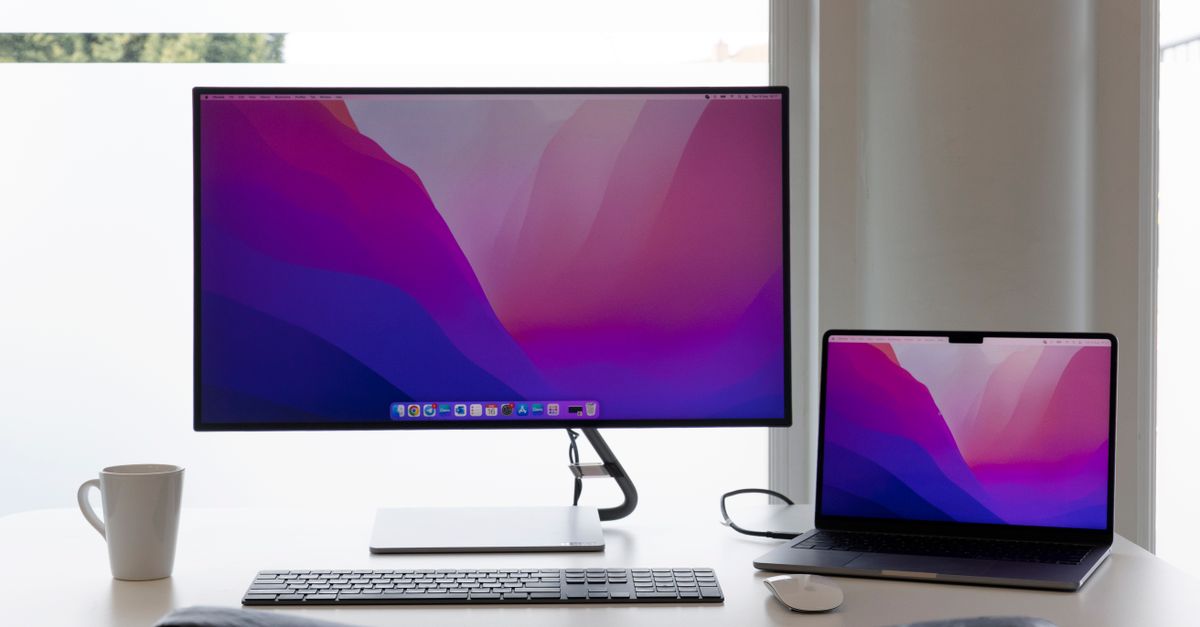
Working from temporary spaces like vacation rentals, coffee shops, or hotel rooms often forces digital nomads to compromise on screen real estate. Single laptop screens limit multitasking, forcing you to constantly toggle between windows, spreadsheets, and browser tabs, which significantly slows down complex workflows. Building a reliable portable dual monitor desk setup solves this problem, transforming any makeshift workspace into a high-productivity command center. However, assembling a multi-screen workstation on the road involves navigating hardware weight limits, tricky cable management, and strict power delivery constraints that can easily derail your productivity if not properly planned.
Achieving a seamless mobile workstation requires more than just tossing two extra displays into your backpack alongside your laptop. You need to evaluate how your laptop handles video output, choose the right mounting hardware to keep screens stable without damaging delicate surfaces, and manage USB-C power delivery so your gear stays charged without frying your battery or triggering unexpected thermal shutdowns. This comprehensive guide covers everything you need to build, power, and ergonomically align a travel-friendly dual-screen setup designed to withstand the realities of life on the move.
Evaluating Your Laptop Ports and Video Output Capabilities
Before buying any hardware, you must verify what your laptop can actually support. Not all USB-C ports are created equal, and assuming compatibility based on connector shape is the single most common mistake remote workers make. Some ports handle video output, data transfer, and power delivery simultaneously, while others only handle data or device charging. Check your laptop specifications for Thunderbolt 3, Thunderbolt 4, or full-featured USB-C ports that explicitly support DisplayPort Alternate Mode (DP Alt Mode).
If your laptop features only one full-featured USB-C port and one traditional HDMI port, your cabling strategy will look very different than if you have dual Thunderbolt ports. For a true portable dual monitor desk setup, you generally need either two independent video-capable USB-C connections or a dedicated multi-stream transport (MST) hub that splits a single port signal into two separate video feeds. Keep in mind that macOS handles MST differently than Windows, often mirroring displays instead of extending them unless you use specialized software drivers or hardware adapters like a DisplayLink-certified dock. Understanding these operating system quirks before purchasing external monitors prevents endless troubleshooting sessions in a foreign city.
When assessing your laptop’s capabilities, consider the internal graphics processing unit (GPU) load as well. Driving two external displays in addition to your built-in laptop screen demands extra graphical processing power. Integrated GPUs on modern processors handle this easily for office tasks, spreadsheets, and writing, but heavy tasks like video editing, graphic design, or compiling code across three screens can cause thermal throttling and rapid battery drain. Furthermore, if your laptop uses an older chipset, you may need to look into external graphics card enclosures or accept lower refresh rates (such as dropping from 144Hz to 60Hz) to maintain stable multi-monitor output without crashing your system. Checking your GPU allocation and thermal headroom ensures your machine remains responsive during intense work blocks.
Selecting the Right Travel Dual Monitor Stand and Folding Mounts
Display stability is the biggest challenge when working away from a traditional desk. Flimsy stands wobble with every keystroke, causing severe eye fatigue and risking expensive drops on hard laminate or stone floors. When shopping for mounting gear, look for hardware that matches your working style and physical environment:
- Stacking stands: Position one portable monitor directly above your laptop screen, creating a vertical cockpit view. This saves horizontal desk space in narrow coffee shop booths or small Airbnb work areas.
- Dual-wing folding mounts: Clamp or rest on the desk surface, holding two portable screens side-by-side flanking your laptop. This provides a wide, panoramic workspace that mimics a traditional desktop office setup.
- Laptop-attached clips: Magnetic or tension-based brackets attach extra screens directly to the sides of your laptop lid. While compact, these add significant weight to your laptop hinges and should only be used with lightweight monitors to avoid mechanical failure.
Prioritize aluminum builds over all-plastic models. While slightly heavier in your pack, metal frames withstand the physical abuse of frequent travel and provide the rigid support needed to keep dual screens from sagging or vibrating as you type. Always test the setup on a stable surface before packing it for a long trip to ensure the joints and hinges lock securely in place under the weight of your chosen displays. Additionally, inspect the rubber padding on the contact points of the stand; high-friction silicone pads prevent the stand from sliding across slick marble or laminate tabletops commonly found in modern rental properties, ensuring your equipment stays securely anchored throughout the workday.
Navigating USB-C Power Delivery and Cable Routing
Power management is the hidden bottleneck of any multi-monitor mobile rig. Powering a laptop and two external displays simultaneously draws substantial wattage. Standard laptop chargers (typically packed with 45W to 65W blocks) often cannot supply enough juice to power the laptop and pass power through to two external monitors, leading to intermittent screen blackouts, failing peripheral connections, or slow battery drainage while plugged into the wall.
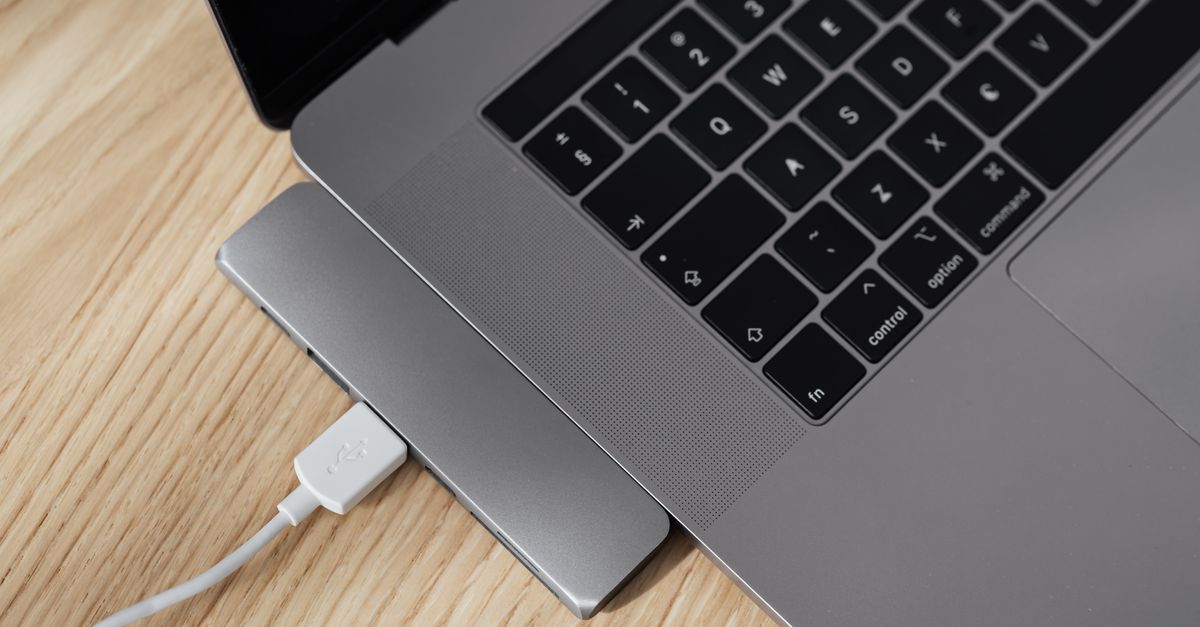
To solve this, use a high-wattage GaN (Gallium Nitride) charger rated for at least 100W, 140W, or higher depending on your laptop’s power draw. Route your power using a pass-through setup: plug the high-capacity wall charger into your multi-port hub or primary monitor, then daisy-chain or split the power to your laptop. Ensure your USB-C cables are rated for both high-speed data transfer (USB 3.1 or higher supporting video bandwidth) and high power delivery (100W E-marker cables). Using cheap charging cables can cause flickering screens, dropped connections, or insufficient power warnings that disrupt your workflow.
Cable management in temporary spaces also impacts your daily workflow and personal safety. Keep your cable runs short and organized with velcro ties to prevent snagging your hands, catching your sleeves, or accidentally pulling your monitors off the edge of a narrow desk. Avoid bundling power cables directly next to unshielded audio or video cables to minimize electromagnetic interference, which can occasionally cause pixel corruption or audio hum if you are using external speakers or microphones during client video calls.
Understanding Panel Technologies, Weight, and Glare Control
When selecting portable monitors for your travel rig, display panel technology plays a massive role in both your visual comfort and your bag’s total weight. Most portable monitors utilize IPS (In-Plane Switching) LCD panels, which offer wide viewing angles and accurate color reproduction—essential if you do any design or photo editing work on the road. However, newer models feature OLED panels, which provide incredible contrast ratios and deep blacks, though they often come at a steeper price point and require careful handling to avoid screen burn-in during static work sessions with open application windows.
Weight is another critical factor for digital nomads. A typical 15.6-inch portable monitor weighs between 1.5 and 2.5 pounds. When you multiply that by two, plus your laptop, stand, and chargers, your backpack quickly becomes a physical burden during airport transits and train rides. Look for ultra-slim models that use lightweight carbon fiber or magnesium alloy chassis construction. Furthermore, pay close attention to the surface coating of the screen. Glossy glass panels look vibrant indoors, but working near a bright window or under harsh fluorescent lights in a co-working space turns them into mirrors. Whenever possible, choose matte-finish anti-glare panels, or apply a matte screen protector to diffuse reflections and preserve your eyesight throughout long shifts.
Achieving Proper Ergonomic Eye-Level Alignment
Working hunched over a temporary desk reviewing dual screens can quickly lead to neck strain, shoulder tension, and lower back pain. Ergonomic discipline is even more critical when working remotely, as you cannot rely on a fixed office chair or adjustable desk to compensate for poor posture.
Position your primary screen directly in front of you so the top third of the monitor sits at or slightly below eye level. When using a dual-monitor portable setup, angle the secondary screens inward toward your face by about 15 to 30 degrees. This reduces the need to constantly swivel your entire head or strain your neck muscles. If your portable stand lacks height adjustment, pack a lightweight laptop riser or use stable items available in your temporary lodging—such as hardcover books or sturdy packing boxes—to elevate your screens to the correct height.
Remember to take regular breaks to reset your posture and relieve eye strain. Even the best ergonomic arrangement cannot completely eliminate the physical fatigue of sitting for hours without movement. Follow the 20-20-20 rule to rest your eyes by looking at something 20 feet away for 20 seconds every 20 minutes. Adjusting your display brightness to match ambient room lighting is another crucial step; staring at a blindingly bright screen in a dim room accelerates eye strain and causes persistent headaches that ruin your evening.
Software Window Management and Multi-Screen Workflow Optimization
Hardware is only half the battle; managing windows across three distinct screens (your laptop plus two portables) can quickly become chaotic without the right software tools. Operating systems handle multi-monitor environments differently, and default window snapping utilities often fall short when dealing with non-standard aspect ratios or stacked vertical configurations.
If you use macOS, native window management is notoriously rigid and frustrating for multi-screen users. Utilities like Rectangle, Magnet, or BetterSnapTool allow you to create custom keyboard shortcuts to snap windows to halves, thirds, or specific quadrants across all three screens instantly. Windows users can leverage Microsoft PowerToys FancyZones, which lets you design intricate custom grid layouts tailored precisely to your dual-wing or stacked portable monitor configuration.
Establish a strict spatial workflow routine to maintain focus. Keep your primary communication apps (like Slack, Teams, or email) on a dedicated side monitor, your core document or code editor centered on your main display, and reference materials or web browsers parked on the third screen. Minimizing window-hunting drastically reduces cognitive fatigue and keeps your focus sharp throughout the workday.
Common Mistakes in Mobile Multi-Screen Workstations
Even seasoned remote workers make avoidable errors when assembling their travel gear. Avoiding these pitfalls will save you frustration and protect your equipment from damage:
- Ignoring weight limits: Attaching heavy portable monitors to fragile laptop hinges can crack your screen bezel or strip the hinge tension. Always use independent desk stands for heavy displays.
- Overlooking driver requirements: Some portable USB displays require proprietary DisplayLink drivers. Ensure you have admin rights and active internet access to download necessary drivers before heading to a remote location.
- Packing too many cables: Bring multi-function cables rather than single-purpose wires to reduce clutter and weight in your bag.
- Neglecting glare control: Temporary spaces often feature awkward lighting. Choose matte-finish portable displays over glossy panels to minimize window glare and reflections.
- Failing to secure power redundancy: Relying on a single wall outlet without a surge protector or compact travel strip can leave your workstation vulnerable to sudden power cuts or incompatible outlet shapes in foreign countries.
Planning for these edge cases before you leave home ensures that your first day working from a new city remains productive rather than spent troubleshooting hardware failures or missing software licenses.
Streamlining Teardown and Packing for Transit
A great portable dual monitor desk setup must be as easy to pack up as it is to deploy. Invest in a dedicated tech pouch with elastic loops for your cables, power bricks, and adapters. Use rigid hardshell cases for your portable monitors to prevent pressure cracks inside your backpack during transit.
Develop a repeatable packing routine. Disconnect power sources last to prevent power surges, wrap cables loosely to avoid internal wire breakage, and fold your mounting stands completely flat. By standardizing your gear and workflow, you can unpack your entire multi-screen workstation in a new location in under five minutes, letting you focus on your work rather than troubleshooting hardware. When going through airport security, keep your portable monitors easily accessible in your bag; agents frequently flag multi-screen hardware stacks for secondary screening due to the density of internal electronics and batteries.
Final Checklist for Your Mobile Multi-Screen Rig
Before embarking on your next trip, run through this practical checklist to ensure your portable dual monitor desk setup is truly road-ready:
- Verify that your laptop ports support DP Alt Mode or Thunderbolt video output.
- Test your 100W+ GaN charger and verify pass-through charging capabilities.
- Pack high-speed, E-marked USB-C cables for both power and video transmission.
- Check that your folding stand supports the exact weight and dimensions of your portable screens.
- Include a lightweight screen cleaning cloth and microfiber pouches to protect against scratches in transit.
- Install and configure window management software for rapid screen organization.
By thoughtfully selecting your hardware, managing power delivery limits, and prioritizing ergonomics, you can create a powerful, comfortable workstation anywhere in the world.