When you build a mixed aspect ratio dual monitor setup, you are solving a very specific professional puzzle. Standard 16:9 widescreen monitors excel at timeline editing, video production, and side-by-side window snapping. Yet, they force you to constantly scroll up and down when you are reading long legal briefs, reviewing extensive code repositories, or parsing lengthy spreadsheet columns. Pairing a traditional horizontal display with a secondary monitor rotated into portrait mode—or mixing an ultra-wide display with a standard panel—transforms your desktop real estate. It gives you long vertical runways for text alongside wide horizontal canvases for timelines.
Achieving a seamless experience requires more than simply plugging both cables into your docking station. Mismatched resolutions, differing physical dimensions, and naive operating system settings frequently result in jarring mouse-cursor jumps, awkward scaling, and physical neck strain. This guide walks through the physical hardware engineering, operating system calibration, and ergonomic best practices required to turn a mismatched multi-monitor collection into a cohesive, comfortable command center.
Furthermore, remote professionals frequently underestimate the impact of subtle hardware variations. Differences in panel refresh rates, color reproduction technology, and physical bezel thickness can introduce cognitive friction throughout the day. By systematically addressing these variables—starting from the underlying coordinate geometry all the way to advanced operating system scaling configurations—you can build a workstation that feels intuitive rather than cumbersome.
Understanding the Geometry of Mixed Aspect Ratios
Before you tighten a single mounting bolt, you need to understand how different screen geometries interact in virtual space. Operating systems like Windows and macOS treat your displays as a continuous cartesian coordinate plane. Every pixel has an X and Y coordinate. When your monitors share the same resolution and aspect ratio, moving your cursor from the left screen to the right screen is predictable: the edge meets the edge seamlessly.
When you introduce different aspect ratios—such as pairing a 27-inch 16:9 monitor with a 24-inch 16:10 monitor rotated vertically—the physical height and pixel counts will diverge. A 4K horizontal monitor has 2160 vertical pixels, while a standard 1080p vertical monitor has 1920 horizontal pixels (which become vertical pixels when rotated). If your operating system settings do not account for these physical dimensions, your mouse cursor will hit invisible walls when you try to slide it from one screen to the other.
The secret to a functional layout is aligning your displays in your OS settings by their physical bezel edges rather than their default top-aligned templates. By dragging the monitor icons in your display settings up or down relative to one another, you can match the cursor transition points to your actual hardware layout. Consider the math behind your pixel boundaries: if your horizontal display runs at 2560×1440 and your vertical display runs at 1920×1200 (rotated), the disparity in vertical pixel height means that only a portion of the edge will allow clean travel unless you manually anchor the coordinate mapping in software.
Selecting and Positioning Your Ergonomic Monitor Arms
Desktop stands that ship in the box with monitors are notoriously inflexible. When you are working with a mixed aspect ratio dual monitor setup, independent mechanical monitor arms are practically mandatory. They allow you to micro-adjust height, depth, tilt, and rotation without cluttering your desk surface.
Primary Versus Secondary Ergonomic Hierarchy
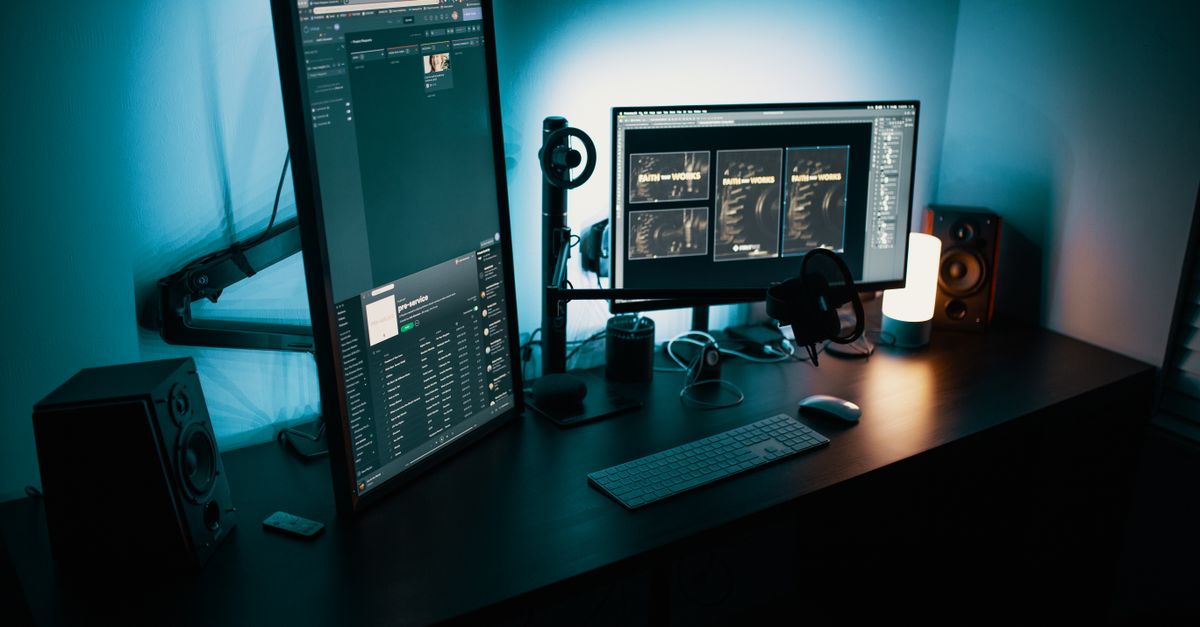
Your neck and eyes will punish you if you place your primary work surface in an awkward spot. Decide which monitor handles 80 percent of your heavy lifting. If you are a writer or programmer, your vertical screen might be your primary reading surface. If you are a video editor, your horizontal monitor is primary, and your vertical screen acts as a secondary reference deck for chat apps, email, and asset folders.
Your primary monitor should sit directly in front of you, centered with your nose and keyboard. The top third of the active display area should align roughly with your eye level when you are sitting up straight in your chair. Your secondary monitor should sit immediately adjacent to it, angled slightly inward toward your face. This curvature minimizes the degree to which you must turn your head throughout the day. When using a vertical screen as your primary reading deck, ensure the center of the portrait display aligns with your natural line of sight, preventing you from constantly tilting your chin upward to read the top lines of text.
Overcoming Physical Dimension Clashes
Mixing a large horizontal display (like a 32-inch 16:9 panel) with a smaller vertical display (like a 24-inch 16:10 panel) creates physical overhangs. If you mount them improperly, the corner of the larger monitor might block the bezel of the smaller one, or the height differences will force you to crane your neck upward.
Use arms that independent height adjustment and VESA plate rotation. Mount the vertical screen close enough that its bottom bezel sits flush with the desk surface or slightly above it, depending on your eye level. Ensure the top bezel of the vertical screen roughly matches the top bezel of the horizontal screen to maintain visual continuity, or step the vertical screen slightly lower if you prefer to look down into your reference documents. Pay close attention to weight capacities as well; vertical rotation puts an offset torque on the arm’s internal gas spring, requiring you to tighten the tension adjustment bolt significantly more than you would for a standard horizontal landscape mount.
Operating System Calibration for Mixed Resolutions
Physical placement is only half the battle. Your computer’s display manager must be dialed in to handle varying pixel densities (PPI) and resolutions cleanly. Failing to configure these settings correctly results in microscopic text on one screen and oversized windows on the other.
Managing Display Scaling in Windows
Windows handles scaling reasonably well on modern builds, but mixed-resolution setups expose its quirks. If you pair a 4K horizontal monitor with a 1080p vertical monitor, Windows might apply a 150 percent scaling factor to the 4K screen and 100 percent to the 1080p screen.
To configure this effectively:
- Right-click your desktop and open Display Settings.
- Arrange the monitor rectangles so their relative positions match your physical desk layout. Pay close attention to the shared boundary lines.
- Click on each individual display and adjust the Scale and layout percentage until UI elements look roughly the same physical size across both screens.
- Navigate to advanced scaling settings if legacy desktop applications appear blurry when dragged between the two monitors. Make sure to enable system-level fixes for per-monitor DPI scaling to prevent apps from rendering at incorrect resolutions when moved across the boundary.
Managing Displays in macOS
macOS handles scaling through “Retina” abstractions, which simplifies things for Apple Silicon users, but mixing an external ultra-wide or vertical monitor with a MacBook display or another external panel requires manual arrangement.
Open System Settings, select Displays, and click Arrange. Drag the white menu bar from your primary display to whichever screen should house your main desktop dock and notifications. Then, carefully align the blue rectangles so that the transition threshold between the screens matches where your eyes and mouse naturally travel. Apple’s ecosystem handles font smoothing well, but external non-Retina panels may require third-party utility tools like BetterDummy or BetterDisplay to force proper HiDPI scaling modes and maintain crisp text legibility.
Solving the Dreaded Cursor Trap Zone
One of the most common frustrations in any mixed aspect ratio dual monitor setup is the “cursor trap.” This occurs when your mouse pointer hits an impassable dead zone at the edge of your screens because the operating system thinks the boundary is blocked by a non-existent display area.
For example, if your horizontal monitor is 2160 pixels tall and your vertical monitor (acting as a rotated 1080p screen) is only 1920 pixels tall along that shared border, the top 240 pixels of your horizontal screen will feature an invisible wall. When you flick your mouse toward the edge, it stops dead instead of crossing over.
To fix this:
- Return to your OS display arrangement menu.
- Instead of aligning the tops or bottoms mathematically, align them functionally based on how your mouse naturally crosses the threshold.
- If you frequently slide your mouse across the middle of the screens, align the vertical midpoints of both displays in the settings menu, even if it creates a slight visual offset in the settings GUI. Test the transition live by sweeping your cursor back and forth until the movement feels fluid.
- For power users experiencing persistent corner snags, utility software like Little Big Mouse for Windows creates custom barrier-free cursor teleportation zones that completely bypass operating system alignment restrictions.
Color Matching and Panel Technology Trade-Offs
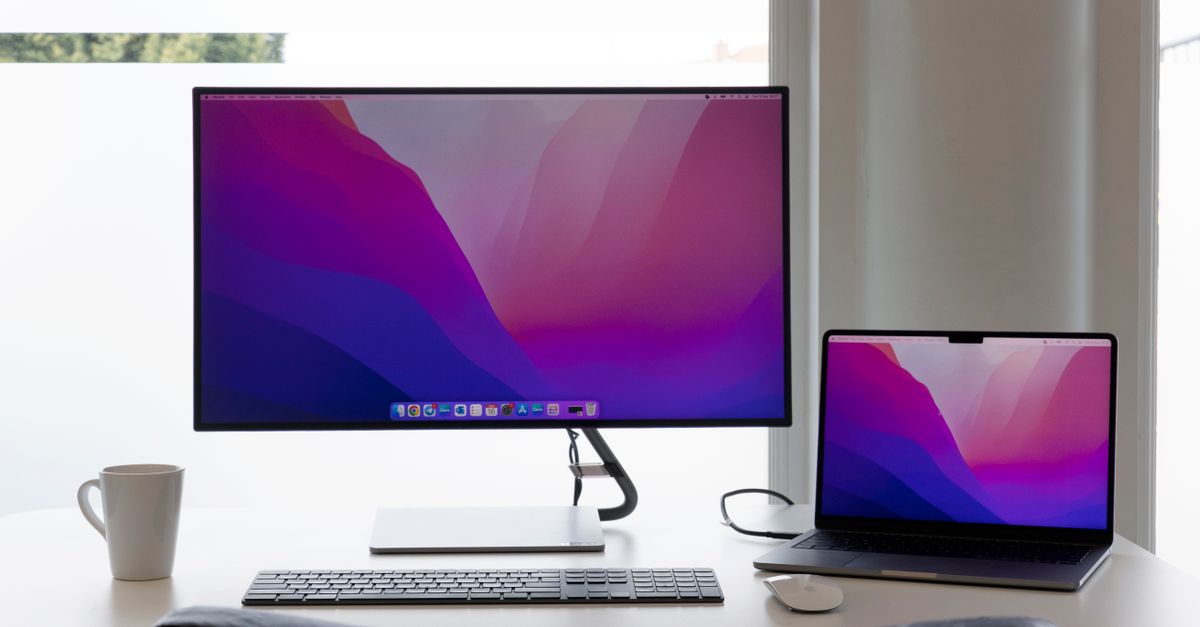
When you place two different monitors side-by-side, color discrepancies become painfully obvious. If your horizontal monitor uses an IPS panel with high color accuracy and wide sRGB coverage, and your vertical monitor uses an older TN panel with washed-out contrast and a blue tint, looking across your desk can cause eye strain.
Minimizing Visual Fatigue
Whenever possible, source monitors from the same manufacturer family or at least ensure both use IPS (In-Plane Switching) or OLED panel technology. IPS panels offer wide viewing angles, which is especially important for vertical monitors since your eyes view the top and bottom of a portrait screen at noticeably different angles than a landscape screen.
Run your operating system’s built-in color calibration wizard on both screens. While it will not turn a budget office monitor into a professional grading display, it can normalize white points and gamma curves enough to prevent your eyes from fatiguing as you drag windows back and forth. Adjust the on-screen display (OSD) settings manually on each monitor to match color temperature profiles (such as setting both to 6500K daylight or an office-friendly warmer profile) so that switching your gaze between screens does not force your visual cortex to constantly readjust to shifting color casts.
Ergonomic Posture and Workflow Habits
Hardware configuration ultimately serves one master: your physical comfort and sustained focus. A poorly optimized desk layout invites slouching, neck twisting, and repetitive strain injuries.
Avoiding Neck Torque
The cardinal rule of multi-monitor ergonomics is to let your eyes do the moving, not your neck. If your vertical document reader is pushed too far to the left or right, you will spend your entire workday rotating your cervical spine. Position the secondary screen so that you can read it primarily with peripheral vision or slight eye movements.
If you find yourself spending 70 percent of your day reading long documents and only 30 percent managing timelines, consider swapping your primary and secondary roles. Make the vertical screen your central focal point, and angle the horizontal monitor off to the side as an auxiliary tool. Furthermore, ensure your chair armrests support your elbows at a 90-degree angle while typing, preventing your shoulders from hunching upward as you navigate across multiple displays.
Cable Management for Articulated Arms
Mixed aspect ratio setups managed by dual arms require disciplined cable routing. Because your monitors are likely rotated differently and adjusted to varying heights, cables must have enough slack to accommodate arm movement without catching on desk edges or straining power ports.
Use split-sheath cable management sleeves or zip-tie your power cords, DisplayPort cables, and USB-C upstream lines directly to the spine of the monitor arms. Leave a clean service loop near the VESA mount to ensure that adjusting your monitor height does not inadvertently yank a cable out of its port or damage your dock. Poor cable tension management is a leading cause of intermittent signal loss and port damage in multi-monitor workstations.
Troubleshooting Common Configuration Roadblocks
Even with careful planning, you may encounter stubborn edge cases during setup. Here is how to handle the most frequent hiccups:
Flickering or Signal Drops: Mixing high refresh rate gaming monitors with standard 60Hz office panels over cheap HDMI switches can cause blanking or flickering. Always use certified DisplayPort cables or high-bandwidth USB-C connections directly from your computer or dedicated dock.
Incorrect Aspect Stretching: If your vertical monitor displays a squished or letterboxed image, check your monitor’s onboard physical menu (OSD settings). Ensure the input scaling is set to “Aspect” or “1:1” rather than auto-stretch.
App Window Amnesia: Windows and macOS occasionally forget which monitor an application was closed on, launching apps randomly onto your primary screen. Third-party window management utilities can lock applications to specific displays and coordinate layouts across sleep and wake cycles.
Driver-Level Conflicts: Integrated graphics processors on older laptops may struggle with mixed resolutions and high refresh rates simultaneously. Updating your GPU drivers via official vendor panels (NVIDIA App, AMD Software, or Intel Graphics Command Center) resolves most blank-screen and hardware acceleration bugs.
Building a Sustainable Daily Workflow
A mixed aspect ratio dual monitor setup is not just an aesthetic desktop upgrade; it is an infrastructure investment in your daily focus. By matching your hardware choices to your actual tasks—putting long-form text on a dedicated vertical canvas and wide timelines or data streams on a horizontal panel—you eliminate the constant friction of minimized windows and endless scrolling.
Take the time to dial in your physical arm placements, lock down your display scaling percentages, and iron out those hidden cursor trap zones. Once your desk is properly calibrated, your physical workspace fades into the background, leaving you free to focus entirely on deep, uninterrupted remote work. Maintain your workstation periodically by checking arm tension bolts, verifying cable strain relief, and updating display management software to ensure your hybrid hardware ecosystem operates smoothly month after month.