Adding a secondary monitor to a mobile workstation often feels like a compromise. Carrying an extra portable display adds unnecessary weight and bulk to a travel bag, while relying on standard wireless screen-mirroring applications introduces frustrating input latency, dropped frames, and security vulnerabilities associated with continuous background network broadcasting. If you work remotely, handle sensitive research data, or simply want to maximize your screen real estate without installing heavy cloud-dependent utilities, your existing tablet is likely the best tool for the job.
Executing a reliable tablet secondary display setup guide requires shifting away from consumer wireless apps and looking toward direct hardware-level USB tethering. By establishing a dedicated, physical data link between your host computer and your tablet, you eliminate the need for Wi-Fi authentication, third-party software accounts, and local network traffic sniffing. This approach yields a rock-solid, low-latency display extension that behaves just like a traditional HDMI or DisplayPort monitor, keeping your digital workspace fast, responsive, and secure.
The Case Against Wireless Mirroring Apps
Popular wireless extension tools often seem convenient at first glance. You download an app on your computer, install its companion on your tablet, type in a code or sign into an account, and instantly your desktop expands across the room. However, this convenience comes with hidden operational costs that matter significantly for remote professionals operating outside traditional corporate perimeter defenses.
First, wireless streaming demands constant packet transmission over your local Wi-Fi network. In shared offices, coffee shops, or crowded home environments, network congestion leads to stuttering cursors, compressed video artifacts, and unpredictable latency spikes that disrupt high-concentration tasks. Second, many consumer-facing apps route your video stream through proprietary cloud infrastructure or require persistent background helper services running with elevated privileges on your operating system. For professionals handling confidential client files, corporate financials, or regulated research data, every unnecessary background process represents an expanded attack surface and an unmonitored communication channel.
Hardware-level tethering bypasses these risks entirely. By forcing the video data stream down a physical copper or fiber-optic pathway, you gain predictable frame rates, absolute privacy from local network snooping, and zero dependency on internet connectivity. There are no cloud servers to authenticate against, no subscription fees to maintain, and no software daemons silently phoning home with telemetry data.
Furthermore, relying on wireless transmission protocols often forces your computer’s wireless network interface card into continuous transmission mode, which degrades battery life on laptops and increases thermal loads. By plugging directly into a hardware port, you offload the physical transport layer to dedicated silicon controllers designed for high-throughput packet routing. This results in cooler operating temperatures, quieter fan profiles during intensive workloads, and a vastly more stable computing experience when working on the move.
Evaluating Your Hardware Requirements
Before diving into configuration steps, you need to verify that your hardware can support a direct wired display connection. Not every USB cable or tablet port is created equal, and mismatched specifications are the single most common reason setups fail during initial handshakes.
Your host computer must have a functioning USB port that supports high-speed data transfer and, ideally, video output protocols like DisplayPort Alt Mode or specialized hardware bridging drivers. Meanwhile, your tablet must feature a modern USB-C port or a high-speed proprietary connector capable of bidirectional data communication. Micro-USB ports found on older budget tablets lack the bandwidth required for smooth display extension and should not be used under any circumstances.
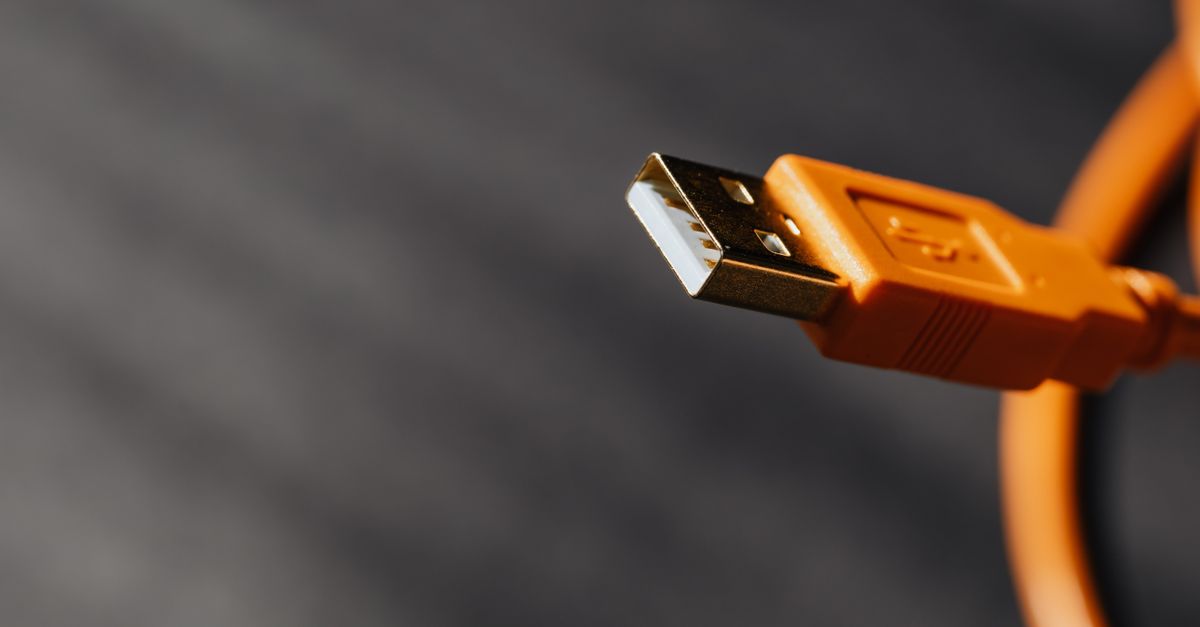
Cable selection is equally critical to success. You cannot rely on cheap charging cables picked up at a gas station or convenience store, as these frequently lack the internal data wires necessary for high-speed protocol handshakes and heavy video transmission. You need a certified USB 3.0 (or higher) data cable rated for SuperSpeed transfer rates. If you are bridging a high-resolution tablet screen, a USB-C cable marked for 10Gbps or Thunderbolt compatibility ensures that bandwidth bottlenecks do not degrade your image quality or introduce frame drops.
It is also essential to verify whether your computer’s USB controller is connected directly to the CPU or routed through an internal hub. Direct CPU-attached ports provide lower latency and higher sustained bandwidth, which is particularly crucial if you intend to run your tablet at 60Hz refresh rates with color-sensitive applications. Consulting your motherboard manual or system profiler to identify primary high-bandwidth ports prevents subtle performance anomalies down the line.
Understanding the USB Tethering Architecture
To configure your system properly, it helps to understand what happens under the hood when you connect two devices via a high-speed data link. Unlike simple USB storage devices or standard computer mice, a hardware-bridged monitor setup requires the operating system to treat the tablet as an external graphics output device through a specialized software or hardware abstraction layer.
When you plug the cable in, the host operating system queries the connected device for its display capabilities, maximum supported resolution, and refresh rate via Extended Display Identification Data (EDID) exchanges. The tablet responds by acting as a specialized frame buffer receiver. Instead of compressing video into network packets that require CPU cycles to encode and decode, the host graphics card renders the secondary desktop space and pushes raw pixel data directly through the USB controller.
This direct pipeline drastically reduces CPU and GPU overhead on the host machine while eliminating the compression artifacts typical of wireless video streams. It also means your setup remains entirely functional even if your computer’s Wi-Fi card is turned off, disconnected, or blocked by strict corporate firewall rules and network isolation policies.
Underneath this operational framework, USB encapsulation protocols like USB Video Class (UVC) or specialized hardware-level display emulation drivers dictate how frames are serialized and deserialized across the physical bus. By keeping these operations close to the bare metal, modern operating systems can allocate dedicated interrupt requests (IRQs) to the USB controller, ensuring that your mouse movements and window dragging operations remain completely uninterrupted by other background software routines.
Step-by-Step Preparation of the Host Computer
Preparing your computer involves ensuring your graphics drivers are up to date and configuring your display management settings to recognize external wired input. Whether you are running Windows or macOS, the foundational steps remain consistent across modern operating systems.
Begin by closing any unnecessary background applications that might conflict with external display enumeration. Next, connect your high-speed data cable directly to a primary motherboard port on your computer rather than passing through an unpowered USB hub. Unpowered hubs frequently drop packets or fail to supply sufficient voltage, causing the connection to cycle repeatedly and corrupting the display handshake.
Open your operating system’s display settings panel. At this stage, your computer may not immediately show the tablet as an active monitor until the necessary bridge software or USB display protocol driver initializes. If your operating system prompts you to trust the connected device, accept the prompt immediately on both machines to establish the secure cryptographic handshake required for data exchange.
Additionally, check your device manager or system report to confirm that the USB controller recognizes the tablet as a composite device with multimedia or display capabilities. If the device appears with a warning icon, you may need to update your host USB extensible host controller driver or reinstall your primary graphics card drivers to ensure full compatibility with wired display bridging protocols.
For advanced enterprise environments, you may also need to check group policy settings or mobile device management (MDM) profiles. Some corporate IT configurations explicitly restrict unrecognized USB peripheral enumeration as a data loss prevention (DLP) measure. If your secondary display setup fails immediately upon connection despite correct cabling and drivers, consulting your system administrator regarding peripheral whitelisting or USB device classes is an essential troubleshooting step.
Configuring the Tablet as a Receiver
Your tablet needs to be prepared to accept and display the incoming video feed cleanly. Depending on whether you are using an iPad or an Android device, the software requirements will vary slightly, but the overarching goal is the same: establishing a clean, full-screen viewport that accepts raw input from the host without unnecessary overlays.
For modern tablet hardware, lightweight, open-source, or minimal-footprint USB debugging bridges often provide the cleanest connection path. Avoid applications that demand continuous internet access or constant cloud telemetry. If your workflow requires absolute security isolation, configure your tablet in a dedicated offline mode where Bluetooth and Wi-Fi are manually disabled, leaving only the wired USB link active.
Once the receiver application or native display protocol initializes on the tablet, arrange your windows so that the tablet screen sits logically relative to your primary laptop or desktop monitor. Positioning the tablet directly below or beside your main screen ensures natural mouse movement between displays without disorienting cursor jumps.
It is also worth noting that tablet operating systems aggressively manage background tasks to conserve battery life. If your receiver application is abruptly terminated or frozen after a few minutes of inactivity, check your tablet’s battery optimization settings and exempt the display application from automated power-saving restrictions. Keeping the application awake in the foreground or granting it permanent background execution privileges ensures a consistent, uninterrupted multi-monitor workflow throughout your working day.
Optimizing Display Resolution and Refresh Rates
High-resolution tablet screens offer stunning pixel density, but pushing native 4K or high-retina resolutions over a USB tethering bridge can sometimes introduce sluggish mouse tracking if your host hardware is older. Optimizing your display settings strikes the right balance between visual clarity and snappy performance.
Access your computer’s display configuration menu and adjust the scaling factor. Tablet screens are physically smaller than desktop monitors; running them at native scale often makes user interface elements microscopic and difficult to target accurately. Setting a scaling level between 125% and 150% usually provides comfortable legibility while preserving usable workspace.
Next, check your refresh rate settings. While many modern tablets support 60Hz or even 120Hz refresh rates, matching your wired connection to a stable 60Hz output prevents frame pacing issues and reduces thermal strain on the tablet processor. If you notice stuttering during window dragging, lowering the resolution slightly or switching to a dedicated USB-C port connected directly to your CPU’s PCIe lanes often resolves the bottleneck.
Color calibration is another critical factor when utilizing a tablet for professional design, photo editing, or precise data analysis. Because tablet panels utilize different backlighting technologies and color gamuts compared to desktop monitors, taking a few moments to adjust white balance and gamma curves within your operating system’s color management utility ensures that your secondary display accurately matches your primary workspace, preventing color discrepancies when moving windows between devices.
Managing Power Delivery and Battery Health
One major advantage of a wired USB connection is that your computer can often supply power to your tablet while simultaneously transmitting display data. However, this dual-role capability can create unexpected battery management challenges if left unmonitored.
When a computer powers a tablet via USB, it draws continuous current from the host machine’s battery or power supply. If you are working on a laptop running on battery power, having it constantly charge a secondary tablet will dramatically shorten your untethered runtime. Conversely, if the tablet’s battery remains at 100% capacity under continuous trickle charging throughout the workday, long-term battery health can degrade over time.
To mitigate this, check if your host operating system or tablet power settings allow you to limit charging thresholds or disable power delivery while maintaining data transfer. If your setup supports data-only separation adapters, you can feed external wall power directly to the tablet while routing only the clean data lines to your computer, protecting both your host battery and the tablet’s internal power management IC.
Additionally, monitoring thermal output during prolonged charging and data transmission sessions is vital. Tablets packed into thin aluminum chassis lack active cooling fans. If simultaneous fast-charging and high-bandwidth display streaming cause the device to run warm to the touch, consider reducing the host power output or utilizing an external power delivery hub that negotiates a lower wattage profile, keeping thermal throttling at bay.
Troubleshooting Common Connection Failures
Even with careful preparation, hardware bridging can occasionally encounter roadblocks. Knowing how to systematically diagnose connection failures saves valuable time during a busy workday.
If your computer fails to recognize the tablet entirely, start by verifying the physical layer. Swap out the data cable for a known working alternative and ensure you are plugged into a USB port designated for data transfer rather than simple power output. Many modern computer cases feature dedicated charging ports that lack internal data pins.
If the connection drops intermittently, check your system’s power management settings. Operating systems often suspend USB root hubs to conserve energy, which can sever the display link during periods of inactivity. Disabling USB selective suspend in your power plan ensures the data bridge remains permanently awake.
Finally, driver conflicts can stall initialization. If a previous wireless mirroring app installed virtual display adapters, remove those legacy drivers completely, as they frequently interfere with direct hardware USB bridging protocols and cause persistent enumeration errors.
Another common culprit is port contention, where multiple security or monitoring utilities attempt to inspect USB bus traffic simultaneously. Temporarily disabling aggressive endpoint protection scanning on the specific USB bus endpoint can help isolate whether software interference is interrupting the display handshake.
Security Isolation and Enterprise Best Practices
For remote professionals operating under strict compliance frameworks, protecting the data pathway between devices is paramount. Wireless screen sharing exposes data packets to local airwaves, creating a potential vector for eavesdropping in public spaces.
Hardware USB tethering creates a closed-circuit environment. By disabling wireless interfaces on both the tablet and the host machine during high-security tasks, you eliminate network-based attack vectors entirely. Furthermore, using a direct physical link prevents man-in-the-middle interception attempts that plague unsecured cloud-relay services.
To maintain a clean security posture, regularly audit the background services running on both your computer and tablet. Remove any auxiliary software tools that are no longer actively used for your workflow, and ensure your operating systems are patched against local privilege escalation vulnerabilities.
Adopting a zero-trust mindset toward connected hardware also means configuring your host operating system to block unauthorized peripheral data transfer until an explicit user prompt is acknowledged. This prevents rogue devices from masquerading as standard secondary displays while attempting unauthorized firmware updates or data exfiltration across the physical bus.
Frequently Asked Questions
Can I use a standard USB charging cable for this setup?
No. Standard charging cables typically omit the high-speed data lines required for video stream transmission and EDID handshakes. You must use a certified USB 3.0 or higher data cable rated for SuperSpeed data transfer.
Does this method require an active internet connection?
No. One of the primary security and reliability benefits of hardware-level USB tethering is that it operates entirely offline, making it ideal for secure environments, remote travel, or areas with unstable Wi-Fi.
Why is my mouse cursor lagging on the tablet screen?
Cursor lag is usually caused by either insufficient USB port bandwidth or running the tablet display at an excessively high native resolution without adequate hardware scaling. Switch to a direct CPU-attached USB port and adjust your scaling factor to resolve performance bottlenecks.
Long-Term Maintenance of Your Dual-Screen Workflow
Maintaining a smooth secondary display setup requires minimal but consistent upkeep. Operating system updates on either the host computer or the tablet can occasionally reset USB device trust relationships or alter display driver behavior.
Whenever a major operating system update is released, test your wired display link in a controlled environment before relying on it for critical client presentations or intensive research sessions. Keep your data cables stored loosely without tight bends to prevent internal wire fracturing, which is the primary cause of sudden connection drops over time.
By treating your tablet as a dedicated, physical piece of desktop hardware rather than relying on fickle wireless software, you build a resilient, low-latency, and highly secure multi-monitor workstation that travels with you anywhere.