When your livelihood depends on continuous video calls, live client presentations, and instant cloud file synchronization, a standard residential Wi-Fi router plugged into a single cable modem is a vulnerability. A single fiber cut down the street or a local utility pole maintenance event can knock out your broadband provider for hours, grinding your remote workday to a halt. For professionals who require absolute reliability, implementing a robust dual WAN router remote work setup is the single most effective way to eliminate unexpected downtime.
Building a resilient home office network does not require an enterprise IT department or commercial-grade budgets. By pairing a multi-WAN hardware router with a dedicated physical ethernet switch and a secondary cellular backup internet connection, you can create a seamless failover system. If your primary fiber or cable internet drops, your hardware instantly routes your traffic over the backup line without dropping active Zoom calls or VPN sessions. This guide walks through the exact hardware choices, cabling strategies, and configuration steps required to build a permanent, zero-downtime home office network.
Evaluating Your Threat Model: Is a Single ISP Costing You Clients?
Before buying hardware, it helps to analyze your actual risk profile. Many remote workers assume that because their neighborhood has high-speed broadband, outages are rare. However, residential cable and fiber lines are susceptible to a wide array of localized disruptions: construction crews severing underground lines, weather events knocking down utility poles, regional core router failures, and routine carrier maintenance windows that always seem to occur during business hours.
When a single-ISP setup goes down, the financial and reputational cost can be severe. If you miss a crucial deliverables deadline because your local node crashed, or if you get booted from a high-stakes contract negotiation video call, the cost of that single outage often exceeds the price of an entire multi-WAN hardware stack. Designing a redundant network is an investment in professional insurance. By ensuring that a single point of failure in your utility provider’s infrastructure cannot halt your work, you secure absolute independence and peace of mind.
Understanding the Anatomy of a Resilient Home Network
To achieve true redundancy, you must move away from standard all-in-one consumer gateway devices provided by internet service providers (ISPs). Standard ISP boxes combine a modem, router, wireless access point, and switch into a single failing point of failure. If that single unit crashes or loses power, your entire office goes dark.
A resilient network separates these functions into distinct hardware components:
- The Primary Modem/ONT: Your high-speed fiber terminal or cable modem supplying your main internet pipe.
- The Secondary Cellular Gateway: A 4G LTE or 5G modem providing an independent backup internet connection via a cellular carrier.
- The Dual-WAN Router: The traffic cop that monitors both connections simultaneously and automatically shifts traffic if the primary line fails.
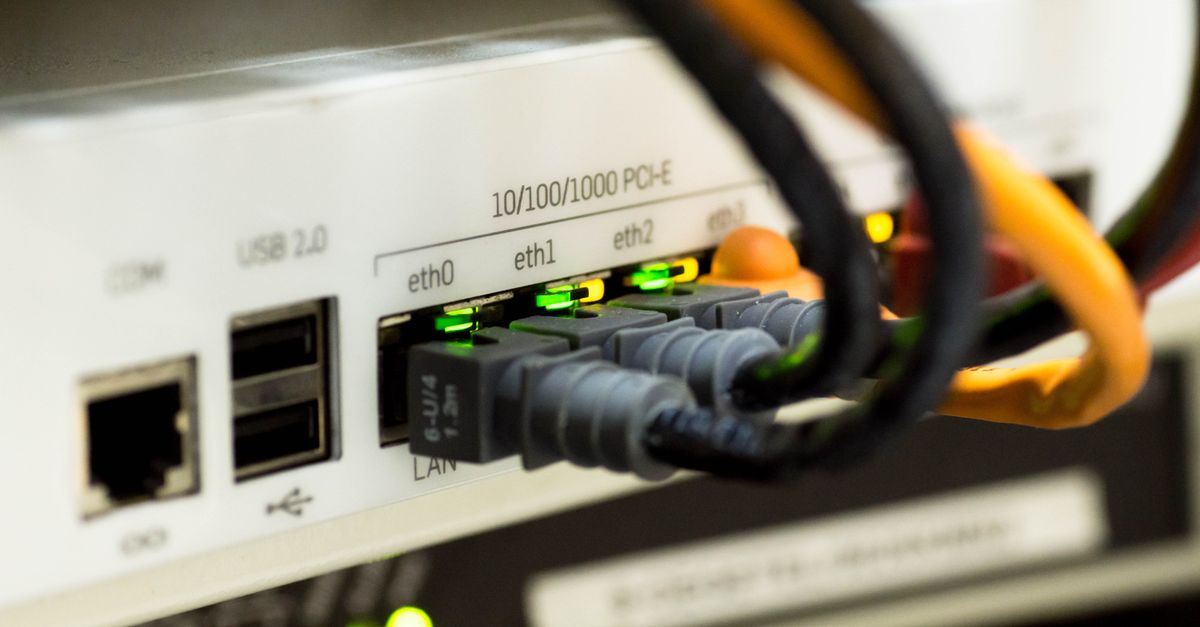
- The Ethernet Switch: A dedicated multi-port gigabit switch that distributes wired connectivity to your desktop, docking station, and access points.
By dividing responsibilities across dedicated hardware, you gain granular control over your traffic, eliminate thermal throttling common in multi-purpose consumer boxes, and ensure that a failure in one subsystem does not cripple the entire office.
Selecting the Right Dual-WAN Router
The heart of your failover architecture is the router. When shopping for a dual-WAN router for a home office, you need to look beyond raw Wi-Fi speeds and focus on routing throughput, stateful firewall performance, and failover transition speed.
A proper multi-WAN router features at least two ports configurable as Wide Area Network (WAN) inputs. Port 1 connects to your primary ISP modem, while Port 2 accepts your backup internet source. Look for models that support active-passive failover (where the secondary line sits idle until the primary drops) or load-balancing (where traffic is distributed across both lines, though this can complicate session-based VPNs).

Hardware Tiers: Choosing Between Entry-Level Prosumer and Advanced Appliances
When selecting your dual-WAN router, you will encounter several distinct classes of hardware:
- Entry-Level Prosumer Routers: Compact, fanless desktop units that handle multi-gigabit connections easily, offering straightforward web-based graphical user interfaces for setting up basic failover rules.
- Modular Gateway Appliances: Advanced rack-mount or desktop units powered by dedicated operating systems, offering deep packet inspection, advanced VLAN segmentation, and sophisticated traffic-shaping rules.
- Enterprise Branch Routers: Highly robust units designed for small branch offices, featuring extensive logging, hardware encryption accelerators, and carrier-grade reliability, though often carrying a steeper learning curve.
For most remote professionals working out of a home office, a well-supported prosumer gateway strikes the ideal balance between ease of deployment, advanced routing features, and long-term hardware reliability.
Key Router Features to Prioritize
When evaluating hardware specifications, pay close attention to the following capabilities:
- Link Health Monitoring: The router must periodically ping reliable external servers (like public DNS endpoints) to verify actual internet reachability, rather than just checking if the local ethernet port is lit.
- Failover Speed: Look for customizable detection intervals. You want the router to detect a dead primary line within 3 to 5 seconds and switch over immediately.
- VPN Handling: If your employer requires an IPsec or OpenVPN client, ensure the router’s processor can handle hardware-accelerated encryption so your backup connection isn’t bottlenecked by weak CPU performance.
Avoid cheap consumer routers that claim “dual WAN” via USB ports if they lack robust routing software. Dedicated wired routers paired with separate wireless access points offer superior stability and uptime.
Integrating a Hardware Ethernet Switch
While wireless technology is convenient, professional remote work demands a wired foundation. Wi-Fi interference, Bluetooth congestion, and physical walls introduce packet jitter that ruins VoIP calls and remote desktop sessions. A dedicated hardware ethernet switch is the backbone of a clean, high-performance office setup.
An unmanaged or managed gigabit switch (or 2.5-gigabit switch if you utilize multi-gigabit fiber) connects directly to your router’s LAN port. From there, run solid-core Cat6 or Cat6a cables through your office to wall plates or directly into your workstation docking stations.
Why Dedicated Switching Matters
Connecting your workstation directly to a hardware switch rather than the back of a router yields several distinct advantages:
- Dedicated Bandwidth: Internal switch fabric handles local data transfers (like backing up to a local Network Attached Storage device) without taxing the router’s CPU.
- Port Density: Routers typically feature only four LAN ports, which fills up quickly once you plug in a printer, a smart hub, an access point, and a desktop. A switch expands your connectivity effortlessly.
- Reduced Latency: Wired ethernet maintains a stable sub-millisecond latency profile, preventing the micro-drops in packet delivery that cause video streams to pixelate or freeze.
Structured Cabling Best Practices for the Home Office
To maximize the performance of your ethernet switch, proper physical cable management and selection are essential. Always choose solid-core copper cables for in-wall runs and stranded cables for patch cords connecting your switch to individual devices. Avoid ultra-thin or flat ethernet cables, which often lack proper internal twisting and shielding, making them susceptible to electromagnetic interference from power strips and fluorescent lighting.
Label both ends of every cable using a simple label maker. When you are troubleshooting network dropouts years down the road, clear labeling prevents you from accidentally unplugging the wrong workstation or pulling a live uplink cable. Keeping your cables neatly organized with Velcro straps also improves airflow around your switch and router, reducing thermal stress.
Designing a Reliable Cellular Backup Internet Setup
Your dual-WAN router is only as good as its secondary internet source. If your primary connection is a high-speed fiber or cable line, your backup line should ideally rely on a completely different physical medium—namely, a 4G LTE or 5G cellular network. This ensures that a localized fiber cut or neighborhood power outage affecting utility poles will not take down both of your internet feeds.
Implementing a cellular backup internet setup requires careful consideration of hardware and data plans. You have three primary hardware approaches:
- Dedicated 5G Home Internet Gateway: Standalone fixed wireless terminals provided by major cellular carriers. These often include external antenna ports and robust routing passthrough modes.
- USB Cellular Dongles: Modems that plug directly into a router’s USB port. While compact, they can suffer from driver compatibility issues and limited power delivery.
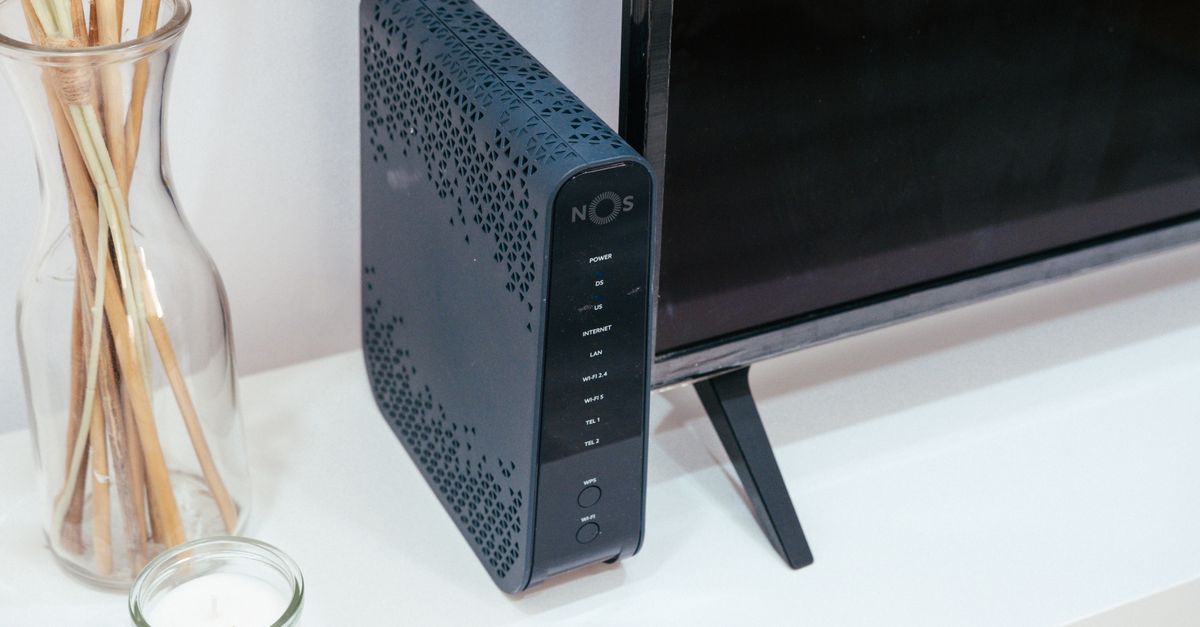
- Dedicated Cellular Routers (CPE): Industrial or prosumer modems that accept a SIM card and output a standard ethernet cable to your router’s WAN 2 port. This is generally the most stable approach.
When selecting a data plan, look for unlimited or high-cap business data lines. Because this connection is intended for failover, you may not consume massive gigabytes daily, but when an outage strikes, you cannot afford to be throttled right in the middle of an all-hands video conference.
Optimizing Cellular Signal Metrics for Maximum Failover Speed
Cellular backup performance depends heavily on physical placement. Unlike a fixed line, cellular signals are easily degraded by dense building materials, low-E window glass, and interior walls. To achieve optimal throughput, place your cellular gateway near an exterior-facing window on the side of your house closest to the nearest cell tower.
Log into your cellular modem’s management dashboard to inspect diagnostic metrics such as RSRP (Reference Signal Received Power) and SINR (Signal-to-Interference-plus-Noise Ratio). Adjusting the physical orientation of the device by even a few inches can dramatically improve your SINR value, resulting in lower packet loss and more stable throughput during a live failover event.
Step-by-Step Configuration and Failover Tuning
Once you have physically wired your primary modem to WAN 1, your cellular gateway to WAN 2, and your ethernet switch to the LAN port, it is time to configure the software layer. Log into your router’s local management dashboard via a wired computer.
1. Assign IP Addresses and Basic Settings
Ensure that your subnets do not conflict. If your primary modem uses 192.168.1.1, configure your cellular gateway to use 192.168.2.1 to prevent routing loops. Set up your router’s DHCP server to manage local IP assignments for all devices plugged into your ethernet switch.
2. Configure WAN Interfaces
Navigate to the WAN settings menu. Define WAN 1 as your primary gateway with a static or DHCP IP supplied by your main ISP. Define WAN 2 as your secondary gateway. Set WAN 1 as the primary route for all outbound traffic.
3. Establish Multi-WAN Failover Rules
Enable failover mode. Configure the health check (often called Ping Watchdog or Dead Gateway Detection). Set the router to ping two distinct, highly available IP addresses—such as common public DNS servers—every 2 seconds. Instruct the router that if 3 consecutive pings fail on WAN 1, it should automatically promote WAN 2 to active status.
4. Test the Failover Mechanics
The most important step in any network build is verification. Start a continuous ping test in your terminal or command prompt (`ping 8.8.8.8 -t` on Windows or `ping 8.8.8.8` on Mac). While watching the output, physically unplug the ethernet cable from WAN 1.
Count the seconds until the ping response resumes. A well-tuned system will drop between 2 to 6 packets before routing seamlessly over your cellular backup. Plug WAN 1 back in and observe whether the router gracefully restores primary traffic without dropping your active connections.
Troubleshooting Common Failover Pitfalls
Even after careful configuration, you may occasionally run into subtle networking quirks during your initial testing phase. Understanding these common pitfalls will save you hours of frustration:
- Double NAT Issues: If your cellular gateway or primary modem is acting as a router while your dual-WAN router is also performing routing functions, you will create a double NAT (Network Address Translation) environment. This can break peer-to-peer connections and disrupt corporate VPN clients. Ensure your modems are placed in “Bridge Mode” or “IP Passthrough” mode whenever possible.
- Aggressive VPN Disconnections: Some corporate VPN clients are hyper-sensitive to sudden IP address changes. When your router fails over from your fiber ISP to your cellular carrier, your public IP address changes instantly. While advanced routers maintain persistent state tables to keep sessions alive, certain corporate firewalls may require a brief re-authentication handshake upon switching.
- DNS Caching Delays: If your failover completes but websites fail to load initially, your operating system or browser may be caching stale DNS queries. Configuring your router to use fast, reliable independent DNS resolvers can drastically speed up name resolution during a failover event.
Common Pitfalls and Maintenance Tips
Even a well-designed network can fail if routine maintenance is neglected. Keep these common pitfalls in mind to ensure your home office infrastructure remains rock-solid over the long term:
- Ignoring Power Backup (UPS): A dual-WAN router and ethernet switch are useless if a blown transformer cuts power to your office. Plug your entire networking stack into an Uninterruptible Power Supply (UPS) battery backup. This keeps your internet alive during brief brownouts and gives you time to save work if a longer outage hits.
- Poor Cellular Placement: Placing your cellular backup gateway in a basement or a deep interior closet will cripple your signal strength. Position it near an exterior window facing the nearest cell tower, and consider adding external paddle antennas if signal quality is marginal.
- Failing to Test Regularly: Failover configurations can drift during firmware updates. Schedule a manual failover test every quarter to verify that your backup line is still active, data caps haven’t been reached, and routing rules remain intact.
By investing a few hours into assembling a dedicated hardware switch, configuring a reliable multi-WAN router, and provisioning a clean cellular backup, you insulate your professional reputation from the unpredictability of local utility infrastructure. Zero downtime ceases to be an enterprise luxury and becomes the reliable standard for your home office.